Have you ever experienced that you shoot videos vertically, but you need a horizontal show effect? We believe that most people have suffered from this situation. To solve this problem, we have to rotate the video 90 degrees to watch them.
Fortunately, this is no longer a problem with the right portrait to landscape video converter. Here we'll share the best 3 portrait to landscape converters to help you convert portrait video to landscape while keeping the quality. Let's check them now!
Also Read: iMovie Vertical Video with Black Bars? How to Fix? >
How to Convert Portrait Video to Landscape?
Here are 3 portrait to landscape video converters to help out:
# 1: Portrait to Landscape Converter Online: FlexClip
FlexClip , a strong video creator, provides rich templates and powerful features to help you make videos in a few minutes. It can also work as an online portrait to landscape converter to help you turn your portrait video to landscape in a few clicks for free.
Follow the simple steps below to change your portrait video to landscape using FlexClip's online portrait to landscape converter.


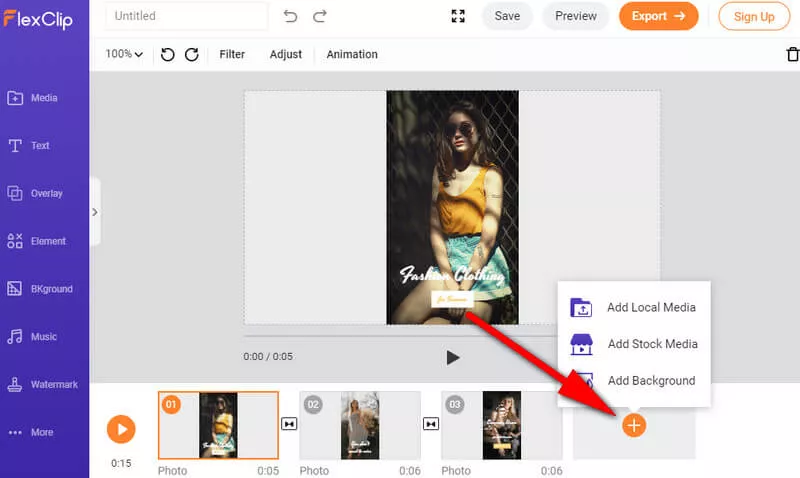
Image Board: Rotate Portrait Video to Landscape: FlexClip - Upload
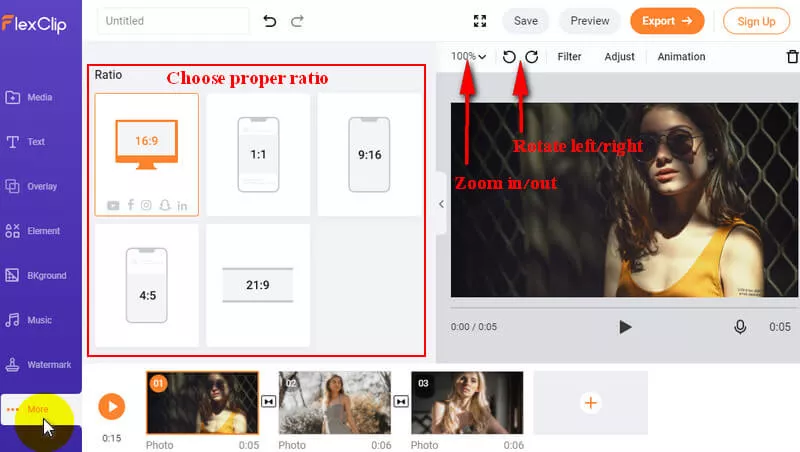
Image Board: Rotate Portrait Video to Landscape: FlexClip
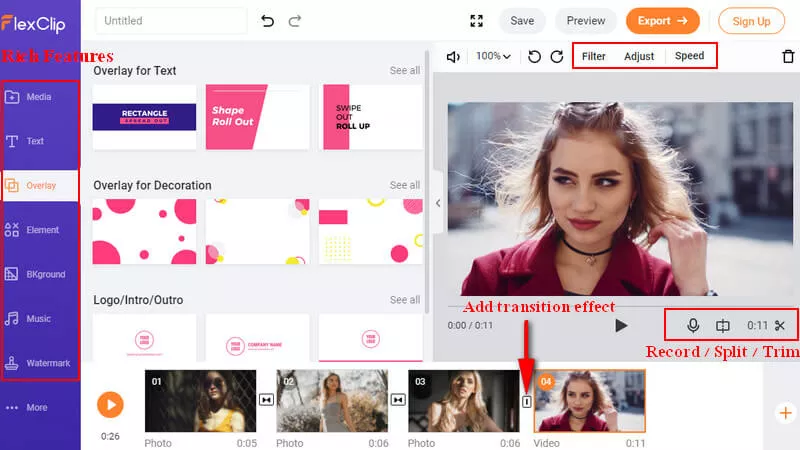
Image Board: Rotate Portrait Video to Landscape: FlexClip - Make More Edits
Also, you can make a stunning video with FlexClip's pre-made video templates:


# 2: Desktop Portrait to Landscape Converter: Windows Movie Maker
Windows Movie Maker is a video editing tool that should be pre-installed on your computer. It contains numerous essential editing functions, and you can use it as a portrait video to landscape converter to rotate your vertical video to horizontal.
Check the steps to convert your portrait video to landscape using Windows Movie Maker:
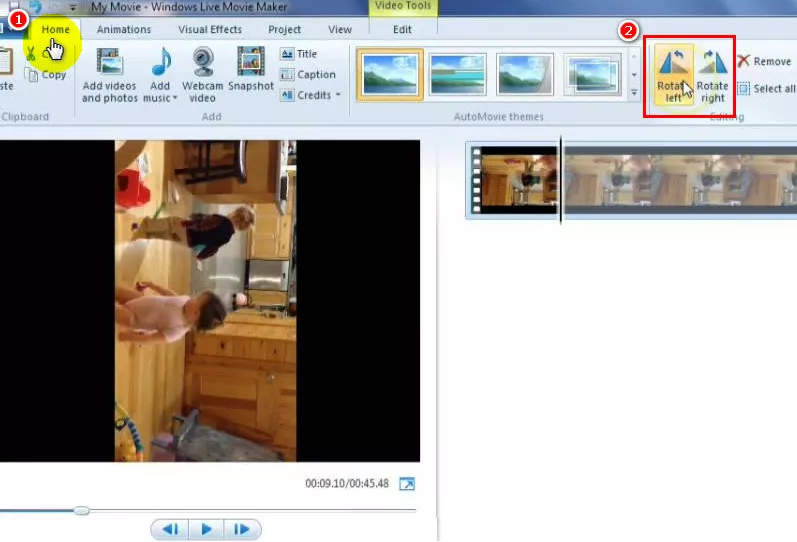
Image Board: Rotate Portrait Video to Landscape: Windows Movie Maker
# 3: Desktop Portrait to Landscape Converter: VLC
VLC is a full-featured multimedia player. And it's also an excellent tool to try to rotate portrait video to landscape for playback in VLC.
Quick Tip: Full VLC Tutorial: How To Use VLC Features? >
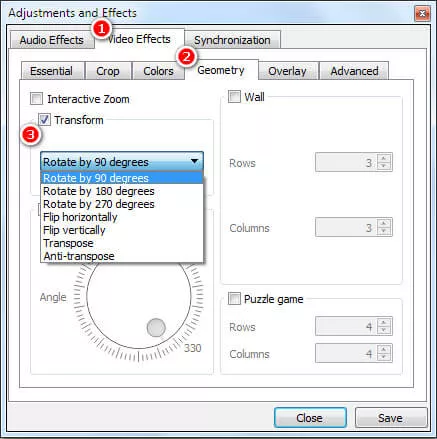
Image Board: Rotate Portrait Video to Landscape: VLC
The Bottom Line
That's all for how to convert portrait video to the landscape with the 3 portrait to landscape converter. After reading the detailed introduction about free video converters, hopefully, you can quickly solve your problem.




FlexClip AI Video Maker
Reach professional-quality videos faster with easy editing tools, templates, and smart AI.
Start Now for Free
Hot & Trending
-

Ultimate Tik Tok Guide – How to Tik Tok & How to Make a Tik Tok Video that Gets Likes
-

The Best Birthday Video Maker for You to Create Birthday Videos Online for Free
-

Large Collection of Creative and Funny Birthday Video Ideas for Ones You Care
-

Instagram Story Video Quality Bad After Upload? Fix It!
-

How To Remove/Reduce Background Noise? - 3 Best Free Audio Optimizers
-

Best Video Quality Enhancer: Improve Your Video Quality Easily
-

TikTok Filters Guide: How to Use Filter Effects on TikTok
-

How to Add Multiple Photos to One Instagram Story