Watching downloaded movies at home has been a great alternative when theaters are unavailable.
Yet, very often, the movie you downloaded online may not have subtitles on it, which makes it hard for us to understand the jargon or brand names inside a movie, let alone share this movie with friends who speak a foreign language or with hearing issues.
In this post, we will walk you through 3 free and proven ways to add subtitles to a movie permanently using online and desktop subtitle generators, including paid human service.
Here’s What You Will Learn:
Manually Add Subtitles to Short Movies or Movie Trailers Online
If it is a short movie or a movie trailer, using a free and user-friendly online subtitle generator will easily help add subtitles to a movie in a breeze.
To that end, our top recommendation is FlexClip, a feature-packed online video editor that offers both classic and catchy subtitle templates, along with 4M+ royalty-free stock assets and tons of handy video editing tools. You can easily use add classic still subtitles, low thirds, and animated subtitles with dynamic elements, etc. It’s free and watermark-free and there is no download needed.
Powerful FlexClip video editor

After you upload your clips to FlexClip’s media library, just click on the “+” button to add clips to the storyboard.
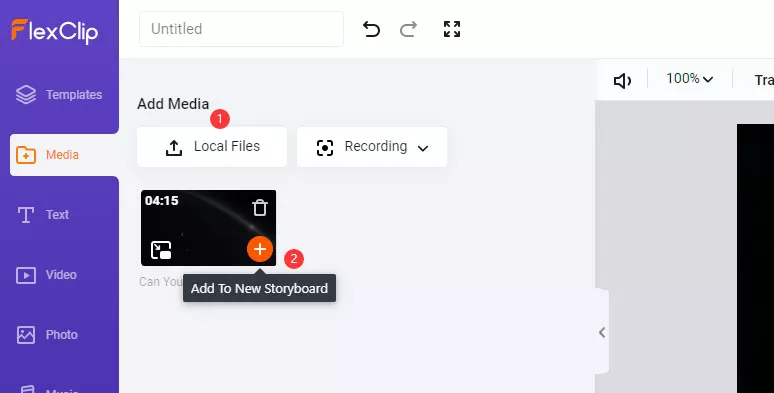
Upload your clips to FlexClip
Go to the “Text” tab on the left sidebar > select a customizable subtitle template > left-click to add it to the movie > customize fonts, color scheme, size, alignment, style, motion, etc.
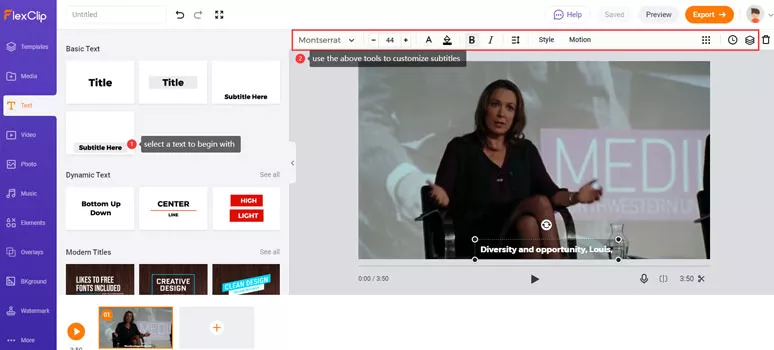
Add subtitles to the movie
Apart from classic subtitles, you may scroll down and use lows thirds, promo subtitles, profile subtitles, speech bubbles, and comic subtitles, quotes and search bar subtitles, etc. available in the “Text” tab. Just take your pick when needed.
Hit the “Clock” icon on the top right corner > drag the Playhead to the exact frame a subtitle needs to be added > drag the subtitle to the corresponding place > drag and drop the subtitle slider to trim its duration. Done.
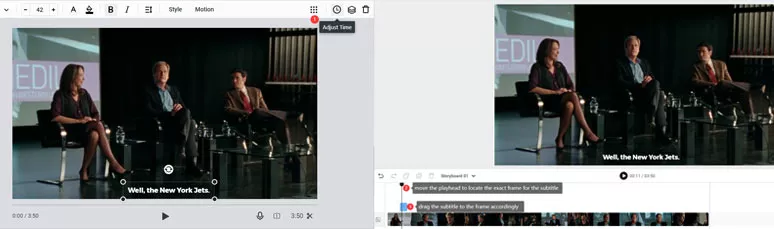
Locate a subtitle for a particular frame in a video
Done with the editing. You may directly download the movie to your local computer or share it to your YouTube Channel or save it to Dropbox. GIF export is also available for free download. Check how to add a GIF to a video.
Download SRT Files to Add Subtitles to a Long Movie
If a movie is more than 2 hours, then using a desktop subtitle generator that supports SRT. file to add subtitles to a movie would be an efficient solution. A flexible option is to use VLC, a free media player for Windows, Mac, and Linux systems, to add subtitles to a movie permanently on your PC.
How to add subtitles to a movie permanently in VLC
Click on the “Media” button on the top menu > hit “Convert/Save” > press “+ Add” icon to import your movie > once the movie is imported and check “Use a Subtitle File” > find the corresponding SRT. file and open it > go to “Convert/Save” drop-down menu > select “Convert” > choose a folder for saving and rename your movie file > hit “Start”. Done.
Automatically Add Subtitles to a Movie or Use Paid Human Service
If an SRT file is nowhere to be found for a long movie, to quickly add subtitles to your movie, you need a free and viable auto-subtitle generator. That’s when Happyscribe comes to help.
Happyscribe is a free and powerful in-browser subtitle generator that uses AI to automatically generate subtitles for your video. The machine-generated subtitles can reach as high as 80% accuracy with multiple languages available. So, all you need to do is manually correct words like Jaron, brand names, or technical terminologies.
Use Happyscribe’s free and auto-subtitle generator online
Select the “Subtitle” option > confirm the quality of the audio of your movie to AI > select the language spoken in the movie > hit the “Submit” button.
The machine will automatically add subtitles to your video. Next, playback your video and manually adjust the mistakes for the subtitles. You may also customize the fonts, and color, and position of the subtitles.
Now, It’s Your Move
| Add Subtitles | Best Features | Downsides | |
|---|---|---|---|
| FlexClip | Manually, timeline, online | Free, watermark-free; diverse and customizable subtitles categories; huge stock assets and video tools | Can only add subtitles manually |
| VLC | Use SRT File, desktop app across platform | free, auto-generated | Can’t edit the wrong subtitle; takes time to download SRT file elsewhere; mere a media player |
| Happyscribe | Auto-generated subtitles; timeline; paid human service | Multiple ways to import a movie; multiple languages; hotkeys; customizable subtitles | limited free projects; pricy human service |
So, given the flexibility, versatility, and huge stock assets, FlexClip outweighs the rest two subtitle generators for adding subtitles to a short movie or movie trailers. While adding subtitles to a long movie permanently, the VLC or Happyscirbe enjoy distinct advantages respectively. While which one works best for you depends on your needs and budget. So, start adding subtitles to your movie with FlexClip now.




FlexClip AI Video Maker
Reach professional-quality videos faster with easy editing tools, templates, and smart AI.
Start Now for Free
Hot & Trending
-

Ultimate Tik Tok Guide – How to Tik Tok & How to Make a Tik Tok Video that Gets Likes
-

The Best Birthday Video Maker for You to Create Birthday Videos Online for Free
-

Large Collection of Creative and Funny Birthday Video Ideas for Ones You Care
-

Instagram Story Video Quality Bad After Upload? Fix It!
-

How To Remove/Reduce Background Noise? - 3 Best Free Audio Optimizers
-

Best Video Quality Enhancer: Improve Your Video Quality Easily
-

TikTok Filters Guide: How to Use Filter Effects on TikTok
-

How to Add Multiple Photos to One Instagram Story