When you are watching documentaries, news, or any sports show, have you ever noticed the information placed on the bottom of the screen? I know you've seen it. We all have. But I'm very sure most of you guys don't know that that information has a professional name called lower thirds.
Lower thirds play an essential part in reaching the audiences in video production. FlexClip's online lower third generator makes it pretty easy to create lower thirds for your video.
Contents:
Also Read: How to Add the Title Card to a Movie & YouTube >
Part 1 A Quick Look at Lower Thirds
What is the lower third? You've must see one without even realizing it! In the simplest form, a lower third is just a text on a colored overlay located at the bottom portion of the screen.
More precisely, in a video context, the phrase "lower third" can mean two things: the lower third portion of a video screen and any text that appears in the lower third of the screen.
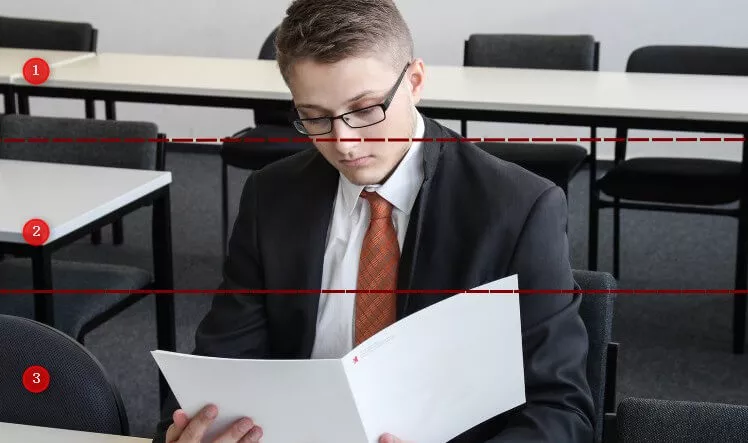
Image Board: Lower Third Portion of a Video Screen
Let's split a video screen into three parts from top to bottom, as shown in the image above. Focus on the lower part labeled with "3", we call it lower third, and any text that appears in this area also can be called lower thirds.
Part 2 Best Free Online Lower Third Maker
Adding a lower third to your videos can be pretty easy as long as you choose the right tool to create a lower third for your video. Here, we share a powerful video lower third maker, FlexClip Lower Third Generator, to you for creating video lower third with great ease.
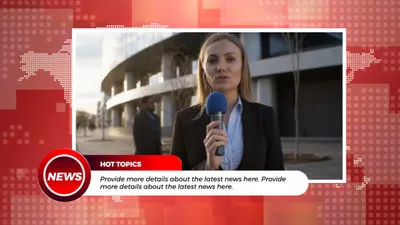
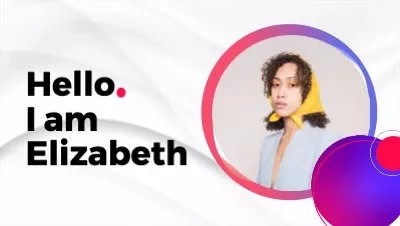
FlexClip's video lower third maker provides you with a handpicked collection of text animations, which you can use to create animated lower third with great ease. Besides, it also offers various fonts and colors that you can use to customize your lower third as you wish.
What We Like:
What's more, FlexClip comes with stunning video templates that enable you with endless inspiration to customize your video.
Part 3 How to Create Lower Thirds Online Free
With FlexClip's lower third generator, you can easily create the custom lower thirs with its free template for your video in simple clicks. Let's launch FlexClip and get started now:


First, you need to upload the video or image that you are going to add the lower third to. Go to Media option to import your own footage from Local Files, then apply them to storyboard.
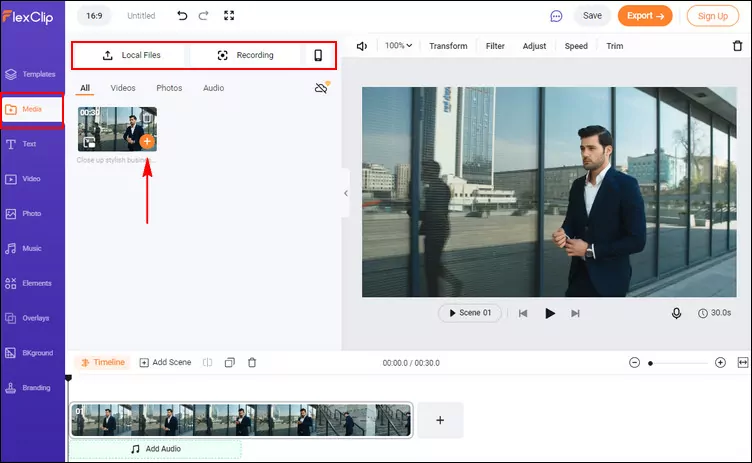
FlexClip Add Lower Third to Video - Upload
Next, go to the Text option and browse through the text effects and select the Lower Third to pick the desired lower third effect to create your own lower third.
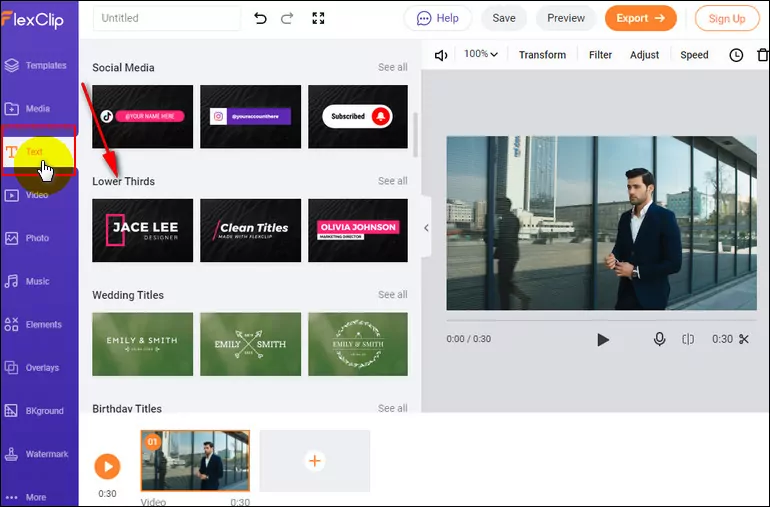
FlexClip Add Lower Third to Video - Select
Then enter the lower third message by double-clicking the textbox: the person's name and title, a locale where the interview is taking place, or any other helpful information.
Once you’ve entered the text, you can make some adjustments to change the text's font, size, color, placement, and adjust the animations.
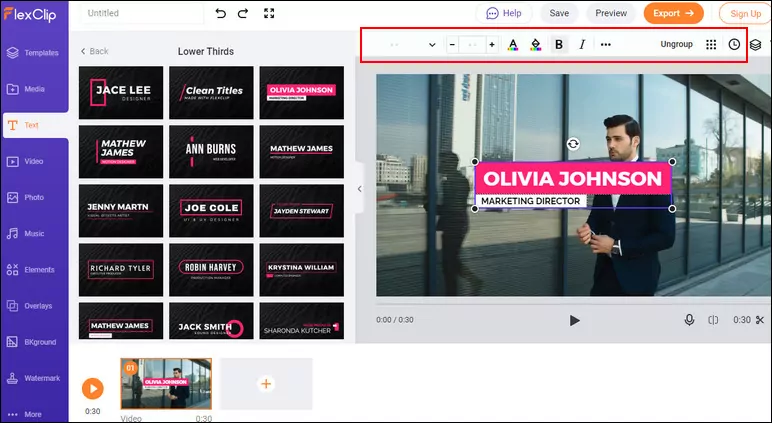
FlexClip Add Lower Third to Video - Customize
Finally, when you're satisfied with the text's display effect, it's time to move them to the lower third part of the screen: simply drag the text block to the desired position.
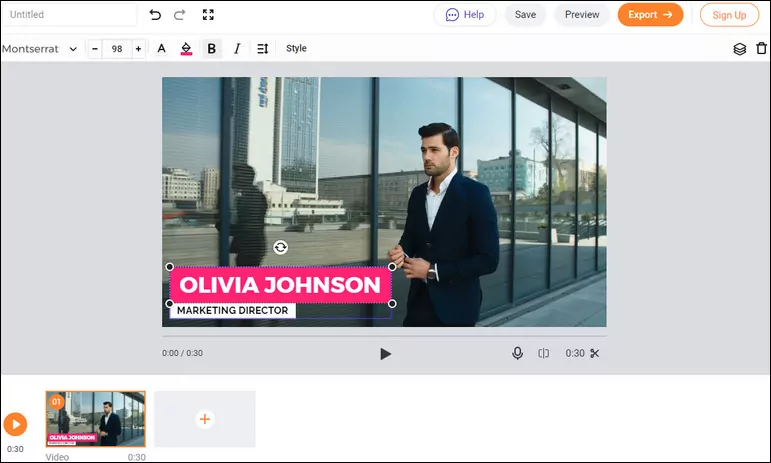
FlexClip Add Lower Third to Video
Besides making lower thirds for your video, you can make more edits to your video with FlexClip:
- Set background music, add transition effects, filter effects.
- Change video speed, do the voice-over, add a logo.
- Add funny emojis/stickers, subscribe buttons, speech bubbles.
Part 4 Practical Tips on Creating Video Lower Third
Here are some practical tips that can help you repurpose your videos with lower thirds like a pro.
#1 Don't Put too Much Text to a Lower Third - Keep it Simple
Lower thirds are not designed for sharing a lot of text. The more text you add on your lower third, higher the chance that your viewers tend to ignore it.
But if you do want to share a text-heavy message, you'd better put it on a plain colored background or abstract video/image. Like this:
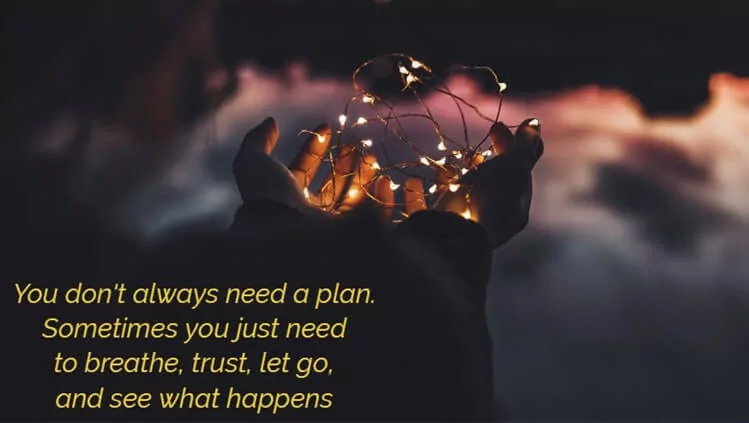
Image Board: An Example of Text Heavy Message
#2 Avoid Covering Important Parts of the Video Content
As its name suggests, the lower third is put in the lower area of the screen where they are least obstructive. Therefore, when you're putting the lower thirds on your video, notice that do not cover any important parts of the video, like the speaker's face.
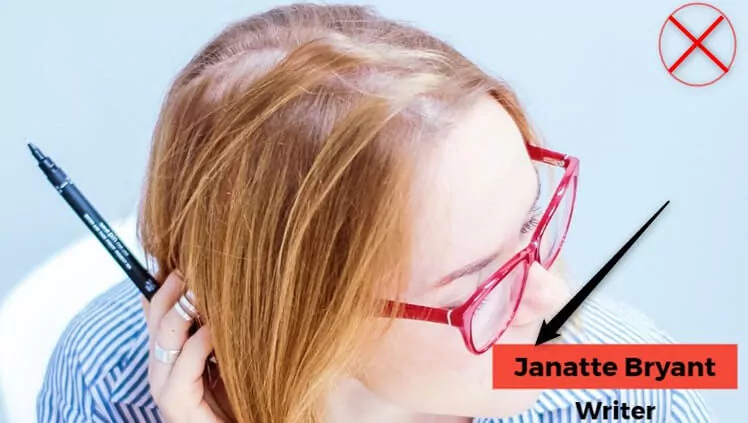
Image Board: Avoid Covering Important Part
#3 Put the Lower Thirds on Title Safe Area
Different people may watch your videos on different devices with various dimensions and video players. You need to ensure that your video lower thirds can be seen on any setup. The best way to do that is to put the lower thirds on the title safe area of your video when you create them.
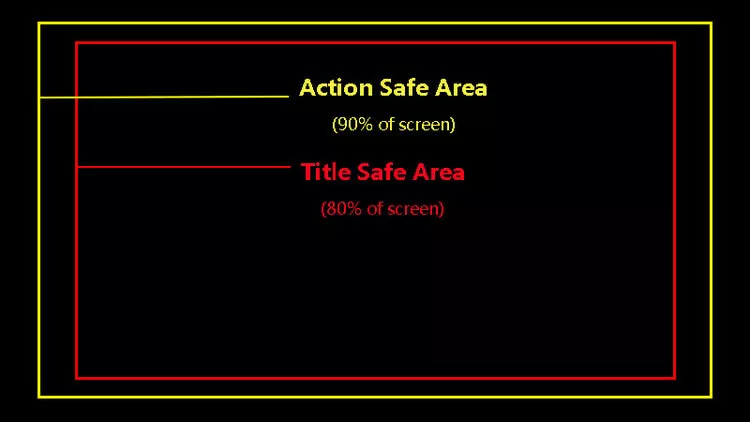
Image Board: Safe Areas
#4 Choosing Contrasting Colors to Make the Lower Third Stands out
If you want your lower third to be more noticeable, you need to choose some contrasting colors to make the lower third stand out. For example, choose lighter colors for the text when your video/image in a darker color. Besides, you can also consider adding a background to your lower third.

Image Board: Choose Contrasting Colors
The Bottom Line
Hopefully, you've mastered the easiest way to create lower thirds online for free for your videos with FlexClip Lower Third Maker and got the tips on how to use lower thirds effectively. Just try them out right now!




FlexClip AI Video Maker
Reach professional-quality videos faster with easy editing tools, templates, and smart AI.
Start Now for Free
Hot & Trending
-

Ultimate Tik Tok Guide – How to Tik Tok & How to Make a Tik Tok Video that Gets Likes
-

The Best Birthday Video Maker for You to Create Birthday Videos Online for Free
-

Large Collection of Creative and Funny Birthday Video Ideas for Ones You Care
-

Instagram Story Video Quality Bad After Upload? Fix It!
-

How To Remove/Reduce Background Noise? - 3 Best Free Audio Optimizers
-

Best Video Quality Enhancer: Improve Your Video Quality Easily
-

TikTok Filters Guide: How to Use Filter Effects on TikTok
-

How to Add Multiple Photos to One Instagram Story