Adding subtitles to a video is essential for video editing. It helps your video reach broader viewers who might speak a foreign language or have hearing issues. Videos with subtitles also make it easier for audiences to closely follow the video content, with or without the audio on, thus, greatly boosting the watch time.
While in some countries like Canada where French and English are both official languages spoken by locals, adding bilingual subtitles or multilingual subtitles to your video would be the best viewer-friendly solution to let your video reach the widest audience.
So, in this post, we will walk you through 3 proven ways to easily add different language subtitles to your video for free, using free online or desktop tools.
Let’s add bilingual subtitles, now.
Here’s What You Will Learn:
Manually Add Bilingual Subtitles to a Video Permanently Using FlexClip
Well, if you need to add bilingual or multilingual subtitles to a short video like a promo video, a movie trailer, or an instructional video, etc., then the best option we recommend is using FlexClip, a free and versatile online video editor that helps you add multiple language subtitles in a breeze.
Feature-packed FlexClip for adding multiple subtitles

Within FlexClip’s video editor, you have hundreds of designer-made subtitles styles to choose from, ranging from basic texts, dynamic texts to trending lower thirds, callout box subtitles, quotes, search bar, speech bubble, etc. All the fonts, color, style, motion, alignment, etc. are full-customizable. Besides, it’s watermark-free and no video editing experience is needed.
How to Add English and Spanish Subtitles to a Video by FlexClip:
After you upload clips to the FlexClip media library, click on the “+” icon to add it to the storyboard. If you currently don’t have a video, please free free to use a stock video in the “Video” tab on the left sidebar for a test run.
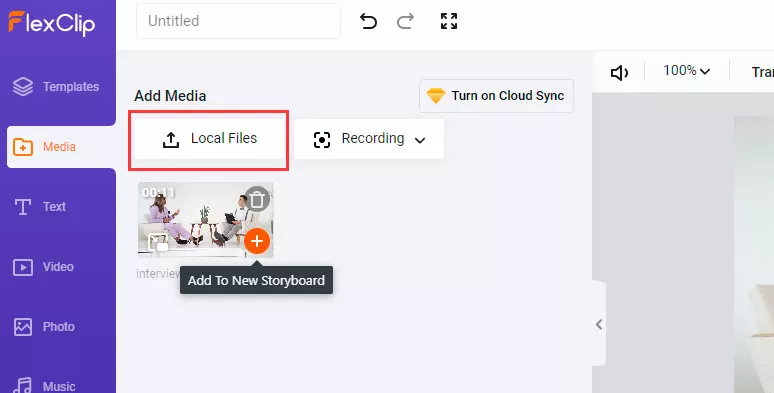
Upload videos to FlexClip
Go to the “Text” tab on the left sidebar > select a subtitle style and left-click on it > enter new English subtitle > make a copy of the English subtitle and enter Spanish subtitles.
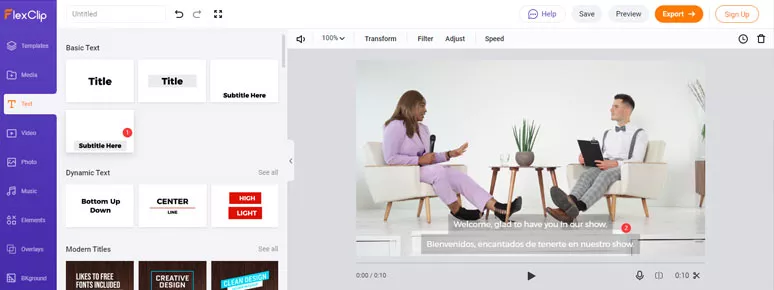
Add English and Spanish subtitles into the video by FlexClp
Remember all the fonts, texts size, color scheme, and background color, opacity, alignment, style, and motion are fully customizable. Besides, to enhance the readability of bilingual language subtitles, it’s advisable to manually add a different font color for the second language subtitle. So, different language speakers can immediately pick up the information. Do keep the multiple subtitle tracks short and placed in an orderly fashion.
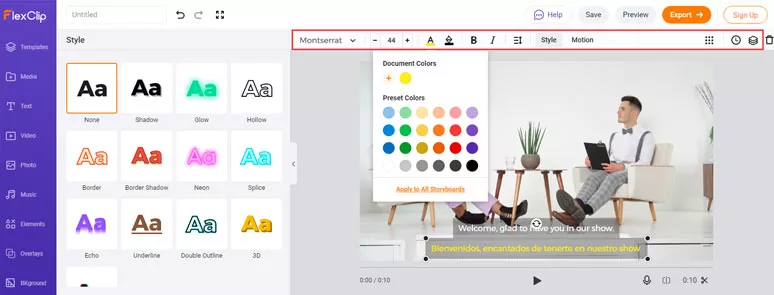
Customize bilingual subtitles by FlexClip
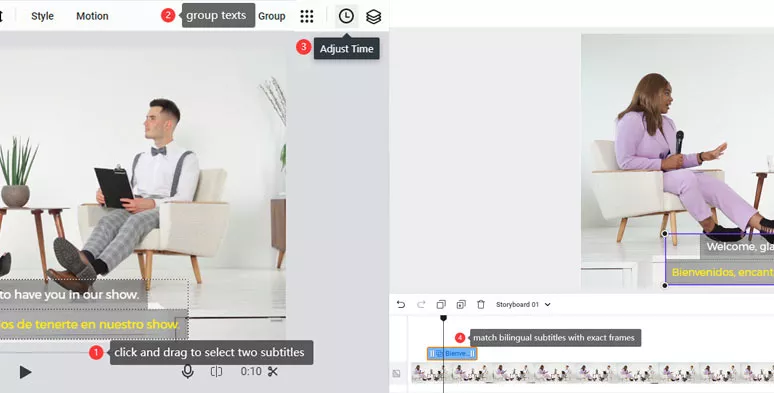
Group bilingual subtitles and match them with exact frames in the video
If you need to add royalty-free music or sound effects or a movie intro/outro to your video, just check the “Music” tab on the left side. FlexClip has 4M+ stock video and audio assets to elevate your video in minutes.
You can directly download the videos with merged subtitles to your local PC or share them to your YouTube channel or save it to your dropbox. You can even export it as an animated GIF when needed.
Automatically Add Multilingual Subtitles to a Video by Kapwing
If you happen to have a long video or movie, then manually adding bilingual subtitles to a video would be far time-consuming and definitely drive you nuts.
Instead, it would be wiser to use AI or machine-generated subtitles and later correct the incorrect subtitles such as brand or person’s names, jargon, or technological terminologies for adding bilingual subtitles to the video.
To that end, a great option is Kapwing online subtitler. It offers a powerful auto-transcription feature to subtitle a video with multiple languages and allows you to download the SRT files as well. The only downside is that it can only automatically add one language subtitle at a time.
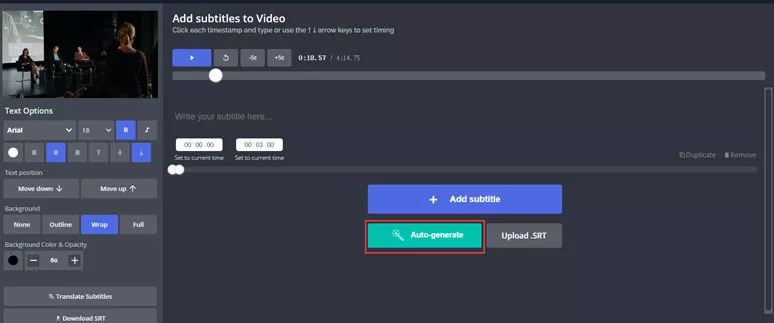
Add bilingual subtitles to a video by Kapwing
How to Add Multiple Subtitles Tracks to a Video using Kapwing:
Of course, you can select languages other than English for the auto-transcription. After the auto-transcription is done. You need to manually check and correct the wrong subtitles.
For paid subscribers, you can directly download the English SRT file. Then directly use Kapwing’s built-in translator to translate let’s say English subtitles into another foreign language like Spanish, Chinese, Dutch, French, Arbic, Russian,etc. Then open the English SRT file and manually paste the English subtitles over the other language subtitles in the video to create bilingual subtitles.
While for most free account users, you can use Google Translate to translate the current subtitle language into another language.
Use Subtitle Edit to Merge Multiple Language Subtitles into a Video
For avid movie buffs, if you have already downloaded different language SRT files, a quick way to merge multiple language subtitles into a video is using Subtitle Edit, a free and open-source software specializing in editing video and movie subtitles. It’s watermark-free and available for Windows, Mac, and Linux users.
How to merge different language SRT files into a video by Subtitle Edit
How to Merge 2 or Mulitple Language Subtitles into a Video by Subtitle Edit:
Go to “Tools” > click on “Join Subtitles” > add multiple SRT files > hit the “Join” button
To ensure, different multilingual SRT files can display in a video in chronological order. You need to rearrange the timeline for them. To do so, hit the “Tools” > select “ Sort by” > click on “ Start Time”. Then, subtitles of different languages will be aligned by the same timeline.
Go to “File” > “ Save As..” > rename the newly-merged SRT file and hit the “Save” button.
Open the video or movie > right-click and select “Subtitle” > add “Subtitle File”. Then, your video or movie will display two or multilingual subtitles.
Now, It’s Your Move
| Add Multilingual Subtitles | Platform | Downside | |
|---|---|---|---|
| FlexClip | Manually, timeline, diverse subtitle styles, fully customizable | Online | No auto-transcription feature and built-in language translator |
| Kapwing | Manual and auto-transcription; timeline; multiple subtitle styles; fully customizable; download SRT file; built-in language translator | Online | Only automatically add subtitles of one language |
| Subtitle Edit | Quick way to create or merge multilingual SRT files | Desktop app | Only built to create or merge SRT files |
Well, different strokes for different folks. To sum up, for adding short videos, FlexClip is impeccable for its hundreds of stylish subtitle styles and fully-customizable tools. While for long videos or movies, Kapwing’s auto-transportation feature and Subtitle Edit’s power for merging different language subtitles into one will do you a great favor respectively. So, start adding bilingual subtitles to your videos with FlexClip now.




FlexClip AI Video Maker
Reach professional-quality videos faster with easy editing tools, templates, and smart AI.
Start Now for Free
Hot & Trending
-

Ultimate Tik Tok Guide – How to Tik Tok & How to Make a Tik Tok Video that Gets Likes
-

The Best Birthday Video Maker for You to Create Birthday Videos Online for Free
-

Large Collection of Creative and Funny Birthday Video Ideas for Ones You Care
-

Instagram Story Video Quality Bad After Upload? Fix It!
-

How To Remove/Reduce Background Noise? - 3 Best Free Audio Optimizers
-

Best Video Quality Enhancer: Improve Your Video Quality Easily
-

TikTok Filters Guide: How to Use Filter Effects on TikTok
-

How to Add Multiple Photos to One Instagram Story