Still, make elementary single GIFs? Now, it’s time to take your GIF creation skills up a notch since the latest trends in making GIFs are about versatility and creativity.
To that end, adding a GIF to another or combing and merging multiple GIFs on the same canvas is a flawless solution to add a bit of drama to your GIFs, ultimately making your GIFs a unicorn amid the sea of stereotyped GIFs.
So, we’ve put together 6 online GIF makers and will be showing you how to use their GIF-making features to add a GIF to another GIF in multiple ways. Let’s get ready for some real hook.
Here’s What You Will Learn:
Best GIF Hacks on Adding a GIF to Another GIF Online
Though you can make a GIF by Photoshop to merge existing GIFs or add one GIF to the top of another GIF, you need a flexible GIF maker. We’ve tested out 6 handy online GIF makers and will walk you through their distinctive GIF editing features to merge or combine multiple GIFs.
1. FlexClip
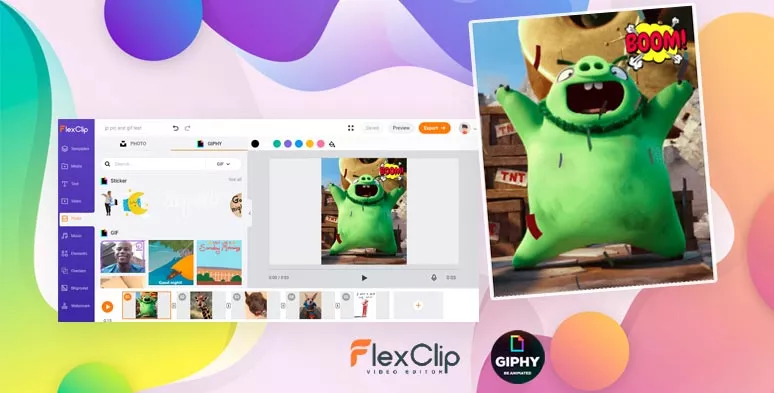
The first versatile online GIF maker we highly recommend is FlexClip, a feature-packed online video editor that perfectly integrates with GIPHY’s trending GIF assets and offers you easy-to-use tools to trim unwanted parts of GIF frames, resize the GIF and add one GIF to another GIF in multiple ways. Besides, it’s watermark-free, and the intuitive storyboard mode is exceedingly user-friendly to everyone.
A classic meme with Impact meme font

If you have two or multiple GIFs that show the subject from different perspectives, you may merge these GIFs into one GIF in chronological order to add dimensions to the original GIF and will bring the panoramic view to the viewers.
Merge two GIFs into one
Or you may also directly look for GIPHY’s free GIF assets in the “Photo” icon on the left sidebar.
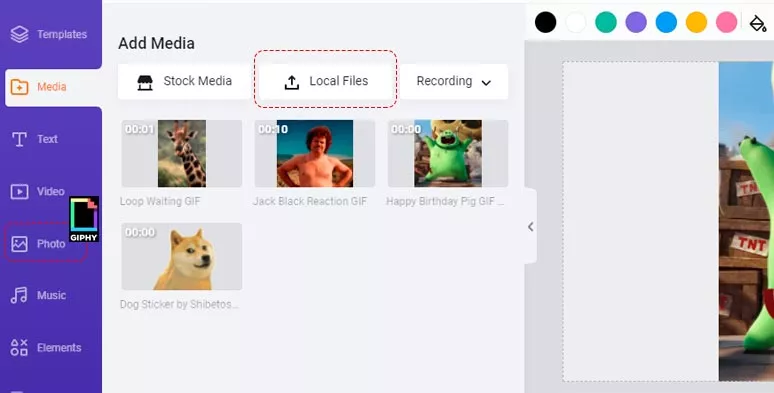
Upload GIF assets to FlexClip or directly use GIPHY’s Assets
Since different GIFs may have different aspect ratios, so it’s highly recommended to customize the aspect ratio or the canvas for GIFs to be blended with. In this case, we choose 4:5, which works perfectly for Facebook, Twitter, and Instagram, etc.
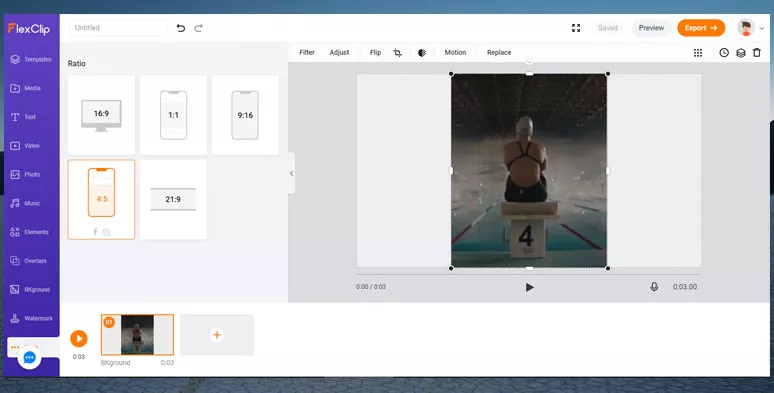
Set the aspect ratio of a GIF to 4:5
Add each GIF to a storyboard in chronological order > drag and drop each GIF to fill the negative space of the canvas > use trimmer to remove unwanted frames or show the full duration of a GIF. Done.
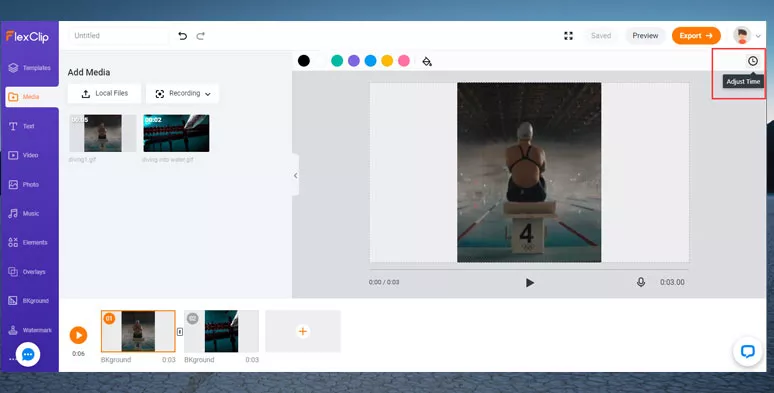
Merge two GIFs into one
Click on the “Playback” button to preview the merged GIFs and hit “Export” and select either a GIF or an MP4 file to save it to your local computer. Or you can directly share it to your Dropbox, including your YouTube channel.
The merged GIF from our sample GIFs
To contrast a story or scene, adding two GIFs side by side is also a great tactic to grab viewers’ attention just as what you see in a movie scene. With FlexClip, you can do it in clicks.
Sample: two Kobe Bryant GIFs added side by side
Add two GIFs to the same storyboard > properly drag and drop each GIF to compose the frame you want. Done. If one GIF overlaps the edge of the other GIF, you can use the “Layer” to easily place one GIF to the bottom.
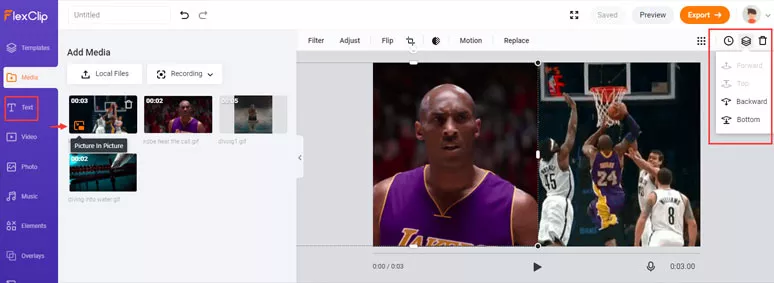
Add two GIFs side by side on a canvas
Creating picture-in-picture effects is not the privilege exclusively for videos. With FlexClip, you can add multiple animated GIFs as overlays over the top of a GIF to achieve a picture-in-picture or virtual live streaming effects
Add two GIFs to a GIF to create picture-in-picture effects by FlexClip
Add one GIF to the storyboard as the background and properly place it> then add two more GIFs on the top of the first GIF > trim the duration of each GIF to achieve the effects you want.
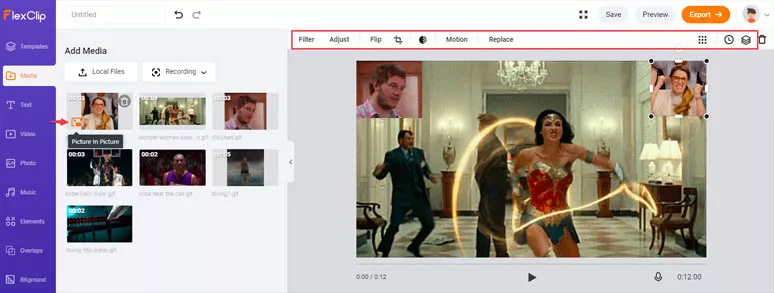
Add multiple GIFs to a GIF to create the picture-in-picture effects
If you want to post the GIFs on Instagram, you may first customize its aspect ratio and add sound effects, and export it as an mp4 for posting on Instagram.
Limitations:
Currently, you can’t use FlexClip to change the speed of each GIF. Other than that, FlexClip is flawless for merging or combing multiple GIFs.
2. Canva
Canva is a prestigious online graphic design platform offering a user-friendly online GIF maker for free use. Like FlexClip, Canva also has GIPHY’s GIF assets embedded in its editor. So, you can directly search for ideal GIFs within Canva to add one GIF to another.
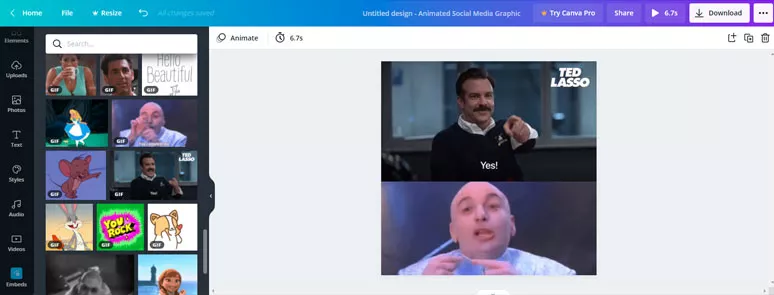
Add a GIF to a GIF side by side by Canva
You can easily add two GIFs side by side or add multiple GIFs over the top of a GIF and create flattering merged GIFs without a watermark.
Access Canva.com > click on the “Create a Design” button on the top right corner > hit “ Customize Size” to decide the aspect ratio of merged GIFs.
Upload GIFs to Canva and drag and drop to scale and place each GIF properly.
Limitations:
3. Kapwing
Kapwing is another Flexible online video editor for the content creator, specializing in creating animated memes and video editing. Since Kapwing also integrates with GIPHY’s GIF assets for making memes, it can also be used for merging or combining multiple GIFs without watermarks for free users.
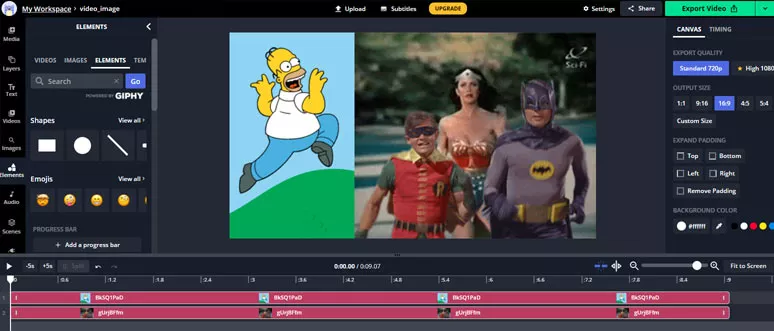
Add one GIF to another by Kapwing
With Kapwing, you can add two GIFs side by side or add multiple GIFs over the top of a GIF for the classic picture-in-picture effects as well. You can use the timeline to easily trim each GIF and blend them to perfection.
During our hands-on text, if you only upload GIFs, you can only add them to the canvas without activating its timeline mode for editing. To do so, you need to upload an MP4 file to use the timeline for GIF editing.
Limitations:
4. Veed
Veed is one of the newest online video editors from the UK. Unlike the previous 3 online GIF makers, there are no GIPHY’s assets to be found within Veed’s video editor. You can use its timeline to split, trim GIFs, or change each GIF’s speed, add filters, etc.
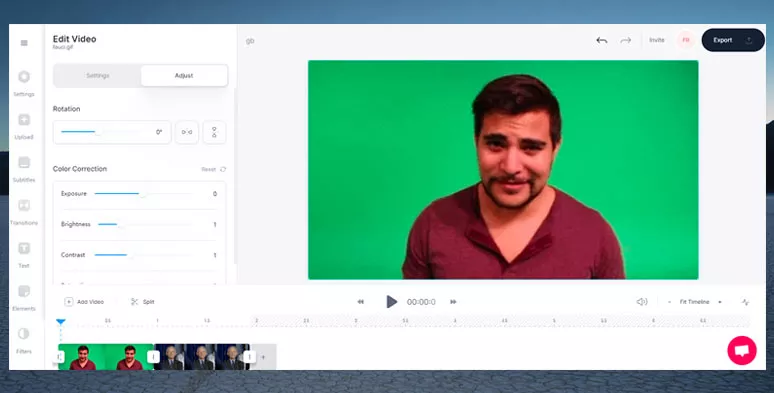
Merge two GIFs by Veed
Limitations:
5. GIPHY
GIPHY is the world’s most popular and the biggest online platform for GIFs creation and sharing. However, if you only take GIPHY as a source of funny GIFs and stickers, think again. Its easy-to-use “Create” tool allows you to add combine GIFs into one with ease, without watermarks.
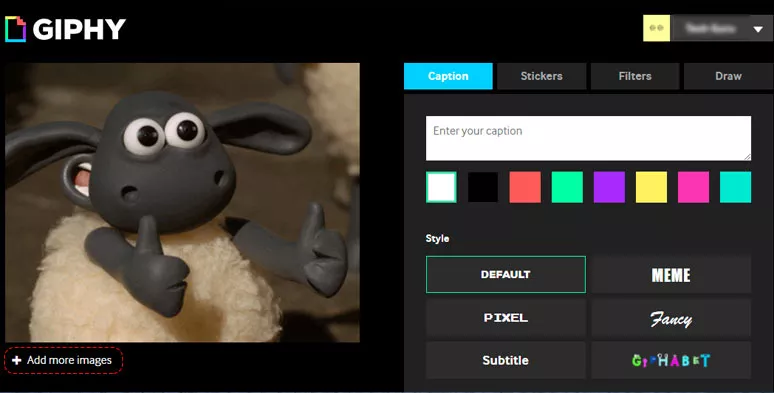
Merge multiple GIFs into one by GIPHY GIF maker
You may also add captions, stickers, filters, or draw lines to the GIF.
Click on “ Add more images” to upload another GIF. Then, GIPHY will automatically combine two GIFs into one as a slideshow. You may keep uploading more GIFs by clicking on “Browse File”.
After your merged GIF is successfully upload to GIPHY, then you can right-click on the new GIF to save it on your local computer.
Limitations:
6. EZGIF
EZGIF is a lovely online GIF maker that offers you plenty of small GIF tools to trim, crop, reverse, or combine GIFs, or add hilarious special effects. You can only upload your GIF assets to EZGIF for editing and add two GIFs side by side or merge multiple GIFs into one.
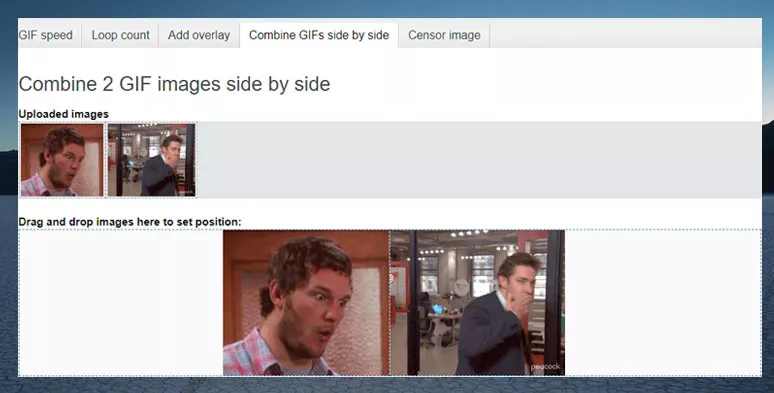
Combine two GIFs side by side by EZGIF
EZGIF will split each GIF into multiple frames for detailed editing.
You can delete or change the delay time of each frame, etc. > click on make a GIF and two GIFs will be automatically combined into one. EZGIF will help you crop or resize two GIFs to match the size of the smallest one.
Limitations:
Now, It’s Your Move
| Add GIF to GIF | UI | Limitations | |
|---|---|---|---|
| FlexClip | merge GIFs into one; add GIFs side by side; create pip GIFs;watermark-free; with GIPHY’s assets | storyboard/timeline | can’t change the speed of each GIF |
| Canva | add GIFs side by side; create pip GIFs; watermark-free; with GIPHY’s assets | canvas-based | can’t trim frames of each GIF; can’t merge GIFs from two canvas; can’t control layers of multiple GIFs |
| Kapwing | merge GIFs into one; add GIFs side by side; create pip GIFs; watermark-free; with GIPHY’s assets | timeline | need to upload a video to activate timeline for GIF editing; GIF/video projects 2 days ago will be locked for free users |
| Veed | merge GIFs into one | timeline | no GIPHY’s assets; not watermark-free; can’t add GIFs side by side or create pip GIFs; crop all GIFs to 1:1 aspect ratio; |
| GIPHY | merge GIFs into one; GIPHY’s own assets; watermark-free | minimal online GIF tool | no GIF trimmer; can’t add GIFs side by side or multiple GIFs; always match the aspect ratio of the biggest GIF when GIFs are merged |
| EZGIF | merge GIFs into one; add GIFs side by side; watermark-free | minimal online GIF tool | no GIPHY’s assets; has aspect ratio issue for adding two GIFs side by side; can’t create pip GIFs |
Just take a glance at the best features of the 6 online GIF makers for adding one GIF to another GIF. Judged by the versatility, flexibility, and easy access to GIPHY’s, FlexClip has the edge over others. So, which one is your favorite for merging or combines multiple GIFs into one, don’t forget to tell us on your official Facebook and Twitter.




FlexClip AI Video Maker
Reach professional-quality videos faster with easy editing tools, templates, and smart AI.
Start Now for Free
Hot & Trending
-

Ultimate Tik Tok Guide – How to Tik Tok & How to Make a Tik Tok Video that Gets Likes
-

The Best Birthday Video Maker for You to Create Birthday Videos Online for Free
-

Large Collection of Creative and Funny Birthday Video Ideas for Ones You Care
-

Instagram Story Video Quality Bad After Upload? Fix It!
-

How To Remove/Reduce Background Noise? - 3 Best Free Audio Optimizers
-

Best Video Quality Enhancer: Improve Your Video Quality Easily
-

TikTok Filters Guide: How to Use Filter Effects on TikTok
-

How to Add Multiple Photos to One Instagram Story