Adding an animated GIF to your video is a smart strategy to bring an extra fun flair to a mundane video. Very often, it works like magic for grabbing people’s attention.
So, whether you wanna poke fun at your friends’ embarrassed smile, make a hilarious video for YouTube, or create a brief in-stream video ad on Instagram or Facebook, etc., adding one or multiple GIF overlays to your video could be a game-changer to get more views and a higher click-through rate.
In this post, we will walk you through how to easily add a GIF (from GIPHY) to a video on pc using an online video editor, Adobe Premiere Pro, or even directly add a GIF to your video through iPhone, Android, and iPad.
Add GIFs to a proposal video by FlexClip

Here’s What You Will Learn:
How to Add a GIF to a Video on PC
To begin with, since not every video editor can support an animated GIF file, chances are when you import your GIF to the video editor, the original animated looping GIF could become a still image.
So, to successfully add a GIF to a video as a GIF overlay, you are expected to either convert a looping GIF into an MP4 file beforehand or select a flexible video editor that is compatible with both GIF and video file format.
Sounds complicated? No worries! Here are our GIF hacks that can help you easily add a GIF to a video on PC.
Directly Add GIPHY’s GIFs to a Video by FlexClip
The easiest way to directly add a GIF to your video would be using a free online video editor that integrates with GIPHY’s trending GIFs assets and has versatile tools for both GIF and video editing.
The answer to that is FlexClip, an all-in-one online video editor that perfectly integrates GIPHY’s hottest GIFs and sticker assets and enjoys dozens of editing tools for both GIFs and videos. It’s free for use, free of download, and watermark-free.
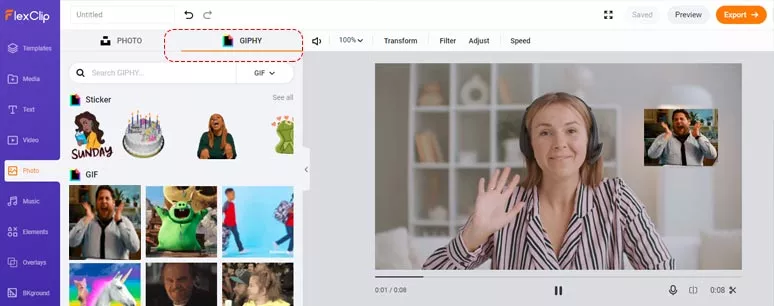
Directly add a GIF from GIPHY’s assets to your video by FlexClip
Directly access FlexClip’s online video editor, then you can drag and drop your video and GIF files to FlexClip’s media library. If you don’t have a GIF, click on the “Photo” in the left sidebar where you can enter keywords in the search bar to find a GIF or sticker directly from GIPHY and add it to your video project. Fantastic, isn’t it?
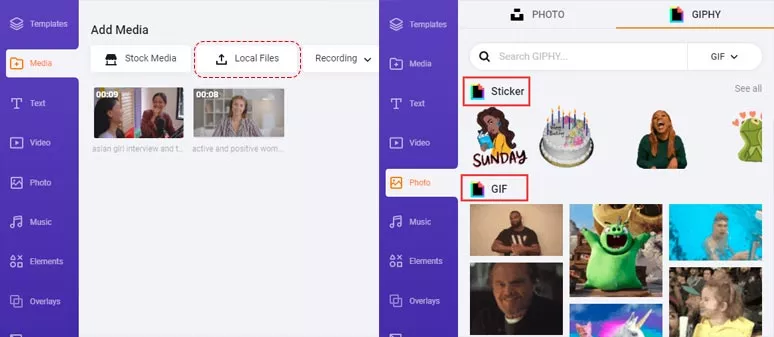
Upload video and gif assets or find a GIF from GIPHY within FlexClip
Next, hit the “+” button to add a video to the storyboard. Then, click on the GIF to add it to the video. You can place the GIF anywhere you want in the video; apply a filter to give the original GIF a different vibe to match the theme; crop it into a circle or square shape; or animate the GIF with different motions or adjust GIF’s duration to make it appear at a particular frame. You can have full control in your hands.
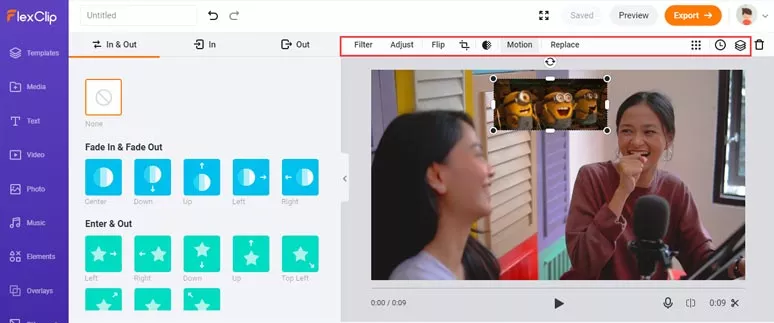
Add a GIF to a video and customize the GIF
Add multiple GIFs to a video using FlexClip
Besides, you can explore FlexClip’s royalty-free music library on the left sidebar and add funny sound effects to make your GIFs pop out or add more animated elements to make it to be second-to-none on Instagram or Facebook, etc.
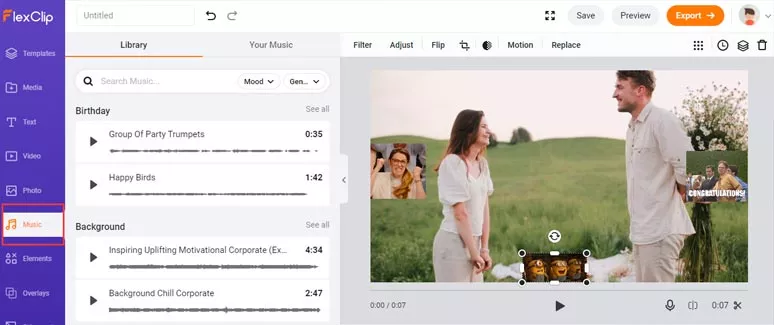
Add sound effects to a GIF in a video by FlexClip
Once you’ve done with the editing. You can playback to check if everything is in place. Then, export the video as a GIF or MP4 to your local computer or directly post it to your YouTube channel or save it to your Dropbox. Find out how to post a gif on Instagram.
Use Adobe Premiere Pro to Add GIFs to a Video
If you happen to have Adobe Premiere Pro on your pc or laptop, you may also use it to add a GIF file to a video. However, since Premiere Pro doesn’t support GIF format, you have to convert the GIF file into an MP4 file in the first place.
Use Adobe Premiere Pro to add GIFs to a Video
Head to GIPHY.com and pick a GIF you like and then hit the share button, which looks like an airplane. Next, click on the Instagram icon, then GIPHY will allow you to enter your Email address and send you a 15-sec MP4 file of the exact GIF to your email. Then, you can save the video version of the GIF to your pc.
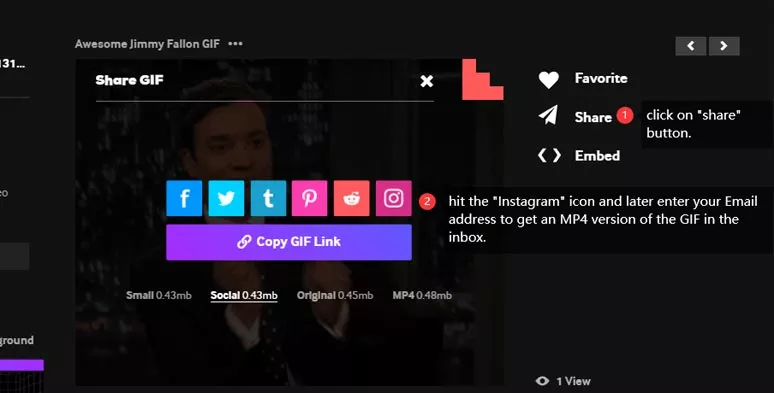
Download an MP4 version of the GIF from GIPHY
Launch Premiere Pro >go to “File” > “Import” > select a GIF in MP4 format from a prepared folder > drag and drop a gif to the exact frame you want on the timeline. You can adjust its duration as well.
How to Add a GIF to a Video on iPhone/Android/iPad Using CapCut
If you are always on the move with only an iPhone, Android, or iPad available, you can also add a GIF to a video with ease. All you need is GIPHY’s mobile apps and the other is a free and feature-packed video maker and editor called CapCut, which is accessible to both IOS and Android users.
How to add a GIF to a video by CapCut on iPhone/Android/iPad
Launch Capcut > add your clips first > hit “ add overlay” > GIF from live photo> add it to the video. That’s it. It couldn’t be easier.
Of course, you can add multiple GIFs to the same video as well by CapCut. And there are more advanced features like keyframe and background removal tool, etc., waiting for your discovery.
Final Thoughts
Human eyes are built to capture moving objects. While adding an eye-catching GIF to your video can help you instantly convey the humor and make a tedious video come alive. Of the 3 options to add an animated GIF to a video, FleClip, with its flawless integration with GIPHY’s GIFs assets and versatile editing tools, has the edge over others. So, start adding your first GIF to a video now. And don’t forget to share this post on your Facebook and tell us your inspirations when adding a GIF to a video. Much appreciated!




FlexClip AI Video Maker
Reach professional-quality videos faster with easy editing tools, templates, and smart AI.
Start Now for Free
Hot & Trending
-

Ultimate Tik Tok Guide – How to Tik Tok & How to Make a Tik Tok Video that Gets Likes
-

The Best Birthday Video Maker for You to Create Birthday Videos Online for Free
-

Large Collection of Creative and Funny Birthday Video Ideas for Ones You Care
-

Instagram Story Video Quality Bad After Upload? Fix It!
-

How To Remove/Reduce Background Noise? - 3 Best Free Audio Optimizers
-

Best Video Quality Enhancer: Improve Your Video Quality Easily
-

TikTok Filters Guide: How to Use Filter Effects on TikTok
-

How to Add Multiple Photos to One Instagram Story