You just posted a hilarious GIF on Instagram News Feed or Instagram Stories, yet only to find the animated GIF become a static image. Believe me, we knew how frustrated you felt and you were not alone.
The reason is that currently, Instagram doesn’t support GIF format. So, you can’t directly post a GIF on Instagram. But, where there is a will, there is a way.
So, in this post, we will walk you through two proven ways to directly post an animated GIF on Instagram from your iPhone/Android and computer.
Here’s What You Will Learn:
How to Post a GIF on Instagram by iPhone/Android
To be able to directly post a GIF on Instagram from your iPhone or Android, a popular and proven solution is to use GIPHY’s mobile apps. GIPHY is a world-renown free source for the hottest GIFs and animated stickers. You can create a free account and either make your original GIFs or use its infinite GIFs stock to post it on Instagram News Feed and Instagram Stories.
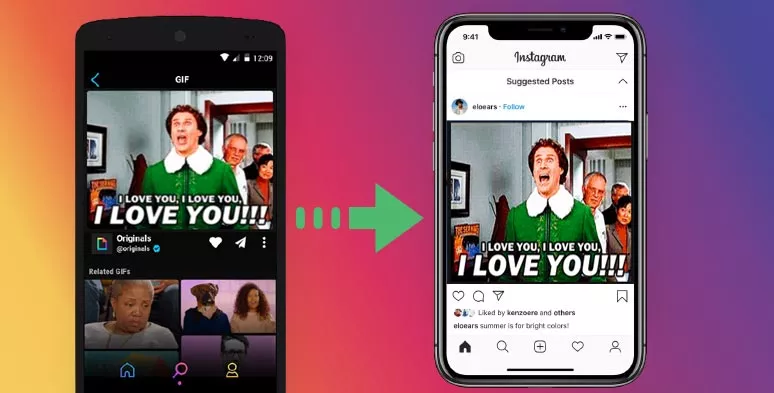
Post a GIF on Instagram by Giphy’s mobile apps
Launch GIPHY apps > look for a GIF you like and tap on It > hit the share button, which looks like an airplane icon > tap the Instagram icon.
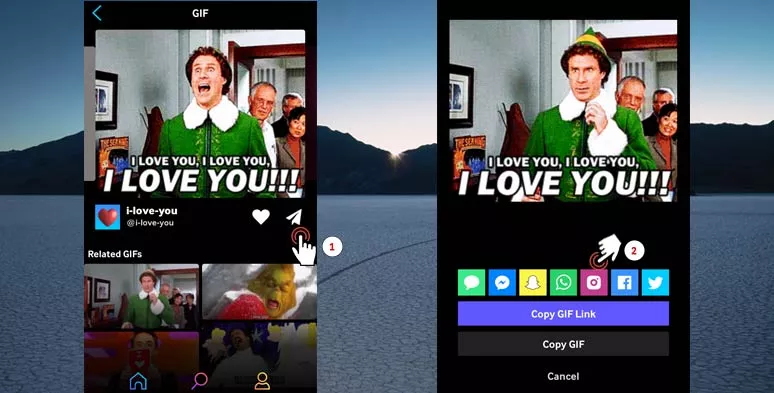
Click the GIF share button and hit the Instagram logo
Of course, you may also click on the “Create” or “+” button on the top right corner to make an original GIF or upload a GIF from the Camera Roll from your phone.
Once you tap the Instagram icon, you may opt to add a GIF on Instagram Story or Instagram News Feed. Select one, then you will be automatically redirected to your Instagram and be able to post a GIF (or 15-secs MP4 file) on your Instagram. You may also add captions and hashtags as you post ordinary images. Meanwhile, a 15-secs MP4 file of your GIF will be automatically saved to your photo gallery for future use.
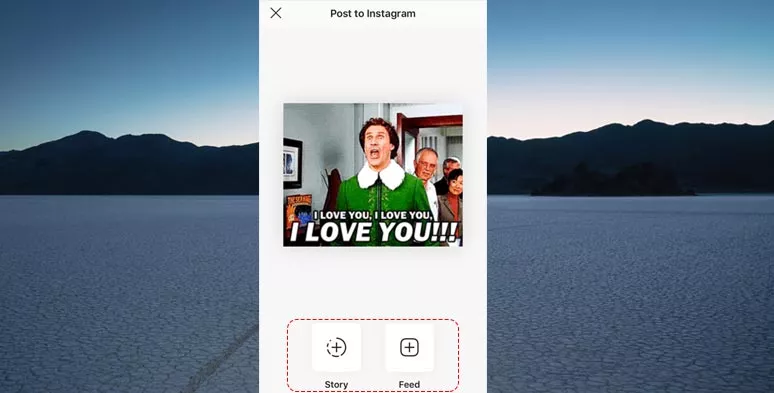
Choose to post a GIF on Instagram Story or Instagram News Feed
How to Post a GIF with Captions and Music on Instagram from Your Computer
Though GIPHY makes it easy for you to post a GIF on Instagram by phone, very often you may create or download a GIF on your desktop. So, it would be annoying and time-consuming to transfer a GIF to your mobile phone for a post.
Luckily, there are online alternatives that can help you convert an animated GIF into a looping Instagram video file and you can use it to directly post an Instagram Story or Instagram News Feed from your pc. Check 5 easy ways to convert a GIF to MP4.
And a highly recommended solution is FlexClip, a free and feature-packed online video editor that integrates with GIPHY’s vast GIF assets and is capable of creating thumb-stopping GIFs with 4M+ royalty-free HD videos, photos, music, and dozens of featured video editing tools.
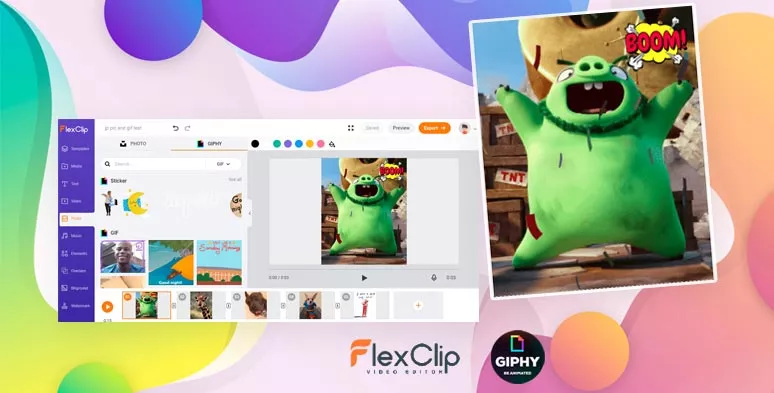
Create animated GIFs by FlexClip GIF Maker

Firstly, access FlexClip’s video editor > then head to “Move” on the left toolbar to select the right aspect ratio (4:5 or 9:16) for an Instagram post > upload your GIF assets and drag and drop the GIF to fill the negative space of the canvas.
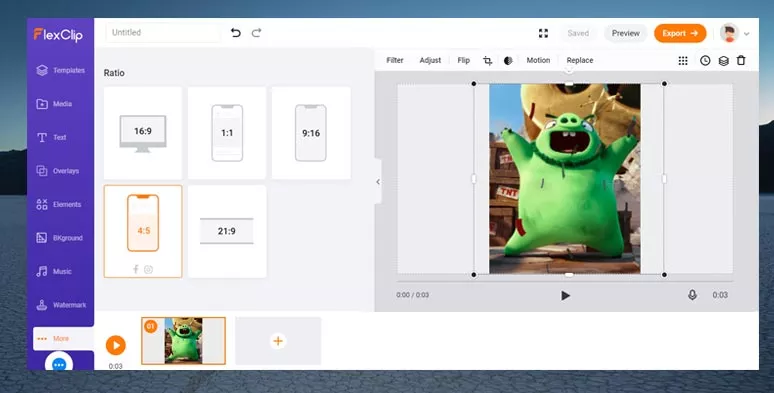
Adjust the aspect ratio for a GIF
Or, since FlexClip perfectly integrates with GIPHY’s vast GIFs and sticker assets, you may also pick multiple GIFs or stickers from GIPHY within FlexClip’s video editor to start with.
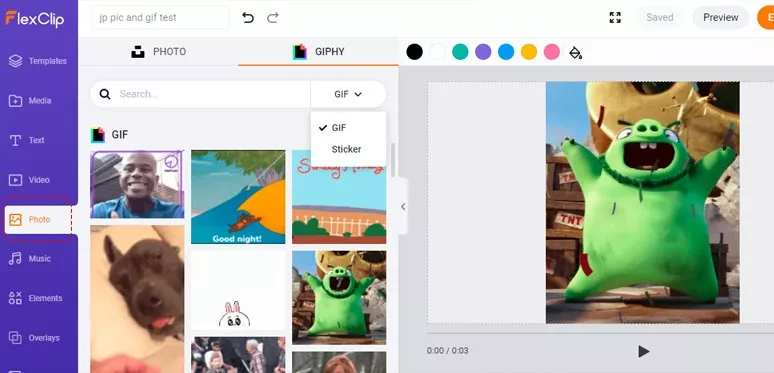
Explore the vast GIPHY’s GIFs and Stickers Assets with FlexClip GIF maker
Once you have your GIFs properly set, then you can use the “Text” tool to add featured text animations. The comic bubbles and speech bubbles and many call-to-action dynamic texts will blend perfectly with the animated GIFs.
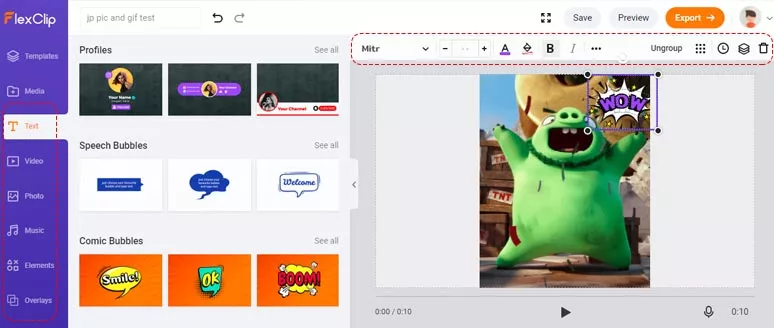
Add text animations, elements, music to a GIF
Need fancier emojis and ornaments? Just tap the “Elements” tool where you can use tons of designer-made elements to adorn your GIFs. Besides, please feel free to check out FlexClip’s gigantic royalty-free music libraries. You can select audio to match the mood of your GIF or upload your audio. So, later you can export a video gif with music to be posted on Instagram. Check 5 best ways to add music to a GIF.
To create the looping effects of GIFs, simply extend the duration of the GIFs, then the GIF can loop forever. A recommended duration for your GIF on Instagram is 15 secs.
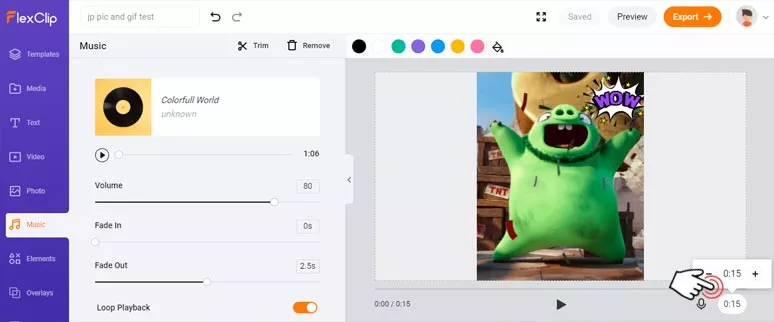
Extend the duration of a GIF for looping effects
Once you are done with the editing, click on the “Export” button and select the “MP4” format to download it, since Instagram doesn’t support GIF format. Then, download the video GIF file to your pc.
Open Instagram on Google Chrome and log into your account > click on your profile icon > right-click on the blank space > select “Inspect” > hit “Toggle device toolbar”; this will change Instagram to your mobile apps’ version > click on the fresh button. Then you can see the “+” button to post a GIF MP4 file on Instagram Story
Follow the tutorial video to post on Instagram from PC
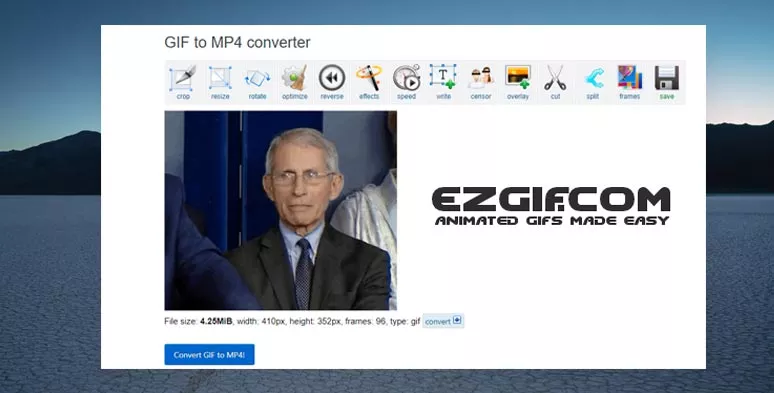
Use EZGIF online tool to convert a GIF to a video GIF (MP4)
Final Thoughts
So, to sum up, currently, there is no way to directly post a GIF on Instagram since Instagram doesn’t support GIF format. A popular alternative is to use GIPHY’s mobile apps to post a 15 secs GIF-like MP4 video on Instagram. To use both GIPHY’s latest GIF assets and add text animations and music to GIFs, FlexClip would be the perfect option. And you can easily convert your GIFs to an MP4 to be posted on Instagram from PC. So, start using FlexClip or GIPHY to post a GIF on Instagram from both PC and mobile phone now.




FlexClip AI Video Maker
Reach professional-quality videos faster with easy editing tools, templates, and smart AI.
Start Now for Free
Hot & Trending
-

Ultimate Tik Tok Guide – How to Tik Tok & How to Make a Tik Tok Video that Gets Likes
-

The Best Birthday Video Maker for You to Create Birthday Videos Online for Free
-

Large Collection of Creative and Funny Birthday Video Ideas for Ones You Care
-

Instagram Story Video Quality Bad After Upload? Fix It!
-

How To Remove/Reduce Background Noise? - 3 Best Free Audio Optimizers
-

Best Video Quality Enhancer: Improve Your Video Quality Easily
-

TikTok Filters Guide: How to Use Filter Effects on TikTok
-

How to Add Multiple Photos to One Instagram Story