Green screen compositing, also called chroma key compositing, is a post-production technique that aims to layer two video frames or images together. It is widely used in sci-fi movies, weather forecast programs to help individuals remove background from the subject of a video. Whether you are a vlogger or photographer, it is necessary to use a green screen that makes your video funnier.
But, do you know how to use a green screen? CapCut, a powerful video editing app, can help you out. The rich-featured app developed by Bytedance aims to make video editing easier for beginners. It is very popular among young people, many of whom want to make a living via videos and vlogs.
Like many video editors, it allows you to control the speed, split a video, add texts, etc. What's more, you can also use its green screen tools to remove the background of a video and then substitute it for a different one, such as a video or picture. There are two ways to use green on CapCut based on its overlay feature. You can use its chroma key to key out the color you desire or apply background remover to remove the green screen. Both of the methods are easy and quick. Let's see the detailed guide about how to use the green screen on CapCut.
Method 1, How to Use Green Screen on CapCut: Chroma Key
Before using the green screen in CapCut, ensure that the green screen overlay is ready in your gallery. If you don't have one, you can go to Pixabay, Pexels, to free download the green screen video. Or you can even record a green screen video using the screen recorder.
Tap on "New project" and choose a video as the background. Or you can also select multiple video clips as background. Then, tap on "Add."
Tap "Overlay" at the bottom of the screen and tap "Add overlay." Then, select the green screen video you want to add to the background.
Tap the green screen video. Scroll the tools at the bottom. Find the "Chrome key" button and tap on it. The color picker will pop up. Then, you can select the green color or any other colors you wish to be removed.
Tap on the "Intensity." Then, you will see a slider at the bottom. Drag and drop the slider until the selected color disappears.
Sometimes, the lighting of the subject may be different from the background lighting. In this case, you can tap on "Shadow" to decrease or increase the shadows.
When you are satisfied with the outcome, tap on the check mark at the bottom right corner of your screen to apply the effects. Then, export the video as you usually do.
How To Use Green Screen in CapCut
Method 2, How to Use Green Screen on CapCut: Background Remover
In addition to the chroma key, CapCut also enables you to remove unwanted background from the video via the background remover. With this tool, the green screen background can be automatically removed when you tap on the "Remove background." Here is the step-by-step guide.
Tap "New project">select the video clips> Tap "Add."
Tap "Overlay"> tap on "Add overlay"> select the green screen video> tap "Add."
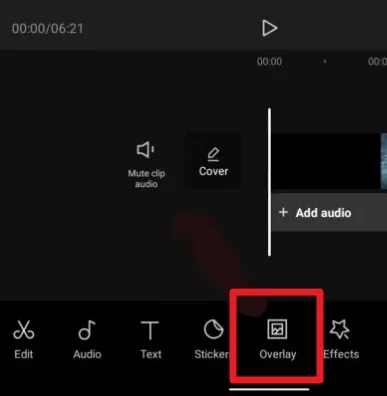
Image Board: How to Use Green Screen on CapCut - Step 2
Tap the green screen video. Scroll the tools at the bottom. Find the "Chrome key" button and tap on it. The color picker will pop up. Then, you can select the green color or any other colors you wish to be removed.
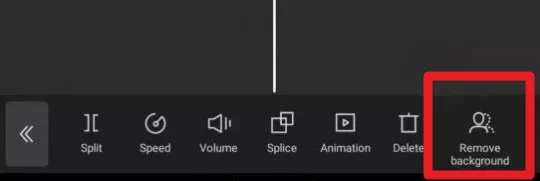
Image Board: How to Use Green Screen on CapCut - Step 3
Bonus Tip: Enhance Your Videos to Get More Views
Although CapCut offers texts and stickers, the styles and numbers are limited. To enhance your video, FlexClip, an all-in-one online video editor, can be a good choice. It is packed with a plethora of text animations that are suitable for various occasions, including social media, birthdays, weddings, news, etc. Besides, there are numerous pre-made subscribe icons that can be applied to your social media videos.
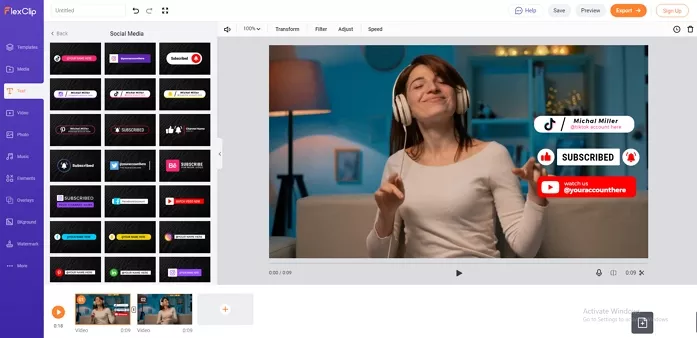
Image Board: Enhance Your Videos to Get More Views
This video editor is easy and free to use, allowing you to download a video without a watermark. What's more, you can also enjoy royalty-free music, multiple stickers, pre-made intro and outro videos, various features, etc. If necessary, you can even use its screen recorder to record a green screen video.
Bottom line
This tutorial shares how to use the green screen on CapCut in two different ways. You can choose the one that most fits your requirements. If you want to find more different text styles and to level up your video, don't forget to try FlexClip for free!




FlexClip AI Video Maker
Reach professional-quality videos faster with easy editing tools, templates, and smart AI.
Start Now for Free
Hot & Trending
-

Ultimate Tik Tok Guide – How to Tik Tok & How to Make a Tik Tok Video that Gets Likes
-

The Best Birthday Video Maker for You to Create Birthday Videos Online for Free
-

Large Collection of Creative and Funny Birthday Video Ideas for Ones You Care
-

Instagram Story Video Quality Bad After Upload? Fix It!
-

How To Remove/Reduce Background Noise? - 3 Best Free Audio Optimizers
-

Best Video Quality Enhancer: Improve Your Video Quality Easily
-

TikTok Filters Guide: How to Use Filter Effects on TikTok
-

How to Add Multiple Photos to One Instagram Story