Whether you have a video that exceeds Instagram or TikTok's maximum length requirements or you've failed to send a video file because the video is too long(large), making your video shorter can help!
You may want to trim off a few seconds from the beginning or end of your video to keep the funniest part of it, cut parts out of the middle of your video to reduce the overall duration, or you need to make a video shorter without cutting to keep it in the same material as the original ones.
Here in this blog, we'll introduce you various easy ways to shorten a video online for free. According to your demands and preference, select one to solve your problem.
Also Read: Four Ways to Make a Video Longer for Instagram & Other Social Media Platforms >
How to Make a Video Shorter Online for Free
Here, we'll use a powerful online video editor, FlexClip, to show you how to make your video shorter online in three easy ways: trim, cut parts out of your video, or shorten it without cutting by speeding up.
Now, let's turn to FlexClip to make your video shorter and also level up your footage with its powerful editing functions. Get started now for free!


Method 1: Trim off the Beginning or End of the Video
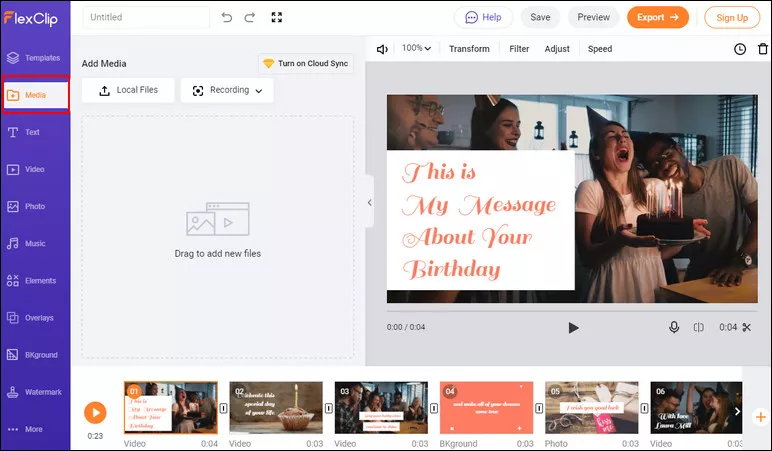
Image Board: Make a Video Shorter - Upload
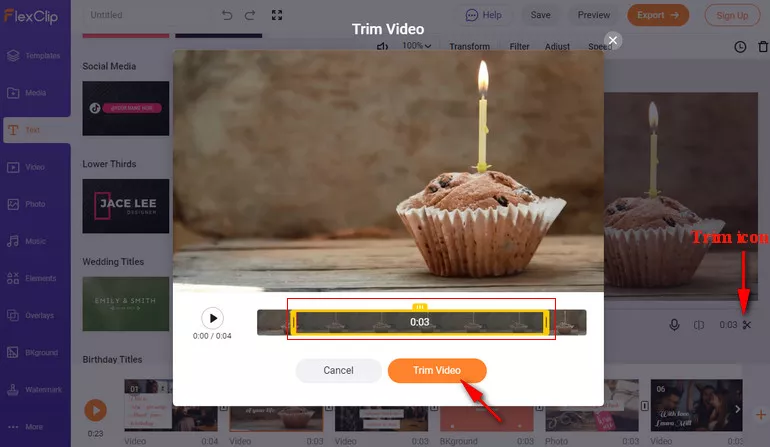
Image Board: Make a Video Shorter - Trim
Method 2: Split and Cut Parts out of the Video
You can also shorten your video with the split feature of FlexClip. This way can help you remove the unwanted part in the middle of the video to reduce the overall duration easily..
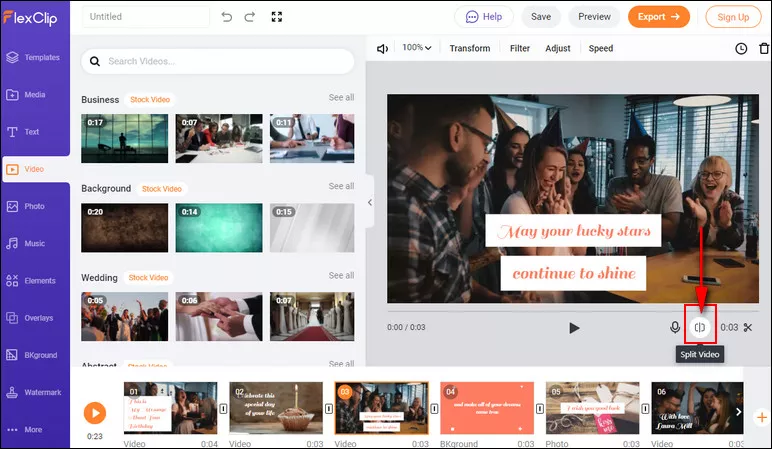
Image Board: Make a Video Shorter - Split and Cut Parts out
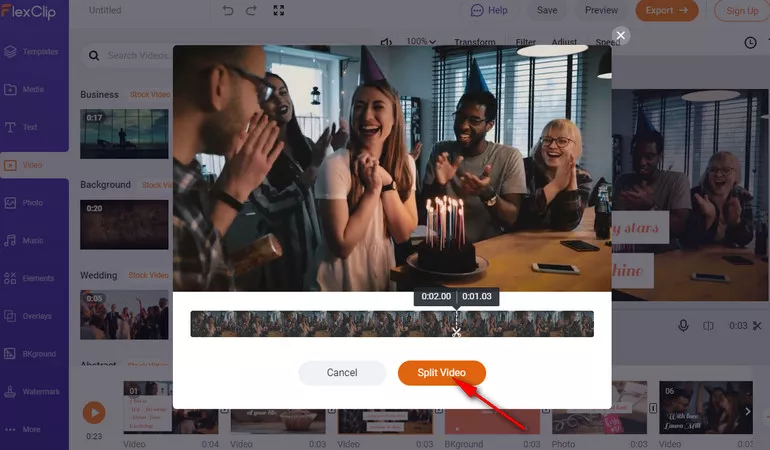
Image Board: Make a Video Shorter - Split and Cut Parts out
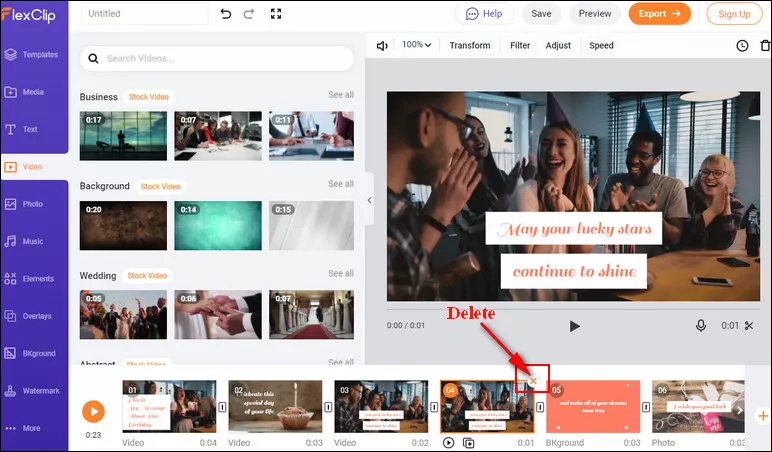
Image Board: Make a Video Shorter - Delete
Method 3: Shorten Videos without Cutting
If you want to make your video shorter without cutting and keep the same content as the original one, FlexClip also allows you to do so with its speed up feature.
Once you've added your video clip to the storyboard, you can see the Speed icon on the top right of the screen, and you can click it to choose a proper speed to make your video go faster and shorten the overall duration.
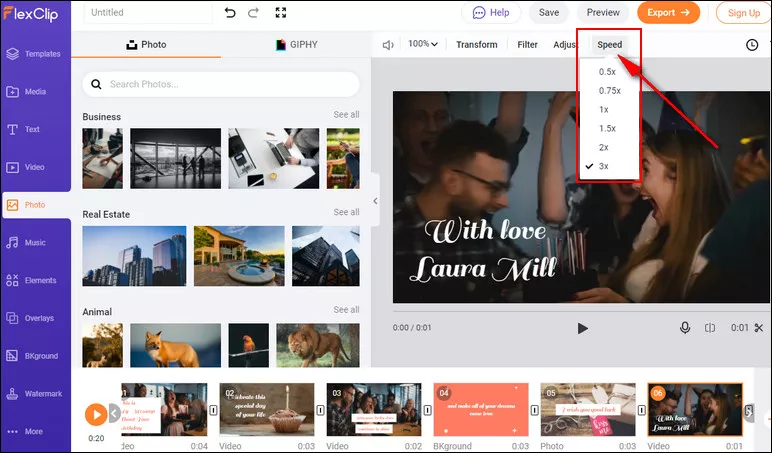
Image Board: Make a Video Shorter without Cutting - Speed up
While you're in the editor, you can use FlexClip's tools to make any other edits you'd like to your video:
- Add & edit text animation to the video;
- Add transition effects, filters to the video;
- Add watermark, overlays & voice over;
Also, you can make a stunning video with FlexClip's pre-made video templates:


Frequently Asked Questions about Shortening Videos
The built-in Photos app of your iPhone can help you shorten a video quickly by cutting the dead time at the beginning or end of it.
To make a video shorter on iPhone with Photos app, first open the Photos app, find the video you want to shorten and tap the Edit button. Then, move the sliders on both sides of the video timeline to trim off the beginning and end of the video.
iMovie must be the best option for iPhone users who want to do a bit more with their video than the basic Photos app allows them to. It allows you to shorten your video in 3 ways:
1. Trim: Tap the video clip in the timeline, and then a yellow highlight will appear around the selected clip. To make the clip shorter, you can drag the edge of the clip towards the center of the clip.
2. Split & delete to cut parts out of the middle of the video: First, go to the timeline and slide the playhead and position it at the beginning of when to cut, then tap the clip to trigger the editing tools, and click the "Split" to cut it into two parts. Then, position the playhead at the end of when to cut and split it as you did before. Now, you've cut the video into three clips, just tap the video clip you want to delete and press the Delete button.
3. Speed up the video: Simply click the Speed button, which looks like a speedometer. Drag the speed slider to the right side to speed up your video.
You can trim a video to make a video shorter on your Android using the built-in Gallery app. Here's how:
Open the Gallery app on your Android and tap on the video that you want to shorten. Press the pencil icon in the bottom-left corner to trigger the trim option. Once the trim screen appears, you can move the sliders at the bottom of the screen until they contain the footage you want.
Final Words
That's all for how to make a video shorter. Follow the steps in this tutorial for the step-by-step on how to use the FlexClip's tool to trim your video, split and cut, and speed up your video to make your video shorter right now!




FlexClip AI Video Maker
Reach professional-quality videos faster with easy editing tools, templates, and smart AI.
Start Now for Free
Hot & Trending
-

Ultimate Tik Tok Guide – How to Tik Tok & How to Make a Tik Tok Video that Gets Likes
-

The Best Birthday Video Maker for You to Create Birthday Videos Online for Free
-

Large Collection of Creative and Funny Birthday Video Ideas for Ones You Care
-

Instagram Story Video Quality Bad After Upload? Fix It!
-

How To Remove/Reduce Background Noise? - 3 Best Free Audio Optimizers
-

Best Video Quality Enhancer: Improve Your Video Quality Easily
-

TikTok Filters Guide: How to Use Filter Effects on TikTok
-

How to Add Multiple Photos to One Instagram Story