Zoom is an office app designed for video conferences, web conferences, and webinars. Not only can you use it to hold or join a meeting, but you can also use it to record a meeting if you have permission.
After recording a conference on Zoom, you might want to cut out the unwanted parts, break up long content into sections, add content titles, or add subtitles to make it easier to understand.
Fortunately, Zoom records conferences in MP4 videos so that you can edit them in a range of video editors. In this blog, we'll walk you through how to edit a Zoom recording for free on your computer. Let's take a look.
Also Read: How to Edit OBS Recorded Videos in Easy Steps
Note Make sure you have the Zoom recordings you want to edit downloaded to your computer.
Part 1. How to Edit a Zoom Recording Online
FlexClip is a free online video editor ideal for video editing beginners. Powerful and professional, FlexClip allows you to edit Zoom recordings in your browser without any hassle. Some of its noticeable video editing features are trimming, splitting, adding annotations, adjusting speed, applying filters, and adding watermarks. Besides, it has a vast media library where you can quickly find the royalty-free, high-quality video, music, and image resources you need. Edit like a pro now. No download is required.
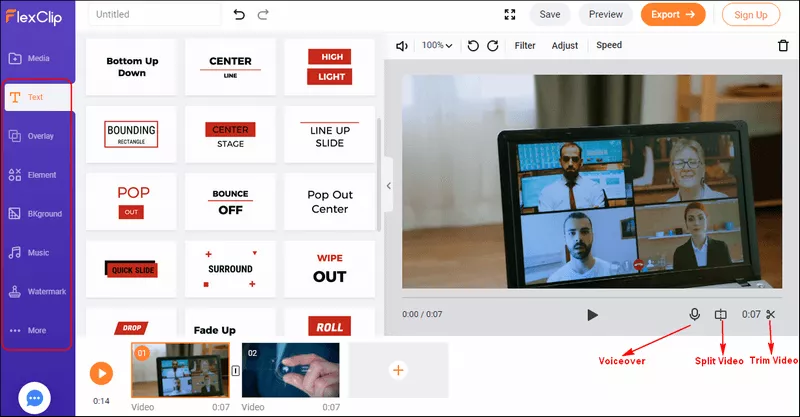
Image Board: FlexClip Video Editor
How to Edit a Zoom Recording with FlexClip
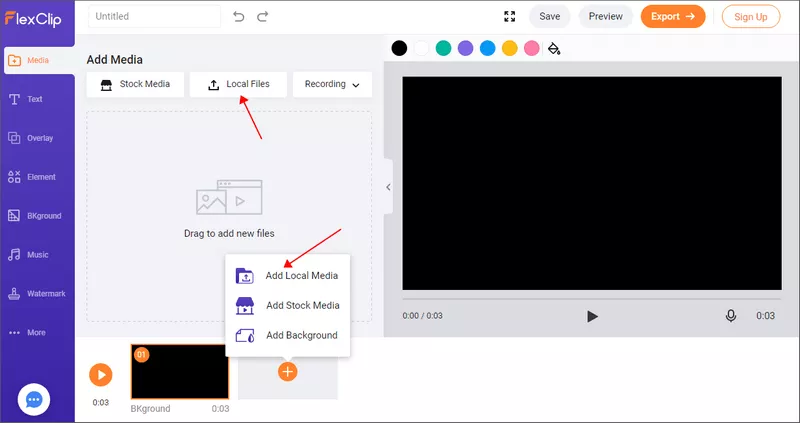
Image Board: How to Edit a Zoom Recording with FlexClip - Add Recording
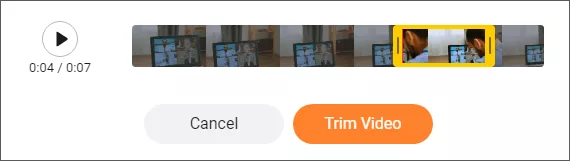
Image Board: How to Edit a Zoom Recording with FlexClip - Trim Recording
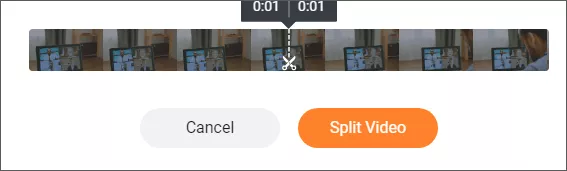
Image Board: How to Edit a Zoom Recording with FlexClip - Split Recording
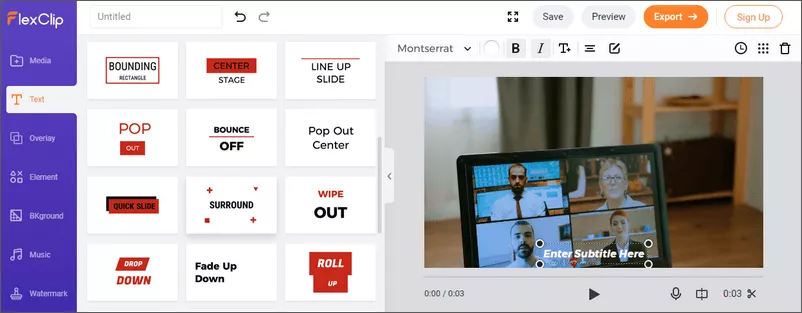
Image Board: How to Edit a Zoom Recording with FlexClip - Add Text to Recording
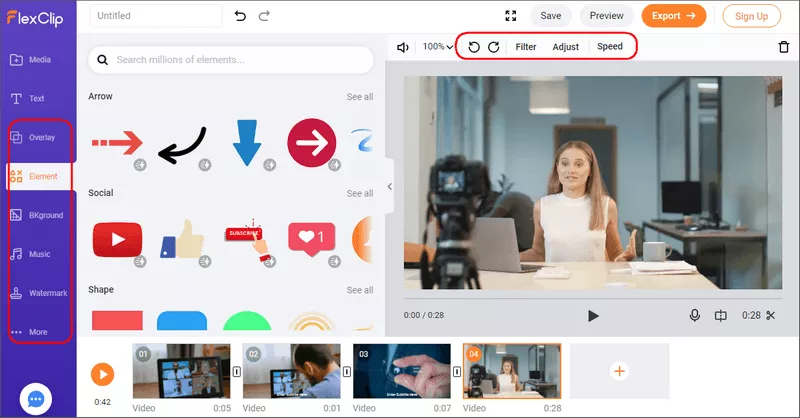
Image Board: How to Edit a Zoom Recording with FlexClip - Make More Edits
Part 2. How to Edit a Zoom Recording on Mac
To edit Zoom recordings on a Mac, you can give iMovie a try. The app is built-in on Macs, which means you don't need to download it from the Apple Store. It supports up to 4K videos. It can handle all the basic video editing needs, ranging from video trimming and video splitting to adding special effects and changing background. The best of the video editing software is that you can export videos without watermarks.
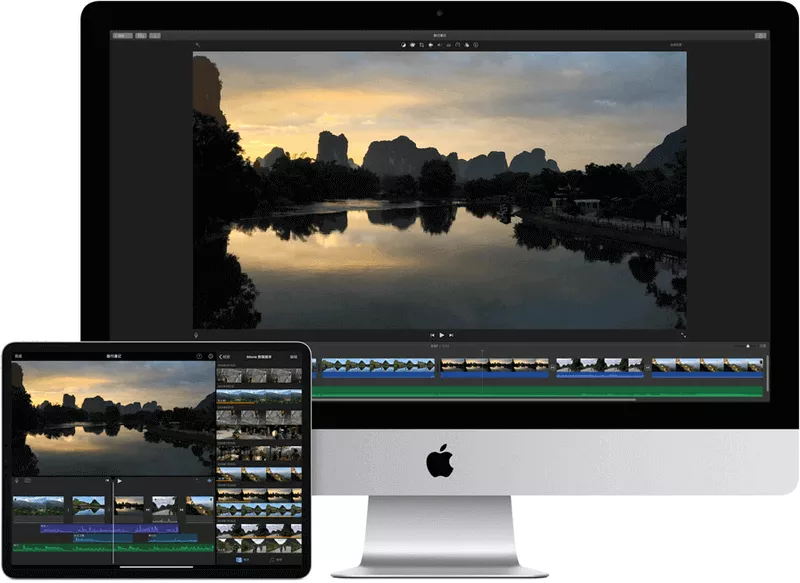
Image Board: iMovie Video Editor
How to Edit a Zoom Recording in iMovie
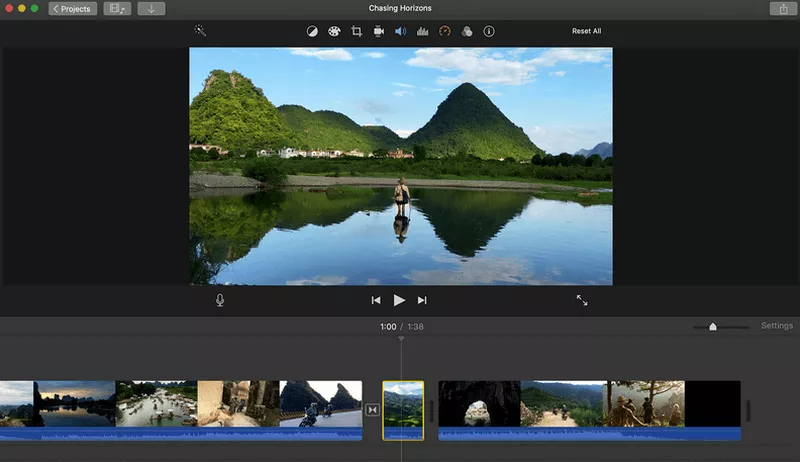
Image Board: How to Edit a Zoom Recording in iMovie - Trim Recording
Part 3. How to Edit a Zoom Recording on PC
VSDC Free Video Editor is your best bet if you want to edit your Zoom recordings on Windows. It is a lightweight video editing software that works well even on computers with little memory. It comes with rich video editing features, meeting all your basic video editing needs. Its interface may look a bit complicated, but once you try it, you'll find it's an excellent video editing tool.
Depict Video: How to Use VSDC Free Video Editor
How to Edit a Zoom Recording with VSDC Free Video Editor

Image Board: How to Edit a Zoom Recording with VSDC - Cut/Split/Crop/Rotate
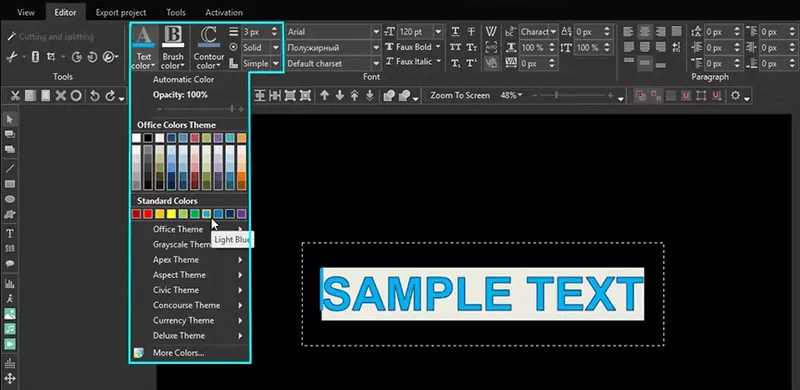
Image Board: How to Edit a Zoom Recording with VSDC - Add Text

Image Board: How to Edit a Zoom Recording with VSDC - Export
Final Words
That’s all for how to edit a Zoom recording for free on your computer. Start to make your Zoom recordings more engaged now.
Think this post helpful? We'd appreciate it if you could share it with your friends.




FlexClip AI Video Maker
Reach professional-quality videos faster with easy editing tools, templates, and smart AI.
Start Now for Free
Hot & Trending
-

Ultimate Tik Tok Guide – How to Tik Tok & How to Make a Tik Tok Video that Gets Likes
-

The Best Birthday Video Maker for You to Create Birthday Videos Online for Free
-

Large Collection of Creative and Funny Birthday Video Ideas for Ones You Care
-

Instagram Story Video Quality Bad After Upload? Fix It!
-

How To Remove/Reduce Background Noise? - 3 Best Free Audio Optimizers
-

Best Video Quality Enhancer: Improve Your Video Quality Easily
-

TikTok Filters Guide: How to Use Filter Effects on TikTok
-

How to Add Multiple Photos to One Instagram Story