Freeze frame or frame hold is a dramatic video editing technique that makes a moving frame of a video stop to draw viewers' attention. It's widely used for showing the detailed sequence of a fast-moving subject or for a tutorial video or often serves as the closing credits in filmmaking.
Though looked pretty professional, freezing a frame in a video is much easier than you thought. In this post, we will walk you through 4 different ways to freeze a frame in your video using online video editor FlexClip and Adobe Premiere Pro.
Freeze frame the moment of slam dunk by FlexClip

Here’s what you’ll learn:
How to Make a Freeze Frame Video by FlexClip
If your laptop doesn’t have freeze frame software like Adobe Premiere Pro or you are a computer novice, the easiest way to create awesome freeze frame video effects is by using a versatile online video editor.
FlexClip, a free and feature-packed online video editor, is a flawless choice to go with. You can cut and blend clips, add text animations, elements, music, static or Zoom in/ out video transitions,etc. to create captivating freeze-frame videos. With millions of royalty-free stock assets and thousands of designer-made free templates, FlexClip will bring big smiles to your face as to video editing.
You can upload video assets from your local computer or explore the stock media where 4M+ license-free HD videos, images, and music are available.
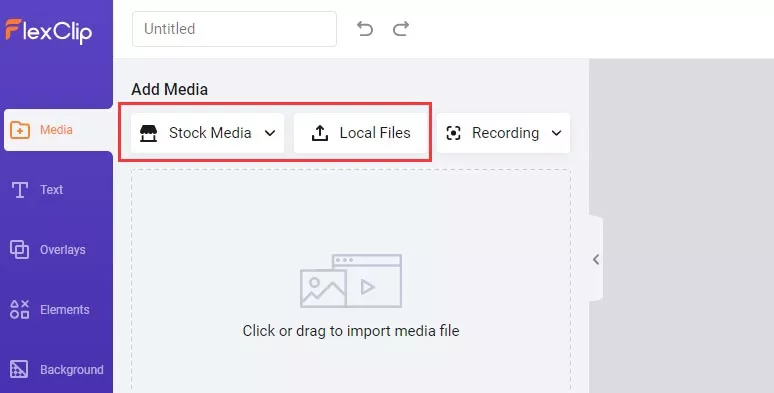
Upload clips to FlexClip video editor or explore the royalty-free stock assets
Add the clip to the timeline and scrub through the playhead to find an ideal frame for making a freeze video. Then use any screenshot tool to take a screenshot of the video.
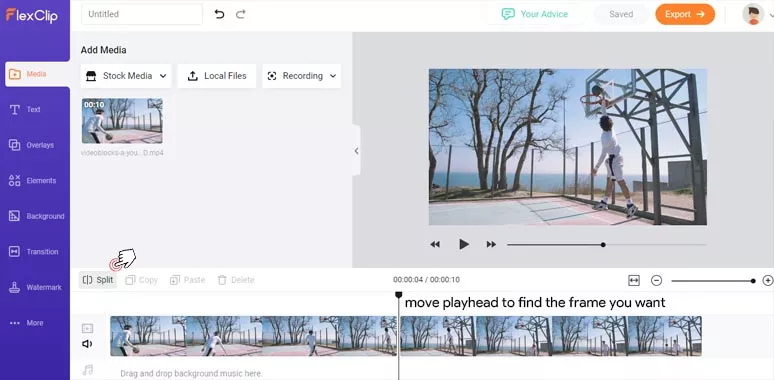
Find the frame you want and split the video into two
A small tip is to screenshot the original video in a media player instead of in FlexClip’s video editor. In this way, you can have a larger size of the image for later editing.
Use Spilt tool to cut the video track into two, then import the image of a screenshot and place it between two clips, and drag and drop it to adjust its duration for the frozen frame in the video. Next, left-click "Animation" and select "None" for the screenshot.
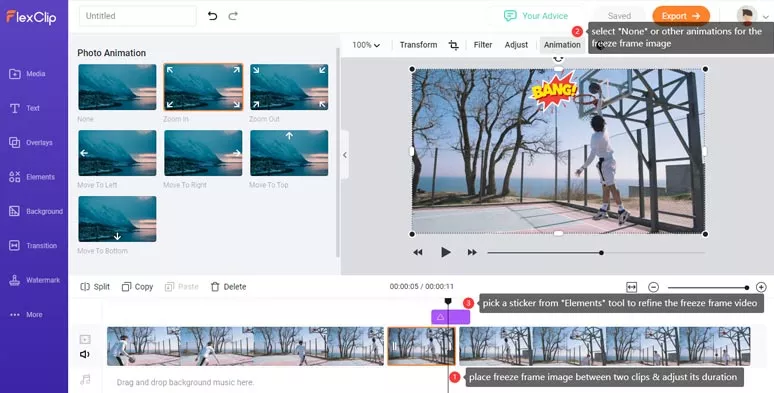
Freeze the slam dunk frame in the video by FlexClip
So, as you playback the video, the frame will stop exactly as you wish and resume as the playhead moves to the next moving frame. To refind the video, you can add text animations, elements, or music or use "Zoom in/out" animation to create jaw-dropping freeze frame video effects like the one at the beginning of the article.
You can directly download the MP4 file to your local computer or share the video directly to your YouTube channel or Dropbox.
How to Create Freeze Frame Video Effects by Premiere Pro
To freeze a frame in a video, Adobe Premiere Pro offers us 3 ways to achieve the different freeze frame video effects.
Freeze a frame in 3 different ways by Premiere Pro
Option 1: Use " Insert Frame Hold Segment"
Right-click on the clip and select "Insert Frame Hold Segment". Then Premiere Pro will add a 2 secs freeze frame to the clips. You can move the second clip away for more room and extend the freeze frame to the length you want. Check how to slow down a video in Premiere Pro.
Option 2: Use "Add Frame Hold"
Right-click on the clip and select "Add Frame Hold". This option will cut this frame into two and the second part of the clip becomes a frame hold or static frame. It is useful for making closing credits or staff rolls at the end of a video or film.
Option 3: Use "Export Frame"
Scrub through the playhead and find the perfect place for making a freeze frame. Then left-click "Export Frame" or use the keyboard shortcut "Shift-E". Premiere Pro will export a simple frame as JPG/PNG and add it to your project. Then you can drag this screenshot over your clips to blend it into the clips as a freeze frame video. You can add a caption, sound effects, or arrows to catch viewers' attention. That's it, nice and simple.
However, there is a prerequisite for freezing a sequence of continuous movements:
Guide to freezing a sequence of a moving subject using Premiere Pro
Select the second layer of the track and move to the "Video Effects" control panel and change the "Blend Mode" in Opacity option to "Darken". Then do the same for the rest of the video tracks.
Final Thoughts
So, now we're sure you must have learned how to create compelling freeze frame videos yourself. If you find this post helpful or have better solutions, don't forget to share this post and leave your comments on our Facebook or Twitter. So, let's start creating your first freeze frame video by FlexClip or Premiere Pro now.




FlexClip AI Video Maker
Reach professional-quality videos faster with easy editing tools, templates, and smart AI.
Start Now for Free
Hot & Trending
-

Ultimate Tik Tok Guide – How to Tik Tok & How to Make a Tik Tok Video that Gets Likes
-

The Best Birthday Video Maker for You to Create Birthday Videos Online for Free
-

Large Collection of Creative and Funny Birthday Video Ideas for Ones You Care
-

Instagram Story Video Quality Bad After Upload? Fix It!
-

How To Remove/Reduce Background Noise? - 3 Best Free Audio Optimizers
-

Best Video Quality Enhancer: Improve Your Video Quality Easily
-

TikTok Filters Guide: How to Use Filter Effects on TikTok
-

How to Add Multiple Photos to One Instagram Story