Summary: FlexClip, a free color grading software, makes color grading easily and quickly. With only 4 steps, correct your video color and perform your color grading and adjustments.

Image board: color grading
Part 1: What is Color Grading?
Color Grading is the process of improving the appearance of an image, that is to say, it can be used to enhance the color of film, video, photo photochemically or digitally.
Color grading describes the overall process, which includes digital color grading (color correcting) and color timing (photochemically color).
Color Correction
Nowadays, photochemical color timing is nearly disappear. The term ‘color correction’ that professional colorists use often represents the literal meaning of correcting problems of the underlying image, such as fixing the exposure problem to do a better color grading.
What Else Color Grading Involves?
As I mentioned, color grading covers color correction. But what else color grading involves? It also related to shots matching, distractions removing, creative looking and so on.
How Can I Start to Color Grading My videos as a Beginner?
Talk about so many professional terms, is Color Grading too complicated for us? Not at all, with FlexClip color grading software, basic color grading is quite easy to master and it actually makes your videos stand out!
All you need to do is to correct the color and make the color of clips look in the same tone by FlexClip. Check out the 4 steps, color grading will bring your video a big change.
Get to start and add your local video clips to the free color grading software first. Or you are able to search for varieties of video footages/video templates from FlexClip free media stock.
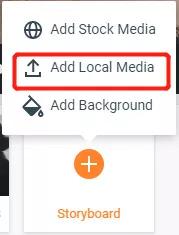
Image board: Get started and upload your video clips
I choose one of video clips from media stock, the white balance is off. Let’s see how to use the 4 steps to do a color grading making the footage much better.
Image board: Get started and upload your video clips
Step 2: Perform General Color Correction by Adding a Filter
If your exposure is bad or white balance is off, try to add a filter to adjust the color. Different filter can help your video add a different color mask, and you can change the intensity to control the general color.
In my example, the image of video tends to be yellow, so I choose to add ‘Epic’ to enhance the color of blue.
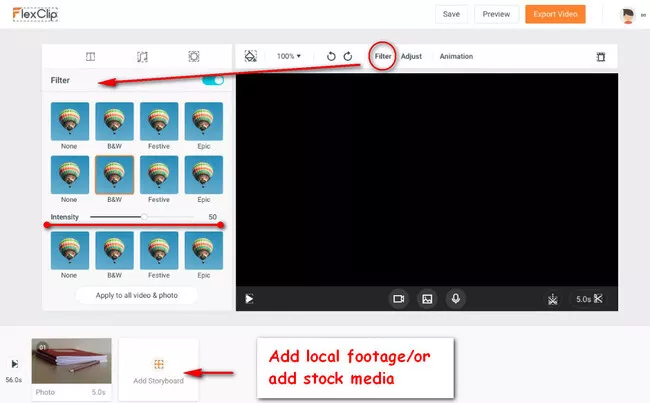
Image board: General color correction by adding a filter
Step 3: Make the Final Color Adjustments
After doing general color correction, perform the color grading in details. You may change the missed contrast, bad exposure or saturation to get the video color correct and add consistency.
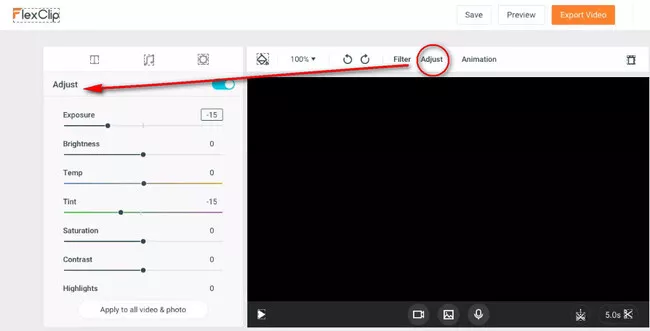
Image board: Make the final color adjustment
Step 4: Contrast and Apply the Color Grading
Turn on/off the blue button to contrast the original image and the color-graded one, if you think everything is fine, then apply it to the footage, or you can click the “reset”, resetting all the number and re-do the color grading.
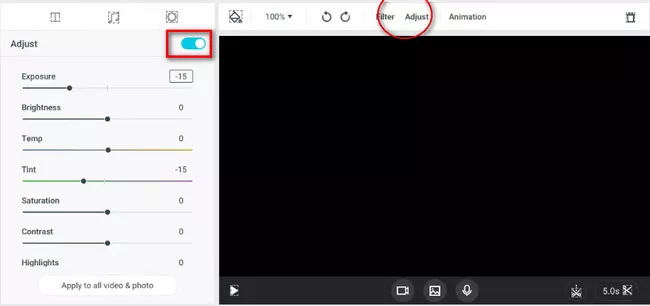
Image board: Contrast the original image with the color graded one
Also, there is a button (Apple to all) which allows you apply the color grading (adjustment) you just did to all video clips in the storyboard of FlexClip.
Last but not least, save all your changes for color grading, preview the video to check it again. Then, exported your video by FlexClip for free!
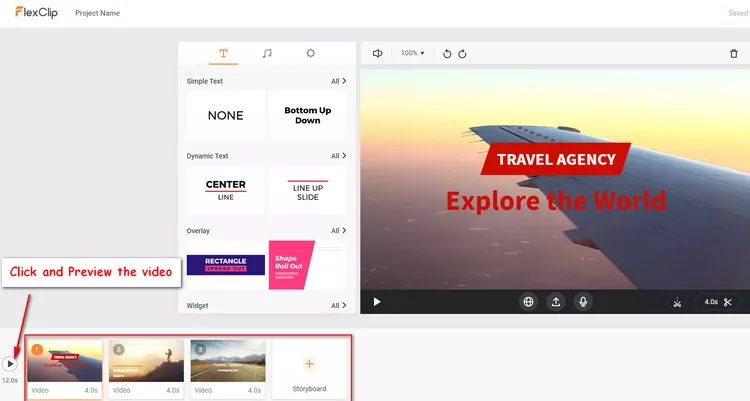
Image board: Preview before exporting the video
Bottom Line
Step by step hope you can fix your video color problem, and have a easy experience of color grading your footage.




FlexClip AI Video Maker
Reach professional-quality videos faster with easy editing tools, templates, and smart AI.
Start Now for Free
Hot & Trending
-

Ultimate Tik Tok Guide – How to Tik Tok & How to Make a Tik Tok Video that Gets Likes
-

The Best Birthday Video Maker for You to Create Birthday Videos Online for Free
-

Large Collection of Creative and Funny Birthday Video Ideas for Ones You Care
-

Instagram Story Video Quality Bad After Upload? Fix It!
-

How To Remove/Reduce Background Noise? - 3 Best Free Audio Optimizers
-

Best Video Quality Enhancer: Improve Your Video Quality Easily
-

TikTok Filters Guide: How to Use Filter Effects on TikTok
-

How to Add Multiple Photos to One Instagram Story