Need to add an arrow, a star, or a circle to highlight something in a frame? Maybe to show the speech, thoughts, and dialogue lively with a text bubble? Or perhaps you need to add some shapes to decorate your video and make it more appealing? Whatever the need, FlexClip's free online video editor lets you add shapes to your video in just a few clicks.
Free Editable Video Templates with Shapes from FlexClip


Also Read: How to Add a Subscribe Button to Your Videos>
How to Add Shapes to Video Online Free
To add shapes to your video or image, you'll need FlexClip, an easy-to-use yet powerful online video editor.
FlexClip is a leading video editor packed with rich video editing tools and options, allowing you to add shapes to a video online for free. It offers various shapes for your video editing, including circle, arrow, bubble, line, icon, and more
Here are the detailed steps on how to add a circle, arrow, speech bubble, or any other kind of shape with FlexClip free online video editor:


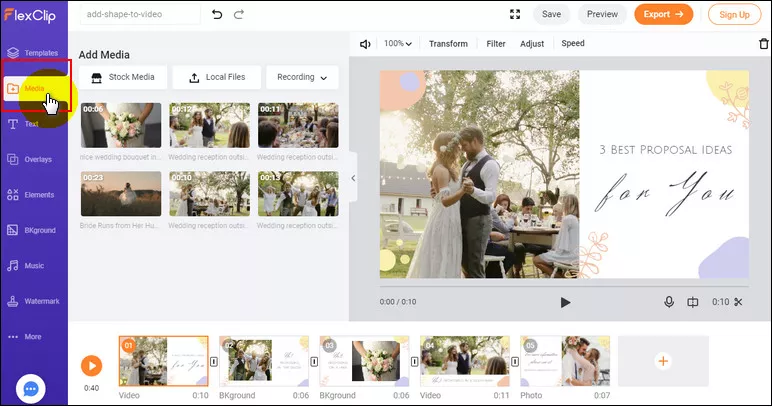
Upload Your Footage
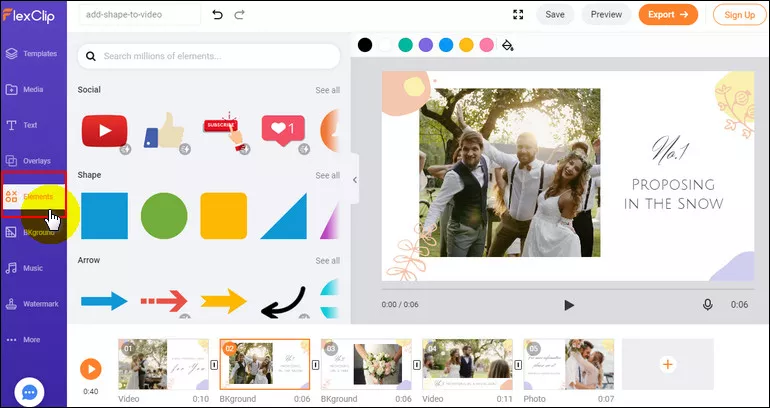
Add Shapes to Video
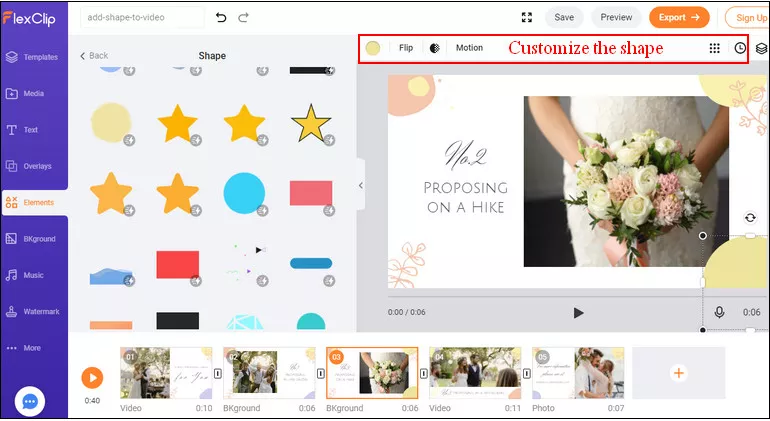
Customize the Shape
Bonus: How to Change Shape of a Video
Videos are not limited to rectangles! How to customize the shape of a video? FlexClip video editor provides you with an easy tool to crop a video into a new shape.
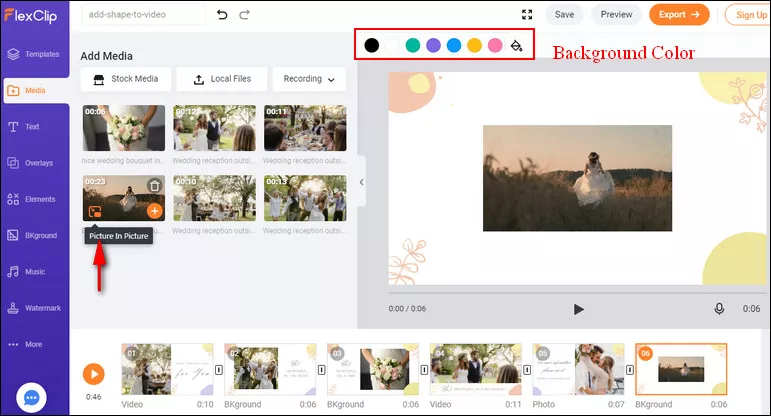
Add Video to Background via PIP
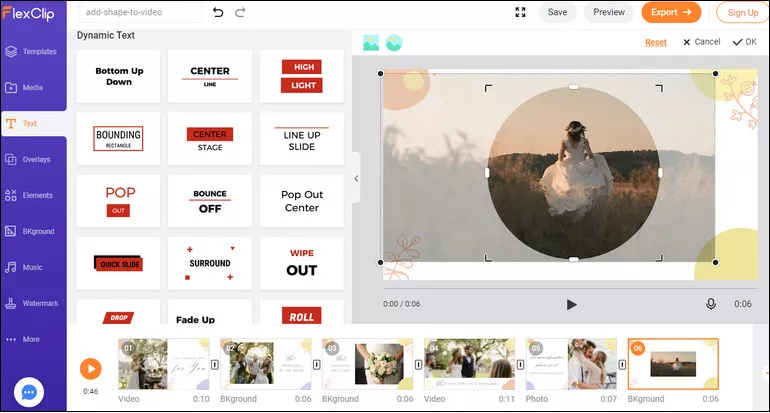
Crop the Video to a New Shape
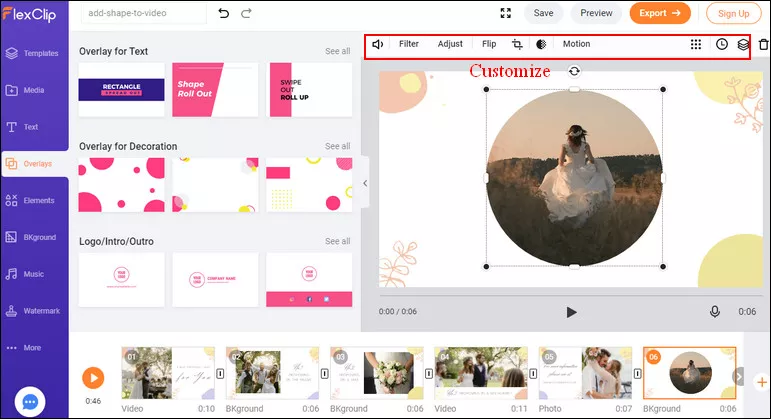
Customize the Video Overlay
Final Words
That's all for how to add shapes to a video online free. As you can see, FlexClip makes it pretty easy to add shapes to your favorite pictures or video. Why not try using FlexClip to add shapes to your video? Go for it right now.




FlexClip AI Video Maker
Reach professional-quality videos faster with easy editing tools, templates, and smart AI.
Start Now for Free
Hot & Trending
-

Ultimate Tik Tok Guide – How to Tik Tok & How to Make a Tik Tok Video that Gets Likes
-

The Best Birthday Video Maker for You to Create Birthday Videos Online for Free
-

Large Collection of Creative and Funny Birthday Video Ideas for Ones You Care
-

Instagram Story Video Quality Bad After Upload? Fix It!
-

How To Remove/Reduce Background Noise? - 3 Best Free Audio Optimizers
-

Best Video Quality Enhancer: Improve Your Video Quality Easily
-

TikTok Filters Guide: How to Use Filter Effects on TikTok
-

How to Add Multiple Photos to One Instagram Story