iMovie, the home-built powerful video editing application for all the macOS, iOS, and iPadOS devices, gives you many great editing features to help you edit and make a better video. Then have you try to edit a vertical video in iMovie? What will happen then?
You may find that the exported video will become horizontal with black bars filling in the two sides. That's because iMovie does not support vertical videos with an aspect ratio of 9:16. When editing a vertical video using iMovie, it will fill the video with black bars to turn it into a 16:9 horizontal video.
So how to edit vertical videos in iMovie and keep them vertical? This post will show you how to edit vertical video online via iMovie alternative and in iMovie on iPhone for your Tik Tok, Instagram, YouTube Shorts, or any other platform that uses vertical video. So, here goes.
Contents:
Free Customizable Vertical Video Templates:


Also Read: 5 Best Vertical Video Editor - Free & Fast>
Part 1 A Better Way to Make iMove Vertical Online
As we said before, iMovie doesn't support vertical video with an aspect ratio of 9:16, so you can not edit a vertical video in iMovie and keep it vertical without black bars directly. You'll need another tool to remove black bars or crop your iMovie to vertical.
Here we'll share a much easier way to make vertical videos or crop your iMovie to vertical for social media, like TikTok, YouTube Shorts, and more.
Various online video editors allow you to edit a vertical video effortlessly. FlexClip is just one of them. With FlexClip, creating a vertical video is pretty easy - simply pick an aspect ratio you want to convert your iMovie to, in our case to a 9:16 portrait aspect ratio, upload your video, add text, overlays, elements, and more to make a beautiful vertical video!


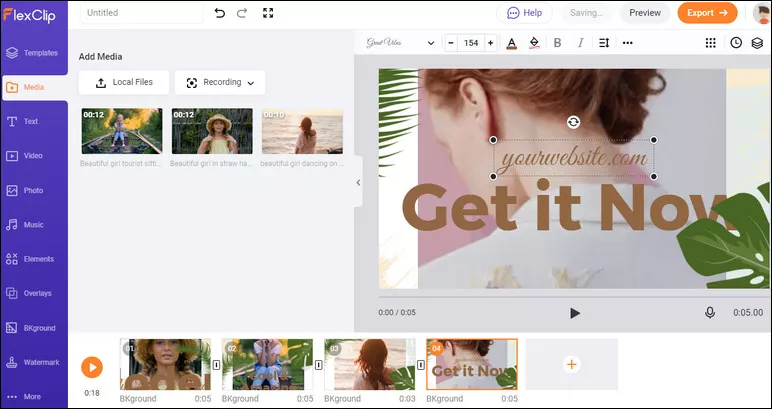
Image Board: Make a Vertical Video - Add Media
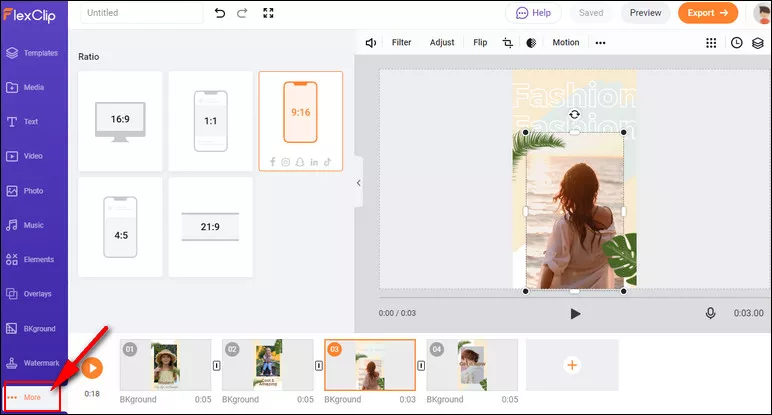
Image Board: Make a Vertical Video - Change Aspect Ratio
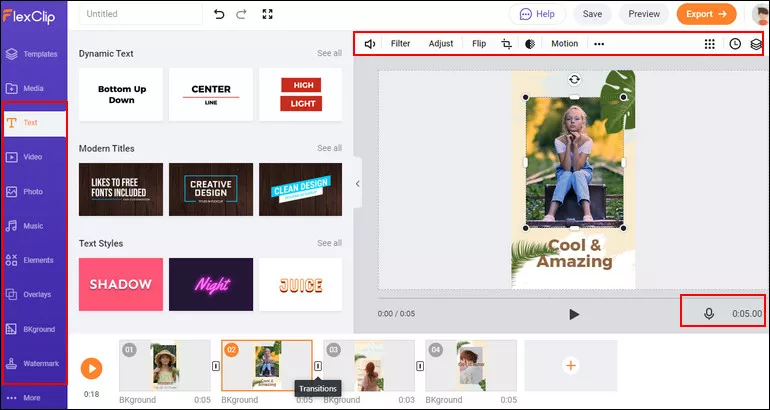
Image Board: Make a Vertical Video - More Edits
Part 2 How to Edit Vertical Video in iMovie on iPhone
In fact, iMovie does not give you an option to export vertical video directly. But, you can edit vertical videos with a simple workaround using the iMovie to edit it horizontally and then turning to the stock Photos app on your iPhone to rotate the horizontal video to portrait again.
Check the simple guide below to learn how to make iMovie vertical on iPhone:
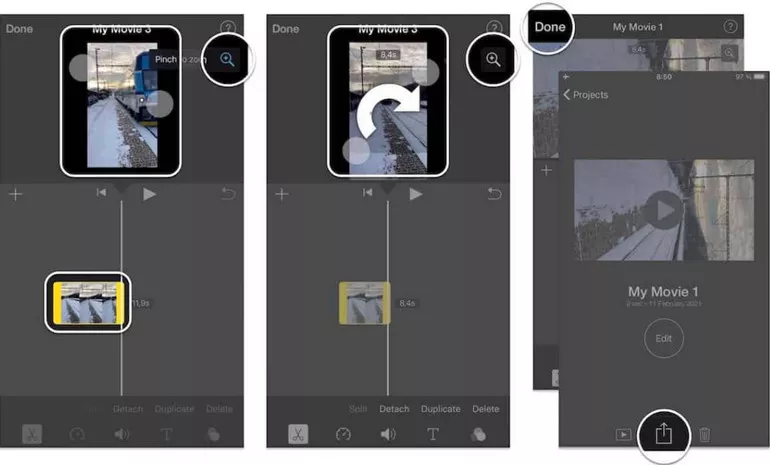
Image Board: Edit Vertical Video in iMovie Horizontally (Image Source:homeexplained.com)
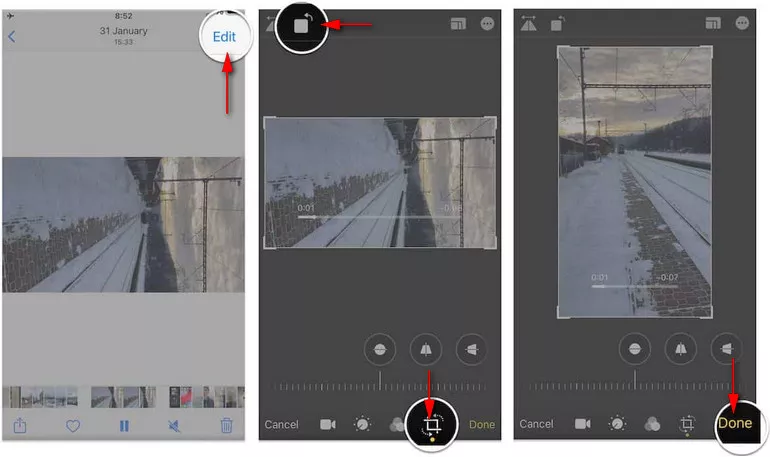
Image Board: Rotate iMovie to Vertical with Photos App (Image Source:homeexplained.com)
Now you've got the iMovie vertical video on your iPhone without turning horizontal and black bars.
Final Words
Now that you know how to edit a vertical video without black bars in iMovie on your iPhone or using another powerful online vertical video editor, FlexClip, it's time to put these tips into practice now!




FlexClip AI Video Maker
Reach professional-quality videos faster with easy editing tools, templates, and smart AI.
Start Now for Free
Hot & Trending
-

Ultimate Tik Tok Guide – How to Tik Tok & How to Make a Tik Tok Video that Gets Likes
-

The Best Birthday Video Maker for You to Create Birthday Videos Online for Free
-

Large Collection of Creative and Funny Birthday Video Ideas for Ones You Care
-

Instagram Story Video Quality Bad After Upload? Fix It!
-

How To Remove/Reduce Background Noise? - 3 Best Free Audio Optimizers
-

Best Video Quality Enhancer: Improve Your Video Quality Easily
-

TikTok Filters Guide: How to Use Filter Effects on TikTok
-

How to Add Multiple Photos to One Instagram Story