Image Board: TikTok Captions
Contents
You May Also Like: How to Remove TikTok Video Watermark
Part 1 How to Add & Edit Caption on TikTok
TikTok itself offers a text editing feature in the app to help you add captions. You can put words on a TikTok video by clicking on the "Character" option, which comes when you complete the video recording or uploading on TikTok. Below are the steps to add captions to TikTok.
Step 1 Launch TikTok and Get Started
Open the TikTok app and get your video content to work with. Click the "+" icon to record a new video or upload one from your phone.
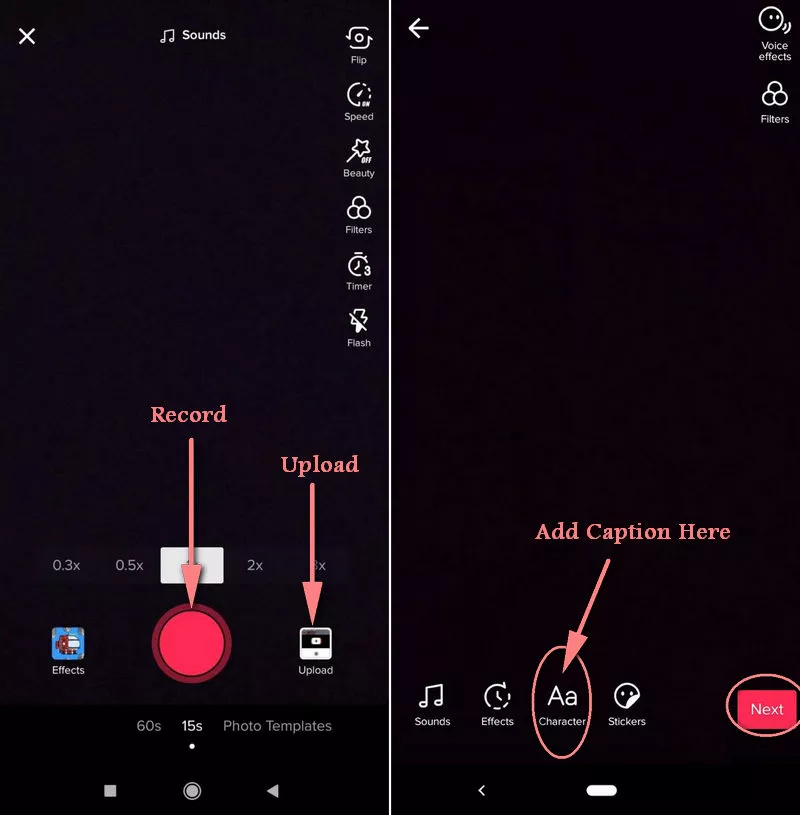
Image Board: Add Captions to TikTok Video
Step 2 Add Text to TikTok
Click the Text button at the bottom of the screen to add captions to your TikTok video by typing the text in.
Step 3 Edit the Text (Customize the Color, Size, and Timing)
Now here are some basic text editing options available for you:
# The "A" icon on the left side of the screen allows you to add a highlight to the text.
# There are many fonts available that will help you to give a stylish look to your TikTok caption.
# The colorful circles at the bottom of the screen are here for you to change the color of the text.
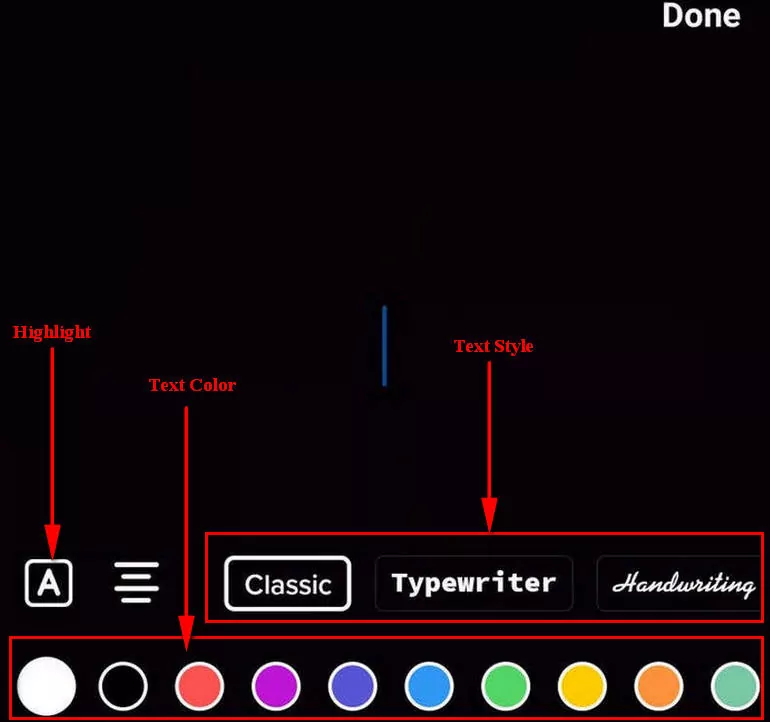
Image Board: Edit Captions for TikTok Video
How about the timing? How to set the duration of the text and put words on TikTok at different times? You can only set the duration of the text after you tap "Done" in the top-right corner of the screen.
To put words on TikTok video at different times, you need to adjust the timing of the text on your video. Simply tap on your text, and select "Set duration".
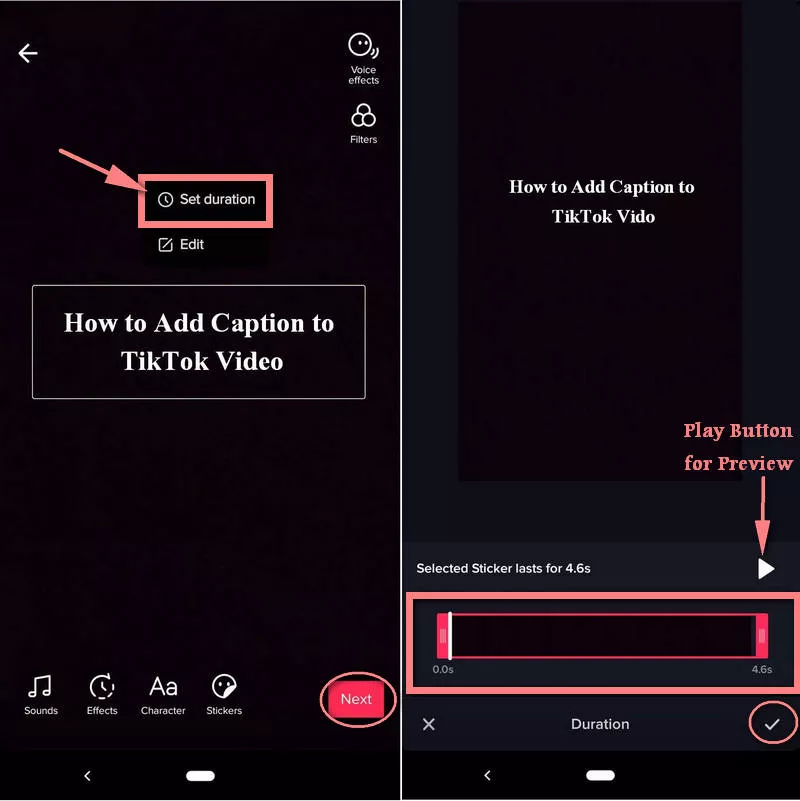
Image Board: Timing Text in TikTok
Then the timing setting option will pop up on the bottom of the screen. Here you can adjust when the words appear and disappear. Drag the timing bar to select a start and end time.
Pro Tip: Want to add another text and set the new duration within the video? Just follow the same process - Click on Character, enter your words, press Done, and tap on the entered text to get the option to set the duration.
Once you finish all the caption editing part, you can press the "Next", button to add a description and any other desired information, then hit "Post" to publish your TikTok video.
① How to Use Filter Effects on TikTok
② How to Upload a Sound or Music to TikTok
Part 2 How to Edit TikTok Caption After Posting
Have you ever upload a video on Tik Tok and suddenly realized you forget to add captions to your TikTok video? Then you may be wondering how to edit TikTok caption after posting?
Unfortunately, once your TikTok video is live online, it’s impossible to change the captions. But, there is a better solution to fix the problem, keep on reading to learn how to edit TikTok video after posting.
Step 1 Launch TikTok on your phone and tap the "Profile" button in the bottom right corner of the screen.
Step 2 Select a TikTok video that you already posted. Then tap the "Save Video" button. (It saves the video, including effects, music, and everything else right to your mobile device.)
Step 3 Then, go to the main interface of the Tik Tok and then press the "+" icon and then upload the video that you saved from your phone.
From here, you can add or edit the caption for the Tik Tok video, as we did in part 1.
Part 3 Third-Party Tiktok Caption Editor [ Easy & Free]
If you want your TikTok video to stand out with cool captions, but the text effects provided by TikTok can't meet your needs, you can try some other TikTok video editors with more text styles and effects.
Just try FlexClip, a free and powerful video editor, to make your TikTok video captions with various fonts and dynamic text effects are available. With our free TikTok video maker, you can find your favorite caption effects for your TikTok video and apply them to your project just in a few clicks with ease. You can also use FlexClip to put words on TikTok video at different times using its timing feature on the top right corner of the screen.
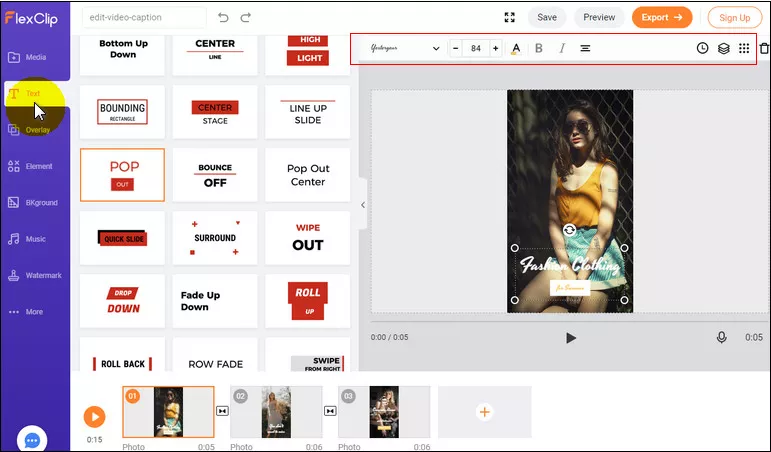
Image Board: Add Captions to TikTok Video with FlexClip
What's more, FlexClip comes with stunning video templates that enable you with endless inspiration to customize your own Tik Tok video.
TikTok Video Templates



When you use FlexClip to edit your TikTok video, you'll be surprised by its user-friendly interface - you can produce a video in just a few clicks.
Come to check out the gorgeous video templates or directly start to edit your TikTok video now!




FlexClip AI Video Maker
Reach professional-quality videos faster with easy editing tools, templates, and smart AI.
Start Now for Free
Hot & Trending
-

Ultimate Tik Tok Guide – How to Tik Tok & How to Make a Tik Tok Video that Gets Likes
-

The Best Birthday Video Maker for You to Create Birthday Videos Online for Free
-

Large Collection of Creative and Funny Birthday Video Ideas for Ones You Care
-

Instagram Story Video Quality Bad After Upload? Fix It!
-

How To Remove/Reduce Background Noise? - 3 Best Free Audio Optimizers
-

Best Video Quality Enhancer: Improve Your Video Quality Easily
-

TikTok Filters Guide: How to Use Filter Effects on TikTok
-

How to Add Multiple Photos to One Instagram Story