Large video files can be a splitting headache when it comes to sharing and storage. They take up much space on your hard drive and create longer loading time that drives online viewers away. Besides, big video files are also not ideal for blogging and emailing, etc.
So, we will walk you through the best video quality setup for compressing a video to a smaller size and offer you proven solutions to reduce the video file size online without losing quality for free, plus bonus tips to reduce video files for Windows 10 and Mac users.
Here’s What You Will Learn:
Best Video Quality Setup for Reducing Video Size
Before we move to the free online video compressors to scale down your video file, let's briefly discuss the classic video qualities and technical aspects that define the physical size of your video file.
Classic Video Quality, Resolution and Aspect Ratio:
| Official Name | Pixel Size (width & height) | Aspect Ratio | |
|---|---|---|---|
| 8k or 4320p | 8k video (Full Ultra HD) | 7680 x 4320 | 16:9 |
| 4k or 2160p | 4k video (Ultra HD) | 3840 x 2160 | 1:1.9 |
| 1440p | QHD (Quad HD) | 2560 x 1440 | 16:9 |
| 1080p (recommended) | Full HD | 1920 x 1080 | 16:9 |
| 720p | HD (High Definition) | 1280 x 720 | 16:9 |
| 480p | SD (Standard Definition) | 852 x 480 | 16:9 |
To reduce the file size of 4k or 8k videos while still retaining their video quality, it's highly recommended to scale down the video resolution to 1920 x 1080p (Full HD) or 1280 x 720p (HD) because these two video qualities promise the best viewing experience online and compatible with the all online video hosting platforms.
So, in addition to the video resolution (like 4320p, 2160p or 1080p, 720p, or the number of pixels used to form a video image), what else defines the physical size of a video file? Well, there are 4 more elements:
Recommended Video Quality Setup:
Video format(encoder): MP4 (across platforms)
Video resolution: 1080p; 720p
Bitrates: 8M for 1080p video; 5M for 720p video
Frame Rate: 24-30 FPS
Encoding: H.265
Compared with H.264 encoding, H.265 is specially made to generate high-resolution video and it offers between 25% and 50% more data compression at the same level of video quality.
How to Reduce Video Size Online
Now, you've figured out what determines the video quality and video file size. So, next, here are the recommended free video compressors for you.
1. Flexclip Video Compressor
FlexClip is a feature-rich free online video editor that offers you 2 ways to reduce video files,i.e. directly compress the video; use the splitter and trimmer to remove unwanted parts of the video and output as 720p, 480p of the original video.
Simply drag and drop your video footage to FlexClip online video compressor > select the percentage and video resolution to compress the original video.
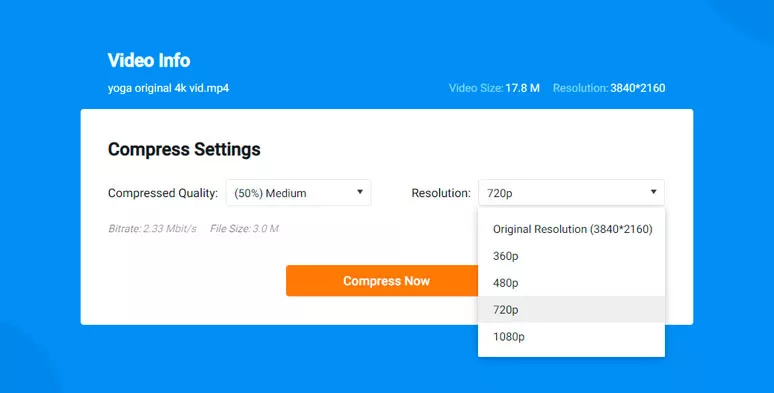
Reduce video size by FlexClip online video compressor

If you take a closer look at your original video footage, every often you can spot unwanted clips, which can help you compress 20-30% of the original video. Just upload clips to FlexClip video editor > add it to the timeline > split the unwanted part of the clips and drag the video slider to adjust video duration and finally output the video in 720P or 480P.
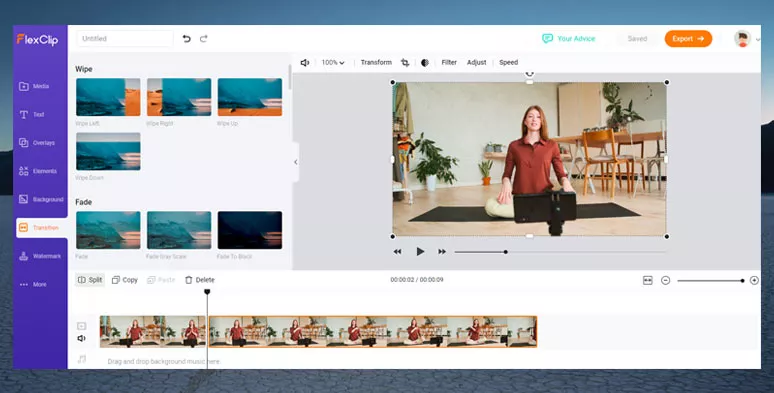
Split and trim unwanted parts of clips to reduce video size online
2. FreeConvert Compressor
FreeCovert is a versatile image and video tool. Its free video compressor allows you to compress a video file in seconds with multiple choices. Just upload your video file, then you may opt to reduce the video size by percentage, exact out file size, video quality, resolution, and max bitrate and encoding.
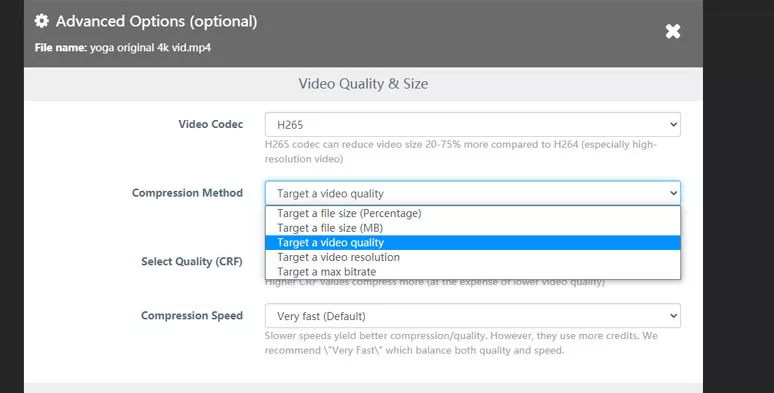
Compress a big video file by FreeCovert Video Compressor
3. Use Embed Code to Reduce Video Size Online
To reduce a big video file without losing quality online, sometimes we need to think out of the box. If you plan to embed the large video file in your blog or an email, a feasible way is to upload it to a video host platform like YouTube, and right-click on the video and copy the embed code, and later paste the embed code in the blog and email. Then, the viewer or email recipient can enjoy a full definition video with zero quality loss.
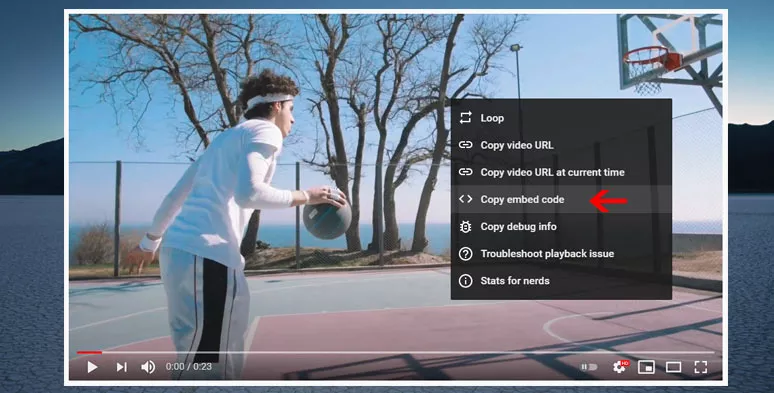
Copy and paste your online video embed code to reduce video size for blogging, etc.
Bonus Tips: Directly Reduce Video Size on Windows 10 and Mac
If you don't have access to the internet, for Windows 10 and Mac users you may use the pre-installed video editor to compress video files locally as well.
1. How to Reduce Video Files for Windows 10 Users
Head to the taskbar and enter “ video editor” in the search bar. Then click on the app icon to open it.
Click “New Video Project” > name your video >upload the clips > drop the video to the storyboard
Click on the “Export or Share” button and select video quality (720p or 1080p) and save it to your local computer.
2. How to Reduce Video Files for Mac Users
The pre-installed QuickTime Player is more than a media player. It can also be used as a viable tool for video compression.
Go to “File” > “Export As” > select from 720p, 480p, and export the video for a smaller size.
Final Thoughts
Given the painstaking effort made to film and edit the video, all of us want to present the best video quality to the viewers while keeping the file size down. To do so, a highly recommended setup for reducing a video is 1080p (or 720p), 8-5Mbps, 24FPS, and H.265 encoding and MP4 encoder. Of course, you may experiment and come up with one that works best for you. The key is to strike a balance between video quality and video file size. So, start with FlexClip to compress your big files now.




FlexClip AI Video Maker
Reach professional-quality videos faster with easy editing tools, templates, and smart AI.
Start Now for Free
Hot & Trending
-

Ultimate Tik Tok Guide – How to Tik Tok & How to Make a Tik Tok Video that Gets Likes
-

The Best Birthday Video Maker for You to Create Birthday Videos Online for Free
-

Large Collection of Creative and Funny Birthday Video Ideas for Ones You Care
-

Instagram Story Video Quality Bad After Upload? Fix It!
-

How To Remove/Reduce Background Noise? - 3 Best Free Audio Optimizers
-

Best Video Quality Enhancer: Improve Your Video Quality Easily
-

TikTok Filters Guide: How to Use Filter Effects on TikTok
-

How to Add Multiple Photos to One Instagram Story