You know that you can post still photos on Facebook, but do you realize that Facebook also supports GIFs?
Facebook now allows us to post GIFs in their status updates, comments, and private messages.
Below we'll show you how to post a GIF on Facebook in 3 different ways. Check out now.
Bonus: Make A Funny GIF for Facebook Online and Free
FlexClip GIF Maker can help you turn any video clip or photos into an animated GIF for Facebook in only three steps: upload media, make edits, then export and share.
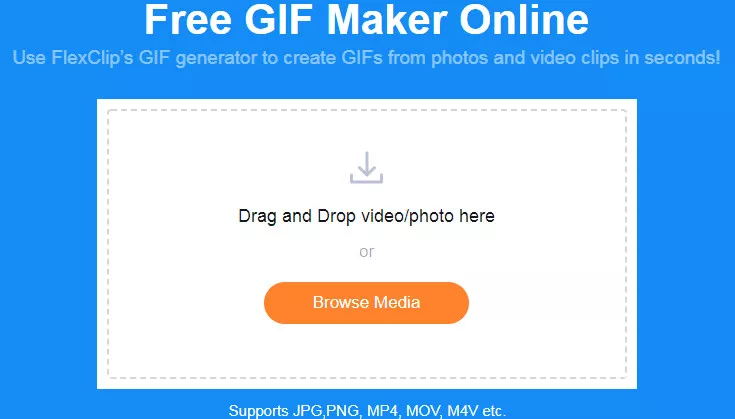
Image Board: FlexClip Online GIF Maker


How to Post GIF to Facebook with Its GIF Feature?
The simplest way to post a GIF to Facebook is to use its GIF feature. Facebook provides a built-in GIF library coming with over 1500 GIFs.
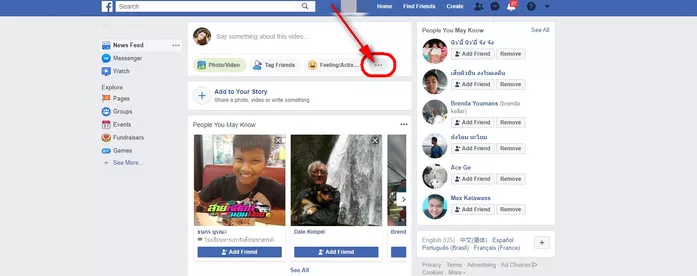
Image Board: Post GIF to Facebook with Its GIF Feature 2
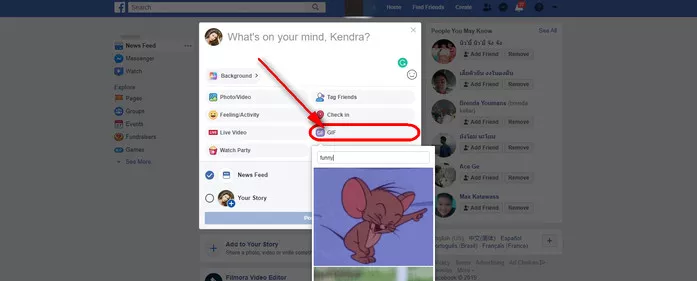
Image Board: Post GIF to Facebook with Its GIF Feature 3
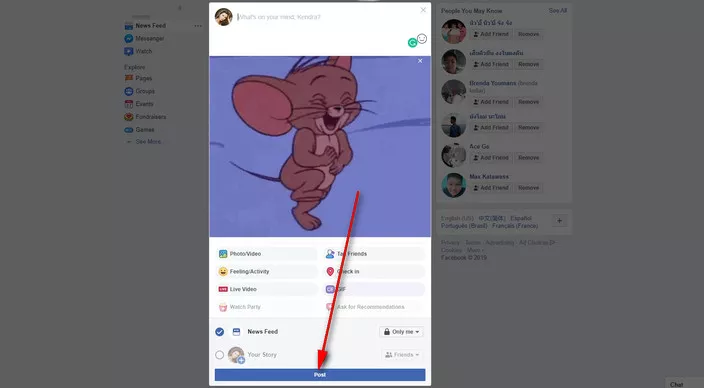
Image Board: Post GIF to Facebook with Its GIF Feature 4
How to Post My Own GIF on Facebook?
Instead of directly posting GIFs to Facebook with its own GIF feature, you can also upload your own GIF to Facebook.
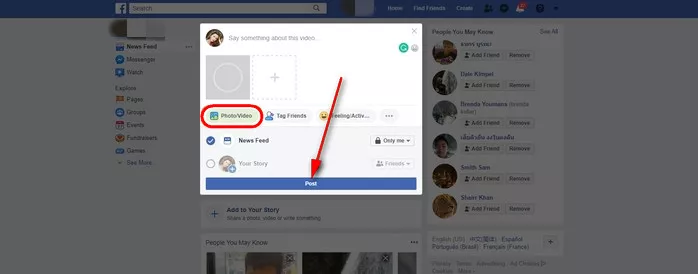
Image Board: Upload Your Own GIF to Facebook
How to Share a GIF to Facebook from GIF Websites?
Besides that, many popular GIF websites allow you to share a GIF to Facebook directly. Here we show you the steps to post a GIF on Facebook from giphy.com.
Final Words
So, that is all we have for you. These are the ways that you can consider uploading GIFs on Facebook. Read all the steps carefully, and you will be able to do the task in seconds. All of them are pretty easy, and anyone can do it; just try one now.




FlexClip AI Video Maker
Reach professional-quality videos faster with easy editing tools, templates, and smart AI.
Start Now for Free
Hot & Trending
-

Ultimate Tik Tok Guide – How to Tik Tok & How to Make a Tik Tok Video that Gets Likes
-

The Best Birthday Video Maker for You to Create Birthday Videos Online for Free
-

Large Collection of Creative and Funny Birthday Video Ideas for Ones You Care
-

Instagram Story Video Quality Bad After Upload? Fix It!
-

How To Remove/Reduce Background Noise? - 3 Best Free Audio Optimizers
-

Best Video Quality Enhancer: Improve Your Video Quality Easily
-

TikTok Filters Guide: How to Use Filter Effects on TikTok
-

How to Add Multiple Photos to One Instagram Story