Being able to zoom in and zoom out on a video allows you to easily draw viewers’ attention to the key areas in a video. It is extremely helpful for reviewing editing software or making tutorial videos of various kinds.
In this post, we will be walking you through how to zoom in and zoom out on a video for tutorial videos using a free and versatile online video editor—FlexClip. So you can make create professional and engaging tutorials videos with ease.
The zoom in/out effect created by FlexClip


Here’s what you’ll learn:
How to Zoom in/out on a Video for Tutorial Videos Using FlexClip
To create the zoom in/out effect on a video, you might think of using high-end editing software like Premiere Pro, Davinci Resolve, or Camtasia, etc. However, to your surprise, you can easily zoom in and zoom out on a video using a free and feature-packed online video editor---FlexClip.
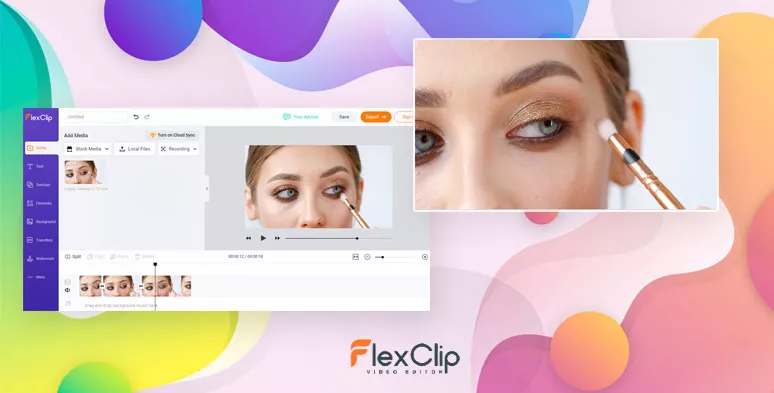
Zoom in and zoom out on a video by FlexClip
You can use most of its key features for free and there are dozens of user-friendly video tools that can take your tutorial videos up a notch. Not to mention the millions of royalty-free stock assets (HD videos, photos, and audio) in its media library. Besides, no software or extension is to install.
So, let’s find out how to zoom in and zoom out on a video by FlexClip:
After you enter FlexClip’s video editor, click “Local Files” to upload your clips to the media library. Then, add it to the timeline, ready for editing.
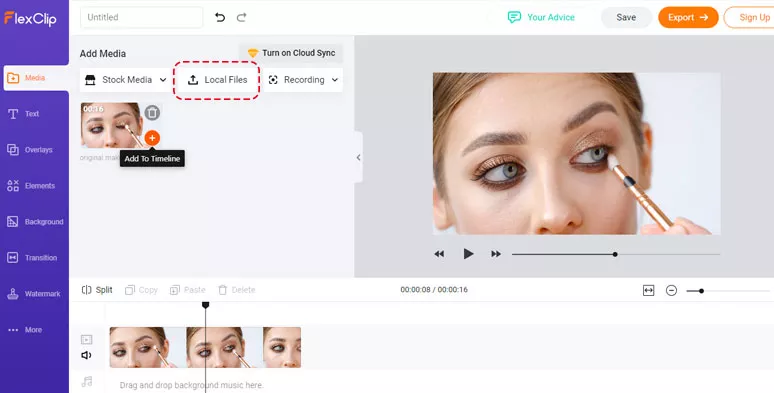
Upload clips to FlexClip’s video editor
Move the playhead to cut off the beginning and the end of the clip for a zoom-in effect.
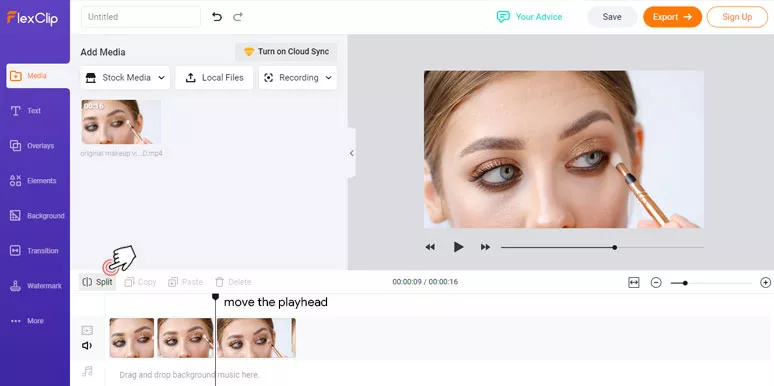
Split the clip for zoom in part of the video by FlexClip
Select the clip for Zoom in and click the “Zoom” tool and drag the slider to the right to achieve the Zoom in effect on a video. Then drag the clip to the position you want in the frame.
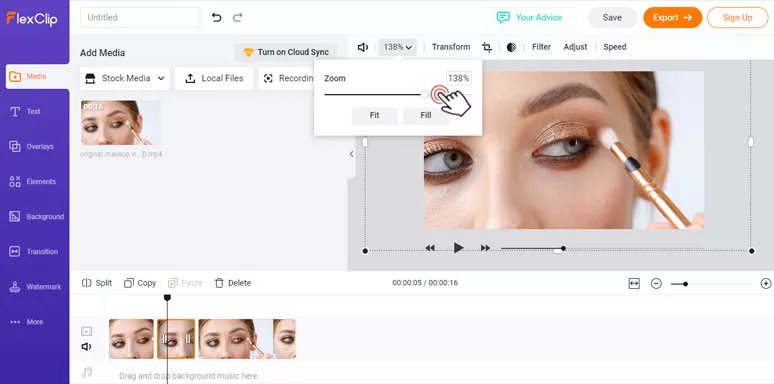
Zoom in certain parts of a video by FlexClip
Next, head to the “Transition” tool on the left menu and drag and drop the “Fade” effect to both the beginning and the end of the zoom-in clip. This helps create a smooth transition between the zoom-in and zoom-out parts of the video. Done.
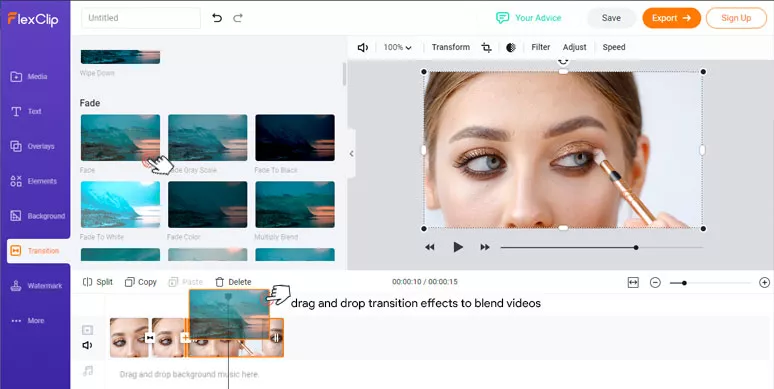
Add a transition to make zoom in/out effect smoother
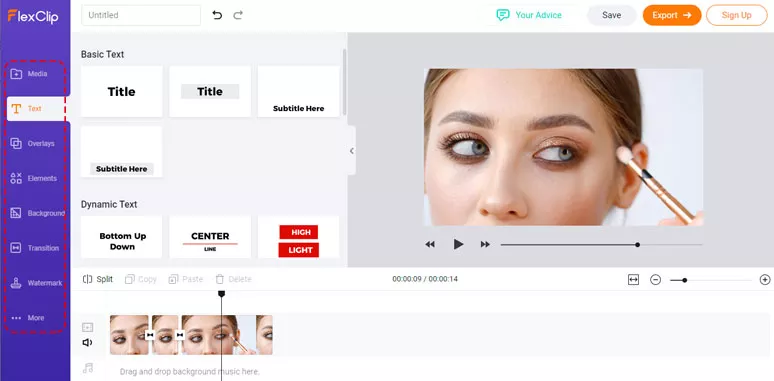
Use the versatile video tools and huge stock assets on the left toolbar
With one click, you can even directly share the edited video to your YouTube channel or Dropbox for storage.
Final Thoughts
So, that’s how you can easily zoom in and out on a recorded video using the free and flexible online video editor—FlexClip. Hopefully, our guide can help you make compelling tutorial videos and stay productive. If you have better solutions to zoom a video or any more questions, don’t hesitate to reach us on our official Facebook, YouTube channel and Twitter, etc. See you there.




FlexClip AI Video Maker
Reach professional-quality videos faster with easy editing tools, templates, and smart AI.
Start Now for Free
Hot & Trending
-

Ultimate Tik Tok Guide – How to Tik Tok & How to Make a Tik Tok Video that Gets Likes
-

The Best Birthday Video Maker for You to Create Birthday Videos Online for Free
-

Large Collection of Creative and Funny Birthday Video Ideas for Ones You Care
-

Instagram Story Video Quality Bad After Upload? Fix It!
-

How To Remove/Reduce Background Noise? - 3 Best Free Audio Optimizers
-

Best Video Quality Enhancer: Improve Your Video Quality Easily
-

TikTok Filters Guide: How to Use Filter Effects on TikTok
-

How to Add Multiple Photos to One Instagram Story