Summary: Read this to find out how to speed up YouTube videos to watch by changing YouTube playback speed on Desktop/iPhone/Android. We also show you how to speed up a downloaded YouTube video or speed up a normal speed clip and create a new stunning video to upload to YouTube.
Some people prefer watching YouTube videos on search engines on a computer while others love to watch the video in the YouTube app on their iPhone or Android devices. So here, we will we'll share the different ways to speed up YouTube videos on desktop/Android/iPhone. Let's get started.
Can't Miss: How to Loop a YouTube Video on iPhone & Desktop>
Part 1: How to Speed up YouTube Videos on Desktop
It's pretty easy to speed up a YouTube video on Desktop rely on the YouTube playback speed feature.
The playback speed feature allows users to speed up a YouTube video as much as 2x the normal speed, or even slow it down as low as 0.25x the normal speed.
So you can change YouTube playback speed to speed up the YouTube video to quickly watch longer videos and consume more information in a shorter period. Here's how it works below:
Step 1 Go to the video you want to speed up on YouTube, play it as usual. Go to Settings icon shaped like a gear located at the bottom of the video.
Step 2 Then, a set of options will pop up, select "Playback speed".
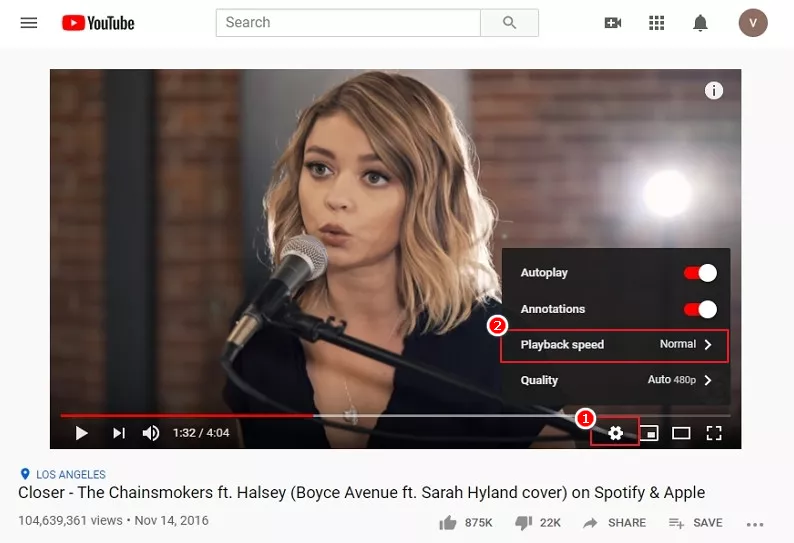
Image Board: YouTube Playback Speed Feature
Step 3 Here are various playback speeds you can choose from 0.25X to 2X. Select your desired playback speed to speed up the video to watch.
Part 2: How to Speed up YouTube Videos on iPhone/Android
Want to speed up the YouTube Videos for watching on the mobile devices? The processes to speed up YouTube videos on the iPhone and Android are the same, and it is pretty easy to do. Follow the simple steps below to speed up the YouTube video using an Android or iPhone:
Step 1 Open your YouTube app on your mobile phone and go to the video you want to speed up for watching.
Step 2 Click the video once, and a menu overlay to appear, tap the three dots.
Step 3 Then select the playback speed form the new pop-up.
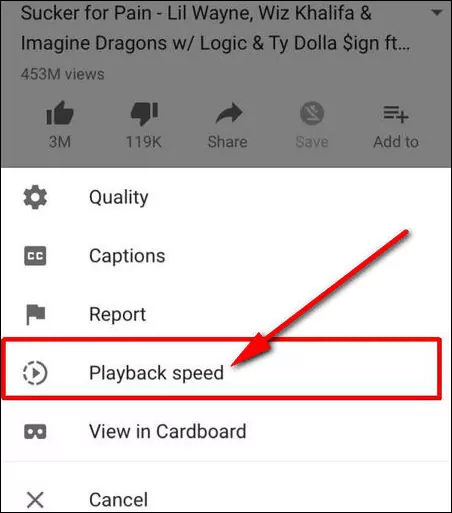
Image Board: YouTube Playback Speed Feature
Step 4 Choose the playback speed you prefer to watch.
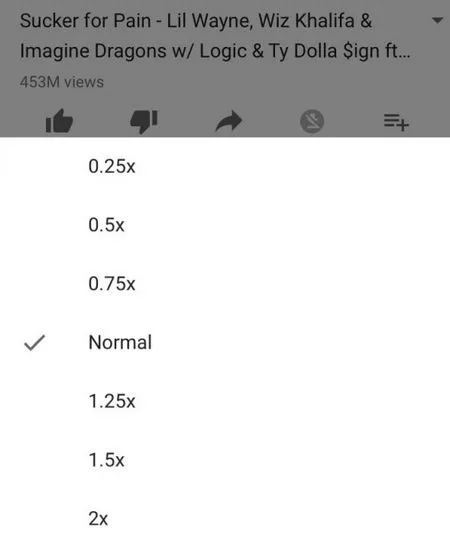
Image Board: Select Playback Speed
Bonus: How to Speed up a Video for YouTube (or Speed up the Downloaded One)
May you also want to speed up a regular speed video clip for a funny and dramatic effect to upload to YouTube? Here the dominant online video editor, FlexClip, is ready to help.
FlexClip provides the perfect online video editing service. You can speed up the video for YouTube or a downloaded YouTube video easily and efficiently without download any software. Besides, it also provides you many easy-to-use editing tools that level up your video, like transition effects, filters. Moreover, FlexClip also allows you to export the video in 480p, 720p, and 1080p. No video quality loss would occur.
Now, follow us, visit FlexClip Homepage, or click on the Create A Video button below to speed up a downloaded YouTube video or create a new stunning one for YouTube.
Step 1 Upload your video clips to the storyboard with the "+" icon > Add Local Media. You can also pick some stunning footage from FlexClip's extensive media library by Add Stock Media option.
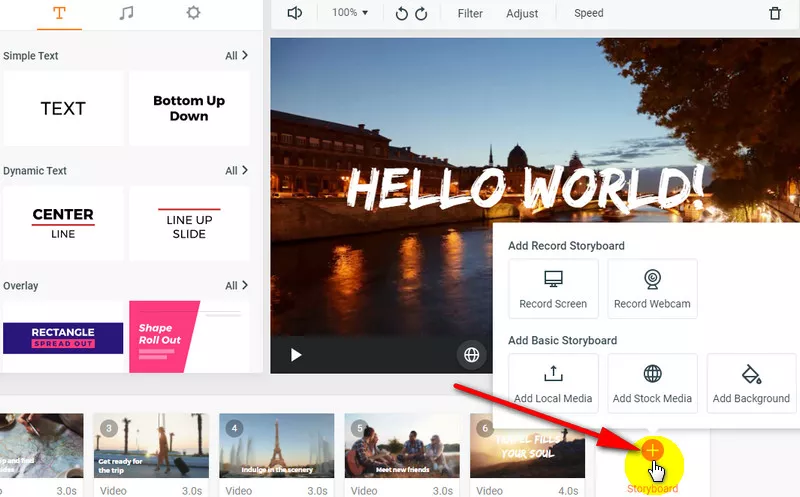
Image Board: Speed up Video for YouTube: Step 1
Step 2 Go to the Go to the Speed icon, and choose to play the video in 1.5X, 2X, or 3X to speed up the clip.
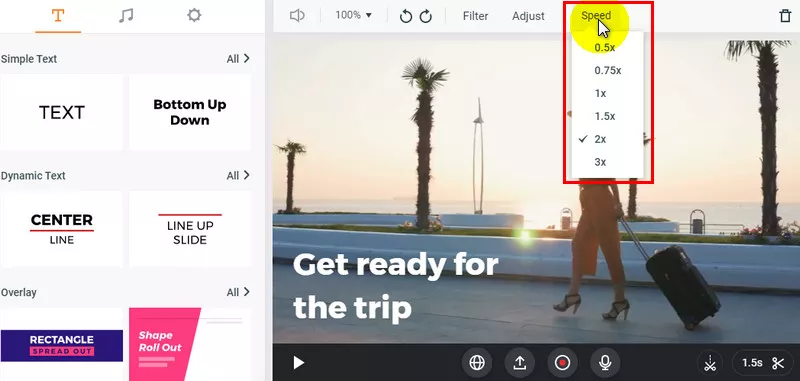
Image Board: Speed up Video for YouTube: Step 2
Step 3 (Optional) You can make other edits for the video, like add filters, transitions, animated texts, BGM, voice-over, or watermark, to level up the video at your wish.
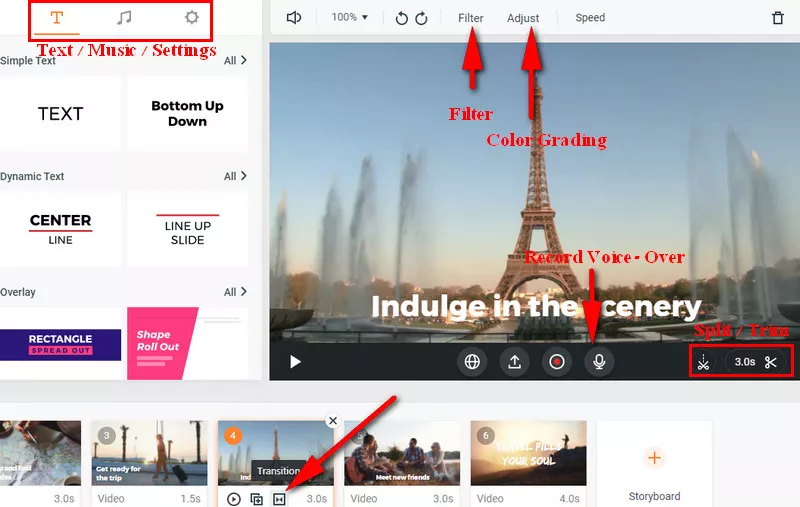
Image Board: Speed up Video for YouTube: Step 3
Step 4 When you're done the editing, you can preview the final effect with the Preview button on the top right corner of the screen. If you are satisfied, download it to your computer and share it on YouTube.
While you're in the editor, you can use FlexClip's tools to make any other edits you'd like to your video:
- Add & edit text animation to the video;
- Add transition effects, filters to the video;
- Add watermark, overlays & voice over;
- Split, trim, and rotate the video;
Final Words
That's all for how to speed up YouTube videos on desktop, iPhone, and Android. As you can see, speeding up a YouTube video is not hard at all with the above methods. Find this post helpful? Please share it with others.




FlexClip AI Video Maker
Reach professional-quality videos faster with easy editing tools, templates, and smart AI.
Start Now for Free
Hot & Trending
-

Ultimate Tik Tok Guide – How to Tik Tok & How to Make a Tik Tok Video that Gets Likes
-

The Best Birthday Video Maker for You to Create Birthday Videos Online for Free
-

Large Collection of Creative and Funny Birthday Video Ideas for Ones You Care
-

Instagram Story Video Quality Bad After Upload? Fix It!
-

How To Remove/Reduce Background Noise? - 3 Best Free Audio Optimizers
-

Best Video Quality Enhancer: Improve Your Video Quality Easily
-

TikTok Filters Guide: How to Use Filter Effects on TikTok
-

How to Add Multiple Photos to One Instagram Story