We all had the frustrating experience that you took a great video on your iPhone, yet only to find the orientation of the video was either upside down or sideways.
Well, worry no more, my friend. In this post, we will briefly discuss the cause of the wrong orientation of a video and teach you how to easily and quickly rotate a video to the correct orientation you want on Windows 10, Mac, iPhone.
Here’s what you’ll learn:
What Caused the Incorrect Video Orientation
Well, the cause of the wrong video orientation is that when we pressed the record button on our cellphone, the cellphone will take the first frame of the video orientation as the default orientation of the entire video.

Incorrect video orientation caused by taking a selfie
In other words, you start recording the video vertically and even if later you move the phone horizontally, the video recorded will remain in the vertical orientation throughout the recording.
So, if you want to avoid the wrong video orientation, simply just record the video in the preferable orientation from the very first frame.
How to Rotate a Video on Windows 10
Currently, you have two options to easily rotate a video on Windows 10. One is to use a free and versatile online video editor like FlexClip and the other way is to use a pre-installed video editor on Windows 10.
Both options allow you to rotate a video to any orientation in 30 seconds. Yet, the first option offers you more powerful video tools to rotate and allows you to edit your video in one place. Great, let’s take a look at how they work.
How to Rotate a Video by FlexClip
Your clips will be automatically added to the storyboard for video rotation.
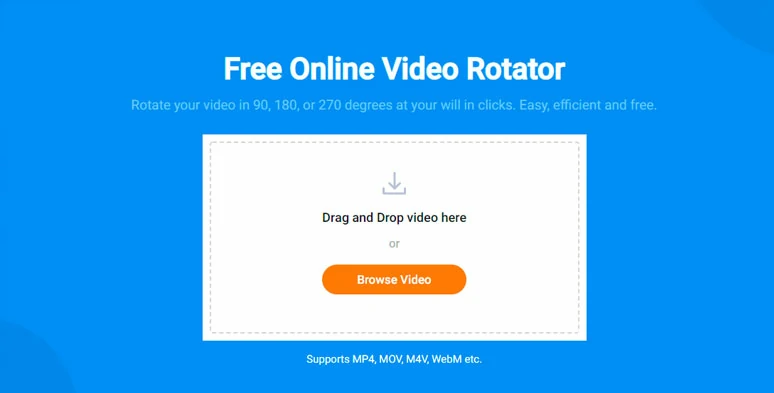
Upload a video to FlexClip’s online video rotator

Click the “Transform” button, then you can choose to rotate your video in a clock-wise/anti-clock-wise manner or flip the clip horizontally or vertically. It couldn’t be easier.
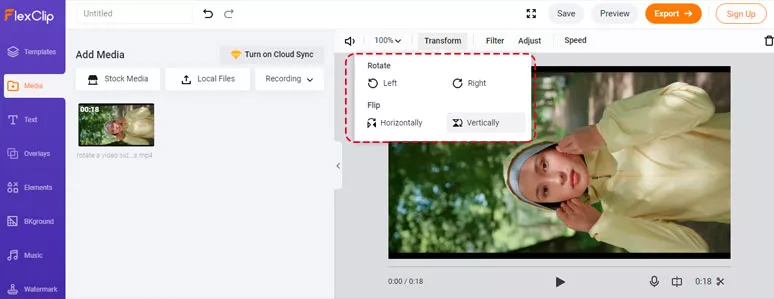
Rotate a video using the transform tool by FlexClip

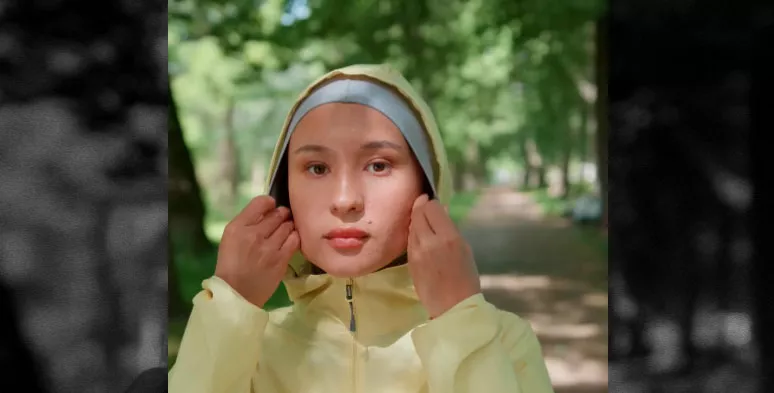
Turn portrait video into a landscape video
Click the “Zoom” button and press “Fill” and the video fill be automatically stretched to fill the blank space. And it will serve as the video background.
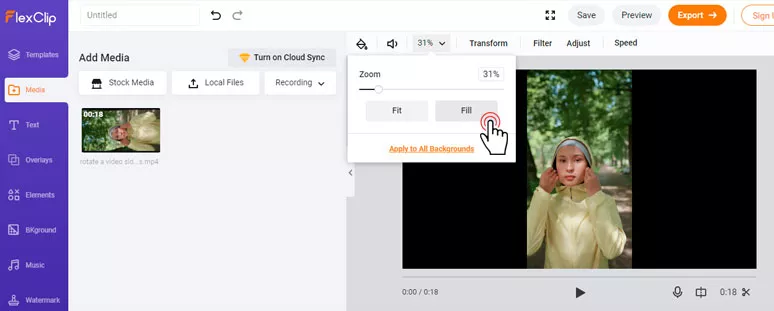
Fill the blank space of a frame as the video background
Click on the “Filter” button and select the “B&W” filter to desaturate the background video. Then tap the “Adjust” button and move the slider of the exposure, brightness, and shadows to the left to further make the background video less prominent. Discover useful ways to add cool video filters.
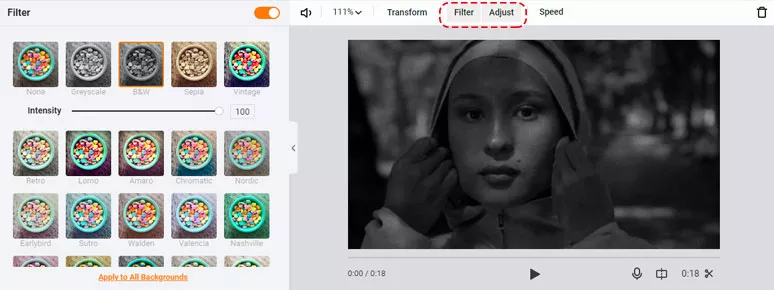
Use filter and adjustment tool to darken the video background
Hover over the original video and click the “Picture-in-picture” icon. Then the clip will be added over the background video. Drag and drop the video to adjust its size and position properly. Done
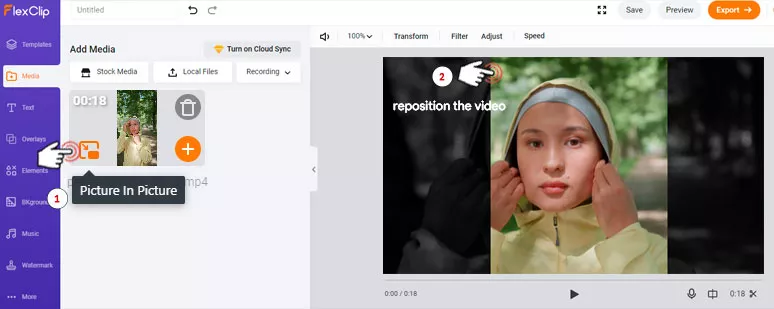
Create a picture in picture effect to turn it into a landscape video
How to Rotate a Video by Pre-installed Video Editor on Windows 10
Interestingly, Windows 10 has a built-in video editor that can rotate a video and do basic editing like trimming and adding texts.
Head to the taskbar and enter “ video editor” in the search bar. Then click on the app icon to open it.
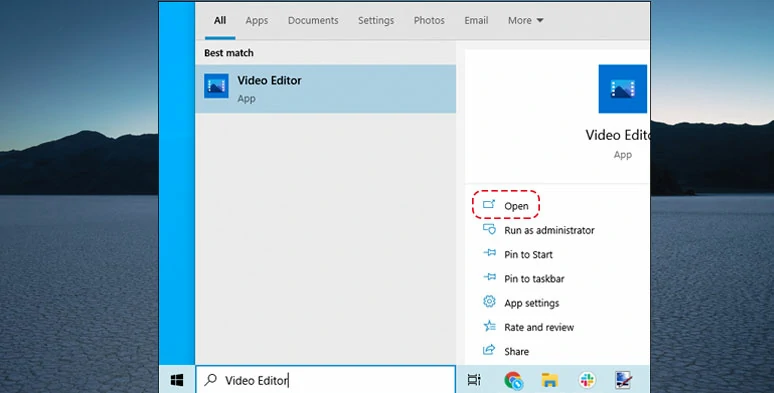
Launch the pre-installed video editor on Windows 10
Click “New Video Project” > name your video >upload the clips > drop the video to the storyboard
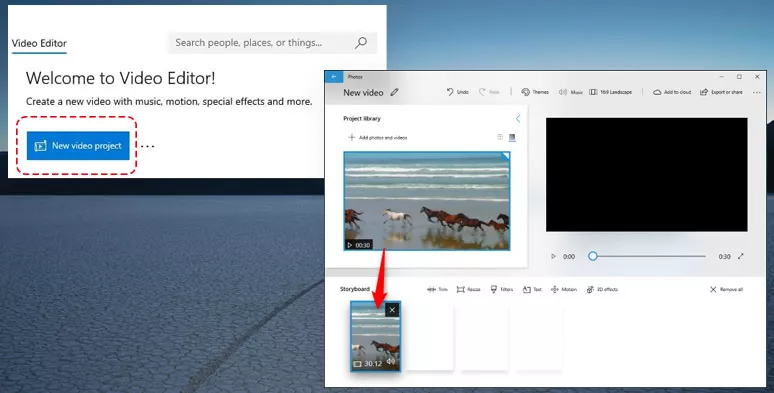
Upload the video to the storyboard
Click the rotation button to change the video position
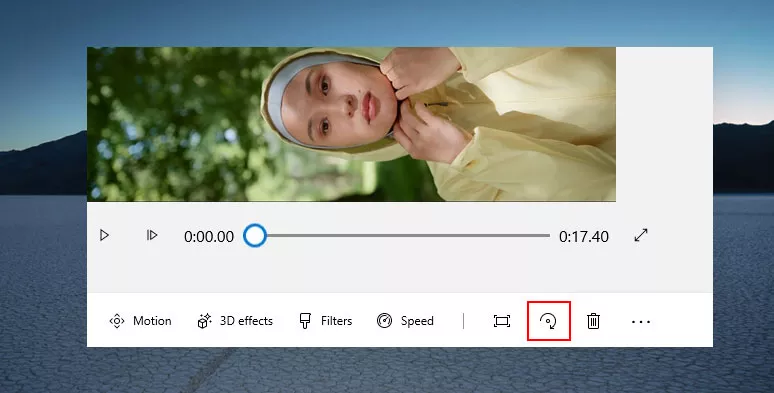
Use to Windows 10 video rotate button
How to Rotate a Video on Mac
For Mac users, you can either use FlexClip’s online video rotator mentioned above or the built-in QuickTime Player to easily rotate a video. Check 5 alternatives to QuickTime Player in 2021.
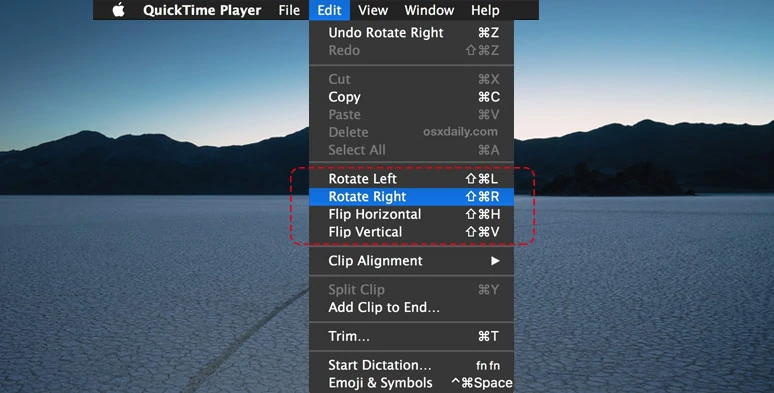
QuickTime Player video rotate button
How to Rotate a Video on iPhone
If you want to directly rotate a video on your iPhone, using iMovie can help you out. Let's check the step-by-step guide below:
If you don't have iMovie on your iPhone, just go to App Store and install it. Check how to add text to iMovie on iPhone,iPad, and Mac.
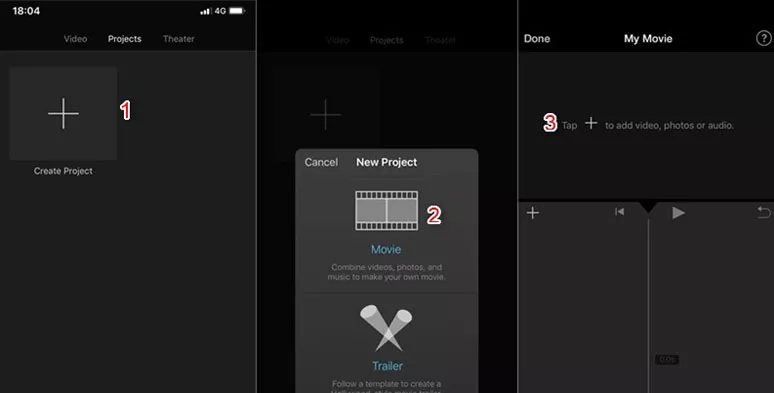
Add a video to iMovie on iPhone
Now, you'll see your video with the timeline below. Just put two fingers on the video and twist it left or right. You can twist it until you are happy with the orientation. Tap Done to finish it.
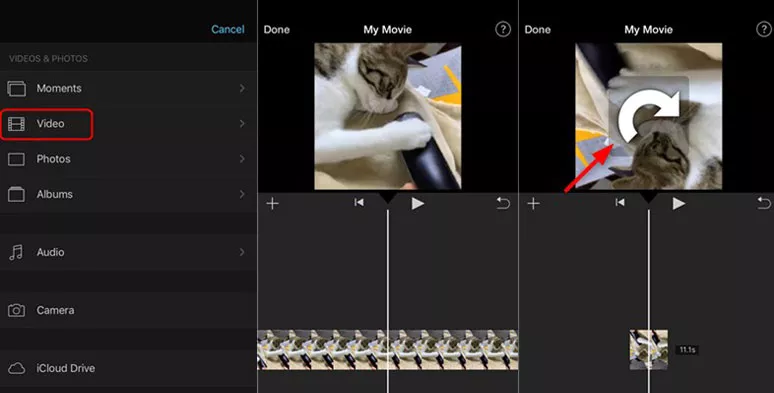
Rotate a video in iMovie on iPhone
Final Thoughts
So, which way is your favorite to rotate a video with the wrong orientation? Don’t forget to tell us on our Facebook and Twitter. Besides, what is worth mentioning is that amid all the options to rotate a video, the FlexClip, a feature-packed online video editor, is arguable the most versatile tool to rotate or flip your video across platforms. Do give it a go and we are sure you will love using it.




FlexClip AI Video Maker
Reach professional-quality videos faster with easy editing tools, templates, and smart AI.
Start Now for Free
Hot & Trending
-

Ultimate Tik Tok Guide – How to Tik Tok & How to Make a Tik Tok Video that Gets Likes
-

The Best Birthday Video Maker for You to Create Birthday Videos Online for Free
-

Large Collection of Creative and Funny Birthday Video Ideas for Ones You Care
-

Instagram Story Video Quality Bad After Upload? Fix It!
-

How To Remove/Reduce Background Noise? - 3 Best Free Audio Optimizers
-

Best Video Quality Enhancer: Improve Your Video Quality Easily
-

TikTok Filters Guide: How to Use Filter Effects on TikTok
-

How to Add Multiple Photos to One Instagram Story