Summary:There are always some funny reversed videos on YouTube, Instagram and Facebook, and sometimes you may want to reverse a video and post it on social media to attract others. So how to reverse a video online?
It is very popular to upload videos on social media platform like TikTok, Facebook, YouTube, Snapchat or Instagram, and we can always find some interesting videos there. The purpose of sharing videos is of course to get more playback, increase popularity, attract some potential customers, etc. So if you want your video to stand out in many videos, you have to think about it.
It seems that the normally shot videos are not so easy to catch people's attention, at this time, you can add some effects to your recorded video. Recently, there are some reversed videos are quite funny and many vloggers start to make some reversed videos. If you want to reverse a video without any trouble, just read through this quick guide and you'll get several useful ways to reverse your videos.
You May Like: How to Make A YouTube Video
Image board: How to Reverse A Video Online
Part 1. Best 3 Online Video Reverse Tools on Windows/Mac
1.EZGIF
EZGIF Video Reverseris a free and easy video reverser which supports MP4, WebM, AVI, MPEG, FLV, MOV, 3GP and other video files. You can upload a video file (up to 100MB) or paste a video file URL, and then this tool will start to reverse your video with the same resolution and encoding. Also, you can choose to mute, keep or reverse the sound on your video. Let's check the steps below:
Step 1. Visit EGGIF Video Reverser and click Choose File or paste video URL of your video, click Upload video to start.
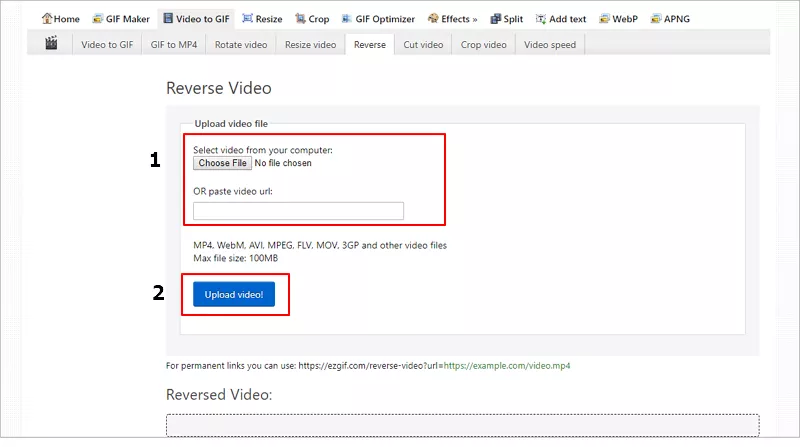
Image board: How to Reverse A Video with EZGIF - Step 1
Step 2. Then you'll see the detailed information of your video like full size, width, height,length, type, etc. You can mute the video or reverse the sound, set the outputting format and click Reverse video.
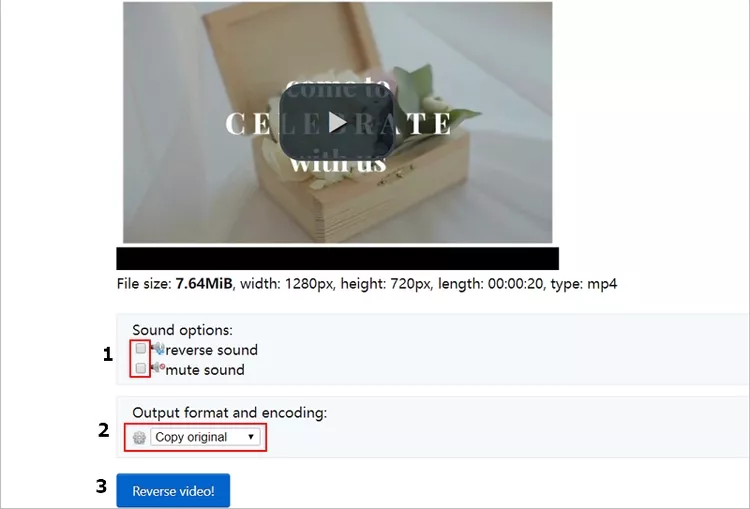
Image board: How to Reverse A Video with EZGIF - Step 2
Step 3. Then you'll see the reversed video and its detailed information. You can also resize, rotate, cut, speed and add subtitle to your video. Click save button to export your revised video.
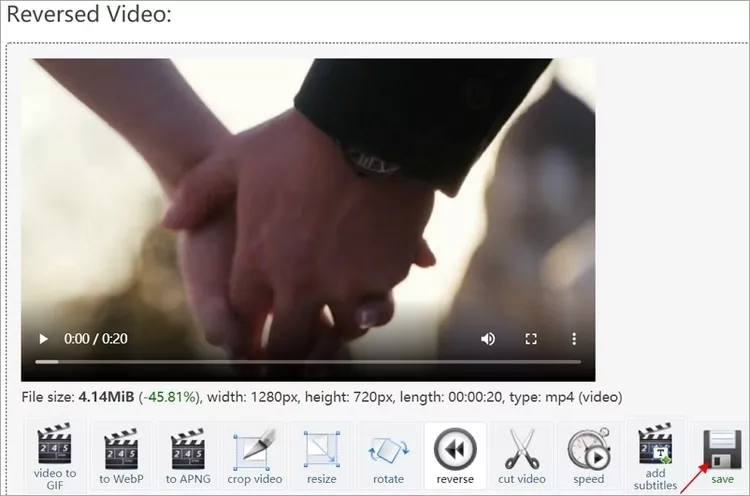
Image board: How to Reverse A Video with EZGIF - Step 3
Pros:
Free and simple, you don't need to download an app.
Besides, it has other functions after reversing your video.
Cons:
You can only upload maximum 100MB video.
The video quality is not improving.
2.KAPWING
Without downloading or installing any application to your computer, KAPWING Video Reverser allows you to reverse your video instantly. After uploading your video, you can set the reverse speed like 0.5x, 1x or 2x and you can choose to mute the video. KAPWING also offers video editing features.
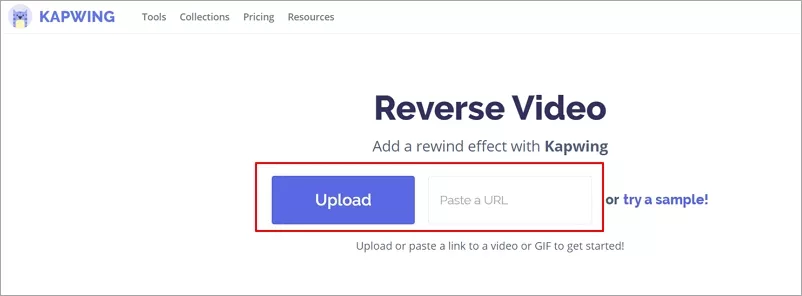
Image board: Online Video Reverser - KAPWING
Pros:
Free to use, simple UI.
You can set the reverse speed and trim video.
Cons:
The uploading speed is a little slow.
You need to pay to remove the little watermark.
3.Videoreverser
VideoReverser is a free online Video converser tool. It supports video format like mpg, mpeg, mp4, avi, flv, mov, m2v, mkv, m4v, 3gp, wmv and the max file size for upload is 10 MB. Also, you can set the output format as mp4, mpg, mov and mwv.
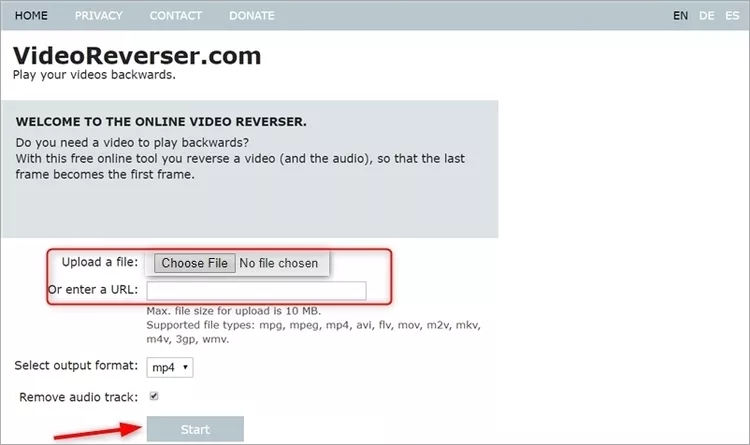
Image board: Online Video Reverser - VideoReverser
Pros:
It's totally free.
You can remove the audio track.
Cons:
The maximum video size for upload is 10 MB.
It crashes when I upload a 4MB video.
Part 2. How to Trim Videos Online for Free
What if you want to trim some videos before sharing to social media? Here we'll offer you a free online video trimmer calledFlexClip Video Trimmer. Without downloading an application or registering an account, FlexClip can help you trim your videos within steps. It supports almost all popular formats such as MOV, WEBM, M4V, and MP4.
Steps:
Visit FlexClip Video Trimmer and click Browse Video to upload a video. Adjust the length of the video and then click Trim to start. You can download it to your computer for free.
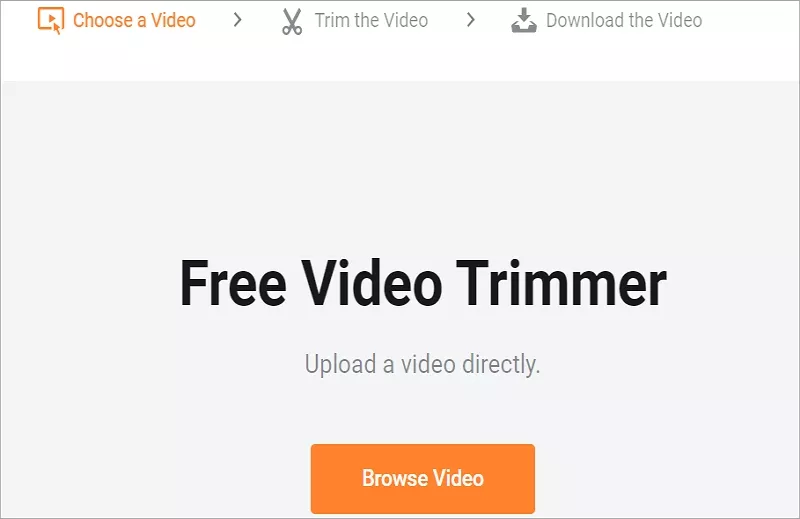
Image board: How to Trim A Video Online for Free
Part 3: How to Make A Video with Free Templates
If you want to make a video or edit your videos, FlexClip is definitely a great helper. It's a video editor as well as a video maker, which offers all kinds of video templates for you so that you can create amazing videos by yourself. Just try this free tool now!
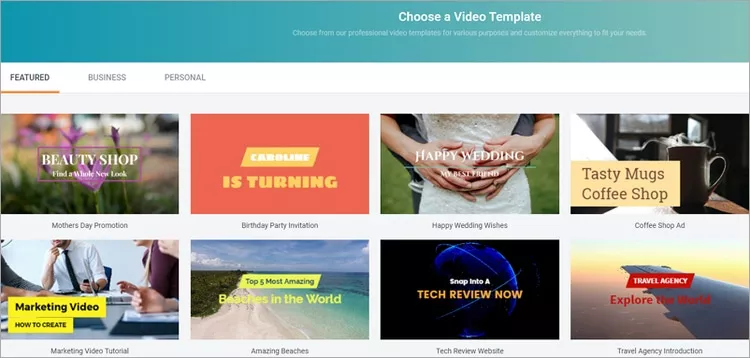
Image board: How to Make A Video with Free Templates
The Bottom Line
That's all about how to reverse a video online and we also introduce an online video trimmer and a video maker. If your video are quite small, then you can choose EZGIF or VideoReverser to make it. If your videos are more than 100 MB, then you may need to rely on KAPWING but you may need to pay to remove the watermark.




FlexClip AI Video Maker
Reach professional-quality videos faster with easy editing tools, templates, and smart AI.
Start Now for Free
Hot & Trending
-

Ultimate Tik Tok Guide – How to Tik Tok & How to Make a Tik Tok Video that Gets Likes
-

The Best Birthday Video Maker for You to Create Birthday Videos Online for Free
-

Large Collection of Creative and Funny Birthday Video Ideas for Ones You Care
-

Instagram Story Video Quality Bad After Upload? Fix It!
-

How To Remove/Reduce Background Noise? - 3 Best Free Audio Optimizers
-

Best Video Quality Enhancer: Improve Your Video Quality Easily
-

TikTok Filters Guide: How to Use Filter Effects on TikTok
-

How to Add Multiple Photos to One Instagram Story