Summary:Searching for ways to add your own music to TikTok without any trouble? Here in this quick article, we'll show you a fast and free method to use your own music to TikTok.
Tiktok allows users to upload 15-second videos to record the world they see. Content from comedy, dance, fake singing, acting, pets and pranks has spread among young audiences. Due to the user-friendly and susceptible entertainment content of the product, tiktok has become an addictive platform among young people.
Most videos are accompanied by a background music, of course, tiktok provides a large number of songs to choose from. But what if you want to add your own music to TikTok? For whatever reason, TikTok does not offer an access to upload your own music at present. Now let's get another way to learn how to add your own music to TikTok.
You May Like: How to Trim AVI Files Online
Image board: How to Use Your Own Music on TikTok
Part 1. How to Add Your Own Music to TikTok
To use your own music on TikTok, all you need to do is downloading the music to your computer and add it to your videos on a video editing app. Here we'd like to introduce an impressive video editing software called FlexClip Video Maker, which is able to help you add your own music to TikTok with ease.
FlexClip offers all types of video templates for you, you can customize it and upload it to social media. It has many background music you can use, and you can also add your own music to TikTok Videos. Now let's follow the detailed steps below:
Step 1. Prepare your own music. Here are some free music downloaders your can download music to computer for free.
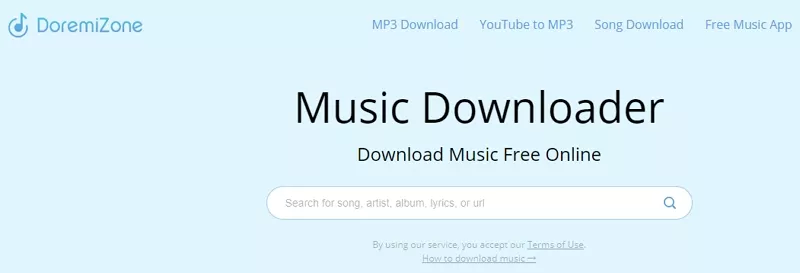
Image board: How to Add Your Own Music to TikTok - Step 1
Step 2. Then you need to get your videos to computer. Then open FlexClip and sign in your account so that we can save your videos in a safe way.

Image board: How to Add Your Own Music to TikTok - Step 2
Step 3. Click + Start from Scratch to upload your video here. (If you want to make a video with its built-in templates, you can choose one to start.)

Image board: How to Add Your Own Music to TikTok - Step 3
Step 4. Then you can click Music icon to use your own music on TikTok video. And you can click the scissor icon to trim your music, click music+ to add more music here. Get top 8 sites for royalty-free music.
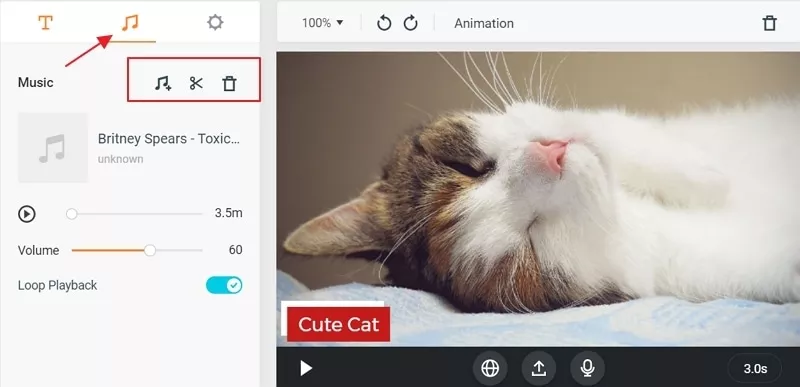
Image board: How to Add Your Own Music to TikTok - Step 4
Part 2. How to Convert Your Video Before Uploading
To make your videos compatible with all apps and devices, converting your TikTok video format is quite necessary sometimes. Here you can try a free video converter named FlexClip Video Converter to help you out. No download needed, no registering required, you can convert your TikTok video formats online for free. Isn't it easy, right? Now let's see an example of this tool:
Step 1. Open FlexClip Online Video Converter and click Browse Video to upload your video or drop your TikTok video here directly.
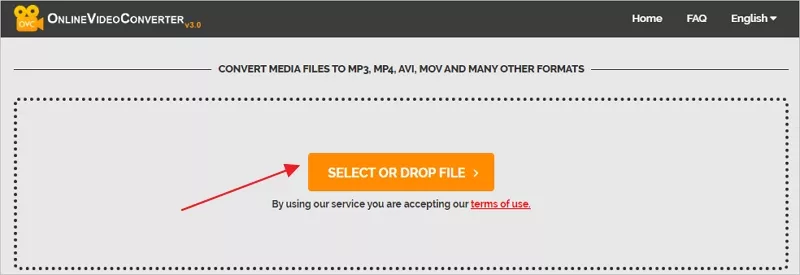
Image board: Convert TikTok Video Format - Step 1
Step 2. Then it will show the info of your video, just set the resolution, export format and quality and click Start to convert avi to mp4. Check the 6 free video converter online/offline.
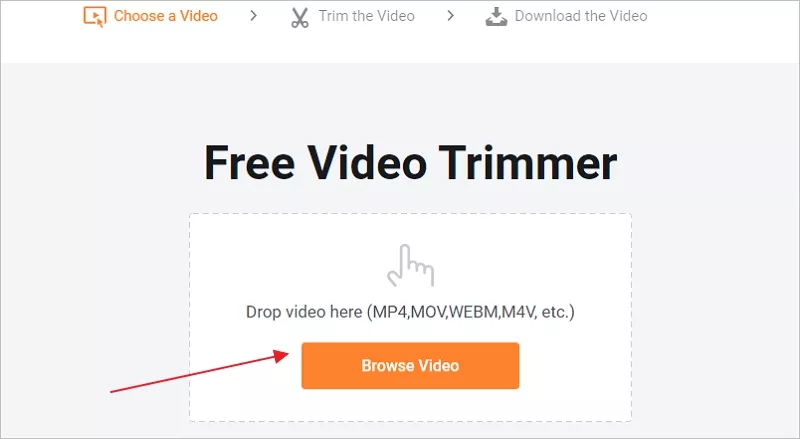
Image board: Convert TikTok Video Format - Step 2
Tips: You can also convert AVI, MOV, M4V, MP4, AVI, FLV, MKV formats to MP4 or WEBM now.
The Bottom Line
That's all about how to add your own music to TikTok video with the help of FlexClip video editor, and you can also convert TikTok video format with a free online tool. What's more, FlexClip can also help you make a video with its rich templates. Just try this free tool now!




FlexClip AI Video Maker
Reach professional-quality videos faster with easy editing tools, templates, and smart AI.
Start Now for Free
Hot & Trending
-

Ultimate Tik Tok Guide – How to Tik Tok & How to Make a Tik Tok Video that Gets Likes
-

The Best Birthday Video Maker for You to Create Birthday Videos Online for Free
-

Large Collection of Creative and Funny Birthday Video Ideas for Ones You Care
-

Instagram Story Video Quality Bad After Upload? Fix It!
-

How To Remove/Reduce Background Noise? - 3 Best Free Audio Optimizers
-

Best Video Quality Enhancer: Improve Your Video Quality Easily
-

TikTok Filters Guide: How to Use Filter Effects on TikTok
-

How to Add Multiple Photos to One Instagram Story