Summary: Wondering how to extract subtitles from MKV videos for further use? If you are reading this page, you're in the right place. Let's read through this article and get 3 ways to extract subtitles from MKV videos easily.
"How do I extract subtitles from an MKV file? I want to edit an MKV video but when I create the new video there are no subtitles. Thanks anyway."
A user from Quora
Like this user, there are chances that you may want to extract subtitles from MKV videos for dubbing or other usage like YouTube sharing. If you are looking for ways to extract subtitles from MKV videos, you've come to the right place. Let's walk through this guide and get 3 methods to extract subtitles from MKV.

Image board: How to Extract Subtitles from MKV
Also Read: Top 5 Free WebM Editor in 2020
Quick Navigation:
Part 1. 3 Ways to Extract Subtitles from MKV
- 1.MKVToolNix (MKVExtractGUI-2.exe)
- 2.VideoProc
- 3.DVDFab Video Converter
1.MKVToolNix (MKVExtractGUI-2.exe)
MKVToolNix is a set of tools that can help you alter, create, view, merge, split, join and inspect MKV files. With these tools, you can easily rip subtitles from MKV video. It supports a variety of videos, audio tracks and subtitles, and other files into an MKV file. You can also use it to extract videos and music files from MKV files if you need. Follow the steps below to extract subtitles from MKV files:
Step 1. Download and install MKVToolNix on your device, then download MKVExtractGUI-2.exe and put it to the MKVToolnix folder. Launch it by double-clicking it. (gMKVExtractGUI won't run without MKVToolNix.)
Step 2. Import your MKV files and set the export destination. Then select the subtitles that you want to extract from the MKV video by ticking the box next to it.
Step 3. Click the "Extract" button to rip the subtitles from MKV video. The subtitles will be extracted in SUB, ASS, or SRT. The output format depends on the original format of the subtitles in the MKV video.
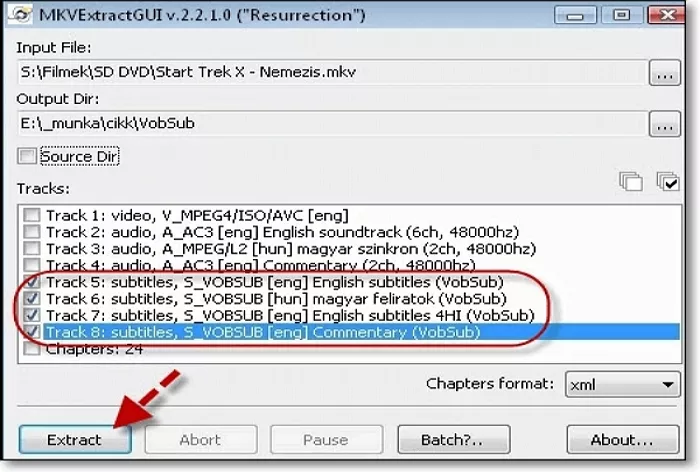
Image board: 3 Ways to Extract Subtitles from MKV - MKVExtractGUI
Quick Tips:
2.VideoProc
VideoProc is an awesome video editor that supports extracting subtitles from MKV files easily on your Windows or Mac computer. Besides, it's a powerful video editor, video converter and screen recorder. Just try this tool to extract subtitles from MKV files quickly:
Step 1. Download and install VideoProc on your Windows or Mac. Run it and import your MKV video here.
Step 2. Click the Toolbox icon and find the Export Subtitle option and double click it to select an output subtitle file format. You can also extract part of subtitles using trimming feature. Click Done.
Step 3. Click RUN button to start extracting subtitle from MKV video as SRT or ASS subtitle files.
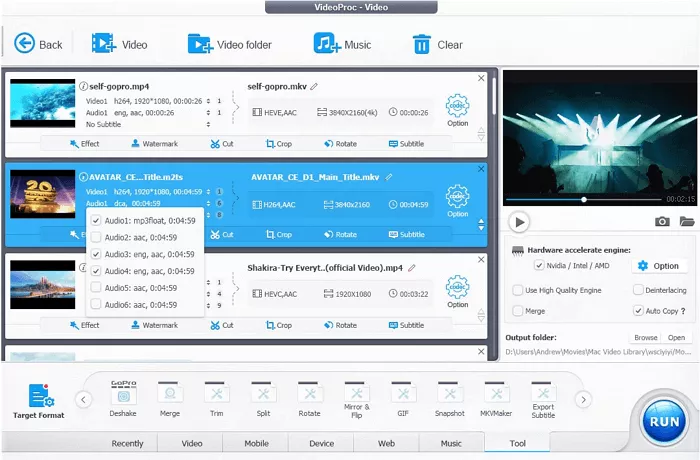
Image board: 3 Ways to Extract Subtitles from MKV - VideoProc
3.DVDFab Video Converter
DVDFab video converter is an ultimate and powerful video converter that can convert videos from one format to another. You can use it to extract subtitles from MKV, edit MKV, convert MKV to MP4 or any other video or audio formats. Let's try it below:
Step 1. Download DVDFab to your computer and choose the "Converter" module. Then upload your MKV file here.
Step 2. Click "Advanced Settings"and tap the button for an additional sub-menu and select “Extract to idx/sub file” to extract subtitles from MKV. You can also edit your video here.
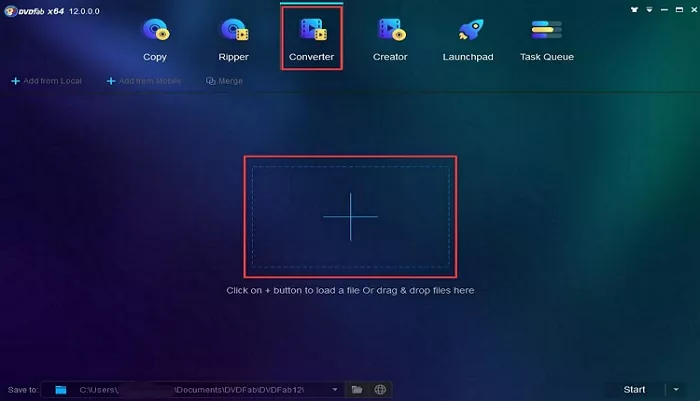
Image board: 3 Ways to Extract Subtitles from MKV - DVDFab
Part 2. How to Add Subtitles to Video Online
What if you wan to add subtitles to video online for free? FlexClip is perfect for you. It's an impressive video editor as well as video maker that can help you edit video easily online for free. You can add subtitles, add music, add text, speed up, merge, add filter, convert video formats and more.
Step 1. Open FlexClip on your browser and click Make a Free Video to start.

Image board: How to Edit Videos Online for Free - Step 1
Step 2. Then you can add subtitles to video online quickly. Click Text icon and choose a text style, then enter your subtitles here.
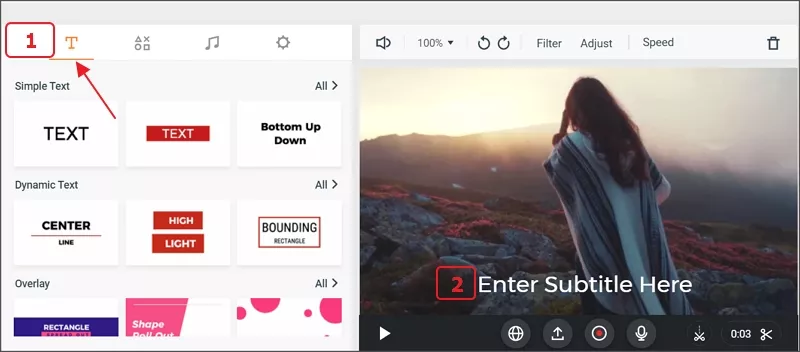
Image board: How to Edit Videos Online for Free - Step 2
Tips: You can also choose a video template and customize it online:
Happy Birthday
Merry Christmas
The Bottom Line
That's all for 3 best ways to extract subtitles from MKV files and we also introduced FlexClip to help you add subtitles to videos online for free. Just try it now!




FlexClip AI Video Maker
Reach professional-quality videos faster with easy editing tools, templates, and smart AI.
Start Now for Free
Hot & Trending
-

Ultimate Tik Tok Guide – How to Tik Tok & How to Make a Tik Tok Video that Gets Likes
-

The Best Birthday Video Maker for You to Create Birthday Videos Online for Free
-

Large Collection of Creative and Funny Birthday Video Ideas for Ones You Care
-

Instagram Story Video Quality Bad After Upload? Fix It!
-

How To Remove/Reduce Background Noise? - 3 Best Free Audio Optimizers
-

Best Video Quality Enhancer: Improve Your Video Quality Easily
-

TikTok Filters Guide: How to Use Filter Effects on TikTok
-

How to Add Multiple Photos to One Instagram Story