Summary: Videos are quite popular these days and video marketing is getting more and more vital to your business. How to embed videos in outlook email or Gmail easily? Let's read through this article and get the detailed steps.
Inserting a video into an email has a very significant effect for the business . Compared with plain text email, video email will be more interesting and will bring better performance in email click-through rate, interaction, sharing and forwarding. Video mail may also be of great significance for achieving purchase conversion.
Since Microsoft does not supports embedding videos in email, many users are looking for ways to embed video in outlook mail or Gmail. Here, we'll show you detailed steps to embed videos in outlook and Gmail.
Also Read: How to Add YouTube Videos to PowerPoint
Image board: How to Embed Videos in Outlook Email
Part 1. How to Embed Video in Outlook Email
Situation 1. Online version of Outlook
Step 1: Go to Outlook in the browser and sign in your account. Click on New message and type the email address that you want to send email to in the To box.
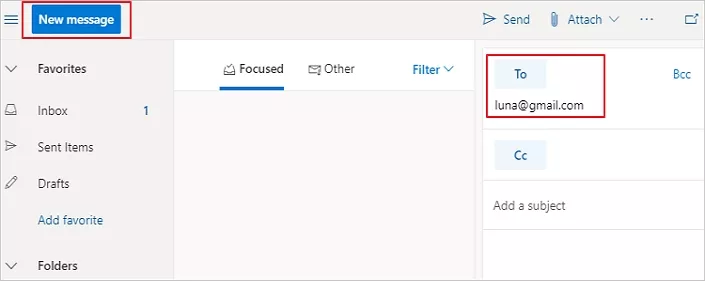
Image board: How to Embed Video in Outlook Email - Step 1
Step 2: Copy the video link of your video and paste the video URL into the email’s body. Then a video thumbnail will show up.
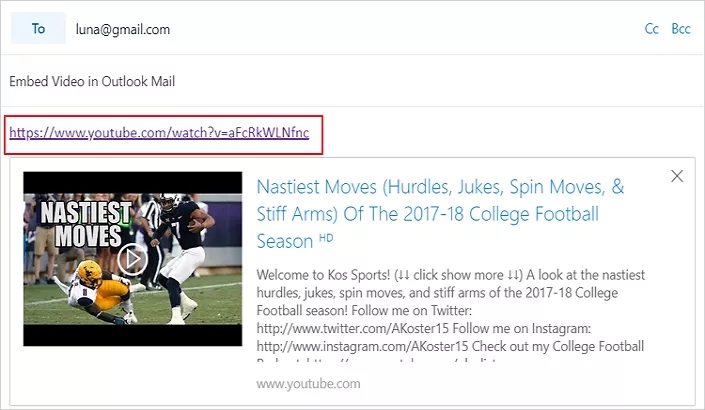
Image board: How to Embed Video in Outlook Email - Step 2
Step 3: Then you can edit your email content and click Send button to send your email with a video.
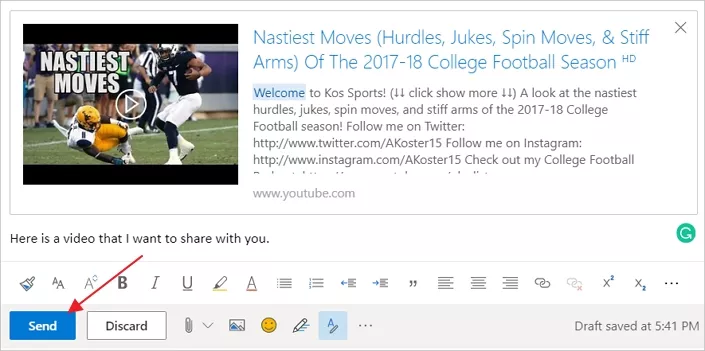
Image board: How to Embed Video in Outlook Email - Step 3
Situation 2. Desktop Outlook
If you're using the Outlook desktop application, pasting the YouTube link may be not working. Check how we did it below.
Step 1: Embed an image in the body of your email. Then link your video link to this image.
Step 2: Then you can view the video in a new browser when you click on the image.
Part 2. How to Embed Video in Gmail
Step 1: Open your browser and log in to your Gmail account. Tap on the + Compose to start.
Step 2: Enter the related information like recipients and subject.
Step 3: Click the Insert photo icon and insert a photo here.
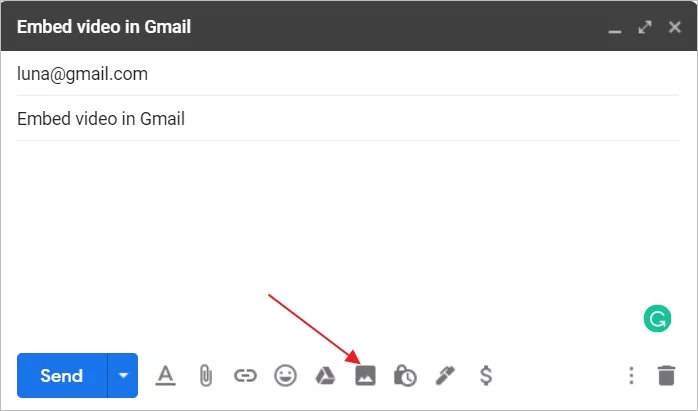
Image board: How to Embed Video in Gmail - Step 3
Step 4: Click Insert link icon and a window pops up. Type the words you want to display below the picture in the Text to display box and paste the video link in the Web address box.
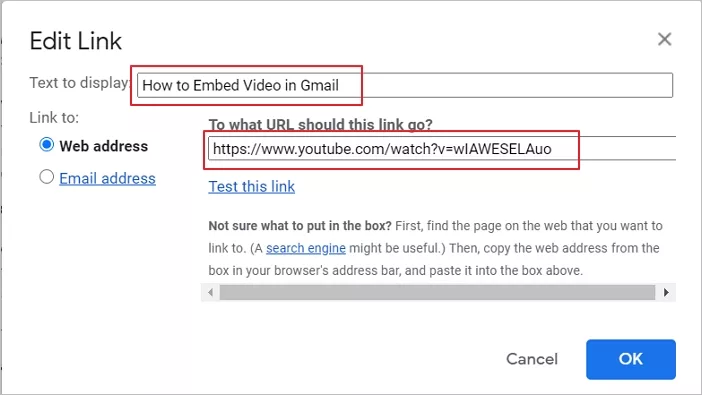
Image board: How to Embed Video in Gmail - Step 4
Step 5. Then you can click the link and this video will play in a new window. Click Send to send your email with video.
Part 3. How to Make A Video for Your Email
What if you want to make a video for your email before embedding video in Outlook email or Gmail? For this purpose, FlexClip video maker can help you make a video online with ease. It offers a lot of video templates and you can customize it online to make an awesome video.
Step 1. Open FlexClip video templates and choose a template to start customizing it.

Image board: How to Make A Video for Your Email - Step 1
Step 2. Then you can edit this video like add music, add text, add watermark, add stock media, upload local media, split, trim and more.
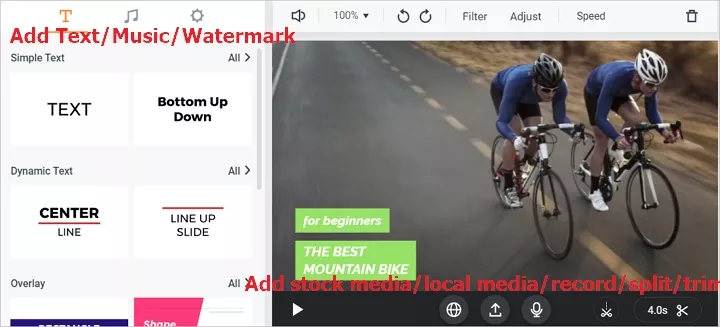
Image board: How to Make A Video for Your Email - Step 2
The Bottom Line
That's all about how to embed video in Outlook email and Gmail, and we've displayed the detailed steps and screen shots to you. Also, if you want to make a relative video online with ease, FlexClip video maker can help you make it within steps. Just try it now and explore more!




FlexClip AI Video Maker
Reach professional-quality videos faster with easy editing tools, templates, and smart AI.
Start Now for Free
Hot & Trending
-

Ultimate Tik Tok Guide – How to Tik Tok & How to Make a Tik Tok Video that Gets Likes
-

The Best Birthday Video Maker for You to Create Birthday Videos Online for Free
-

Large Collection of Creative and Funny Birthday Video Ideas for Ones You Care
-

Instagram Story Video Quality Bad After Upload? Fix It!
-

How To Remove/Reduce Background Noise? - 3 Best Free Audio Optimizers
-

Best Video Quality Enhancer: Improve Your Video Quality Easily
-

TikTok Filters Guide: How to Use Filter Effects on TikTok
-

How to Add Multiple Photos to One Instagram Story