Summary:This blog shows where you can download subtitles and 3 easiest ways to add subtitles to YouTube
Part 1: Subtitle Download Sites: Where Can You download subtitles?
There are many sites to download subtitles for movie and TV, even the YouTube videos, such as Podnapisi, Open Subtitles, M4UFREE. Some of them update the subtitles on the daily basis.
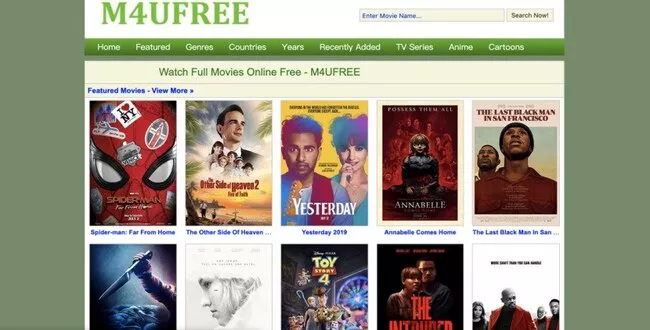
Image board: M4UFREE subtitles web
As for downloading YouTube subtitles, many sites allows you to paste the URL and download the subtitles for free.
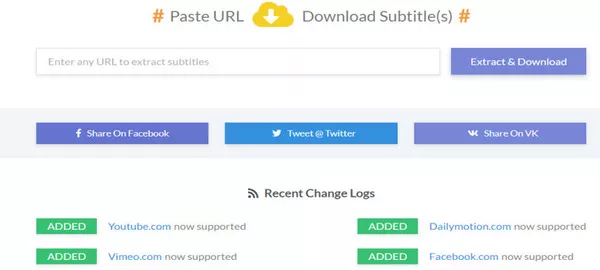
Image board: SaveSubs subtitles download sites
Check the best 10 sites to download Movie&TV subtitles and YouTube subtitles
Part 2: 3 Easiest Way to Add Subtitles/Closed Caption to YouTube
1.How to Use YouTube Tool on Your video to add subtitles
Step 1: Sign in to YouTube Studio Beta
Step 2: Go to “videos” manage to select the video you wanna edit
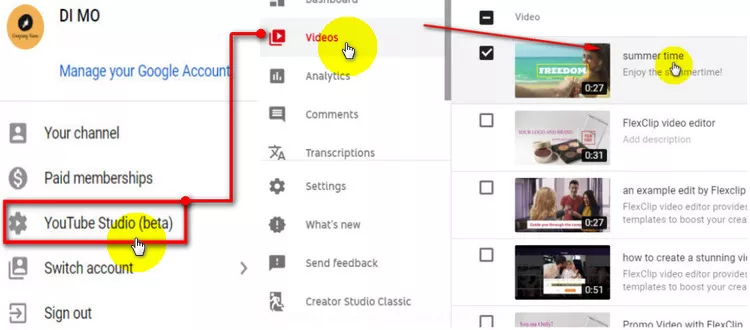
Image board: Login > YouTube studio > video.
Step 3: Advanced > Subtitles and CC > Select language > Edit on Classic Studio
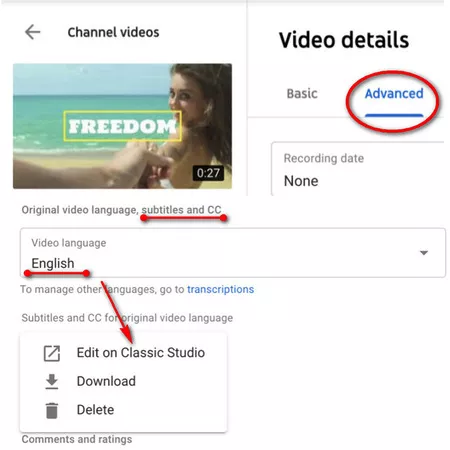
Image board: Advanced video manage > subtitles and CC
Or go to Translation&Transcription > Select language > Create a New Subtitle or CC
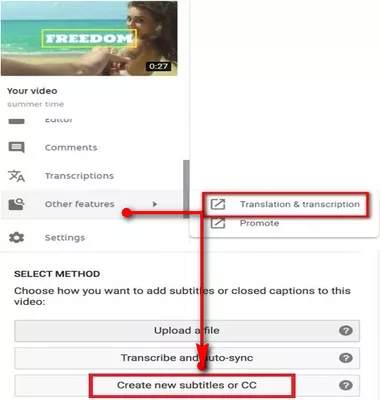
Image board: Create new subtitles or cc
Step 4: Type subtitle text, and tab “+” to add the subtitle. The subtitle will show on the video and the time line.
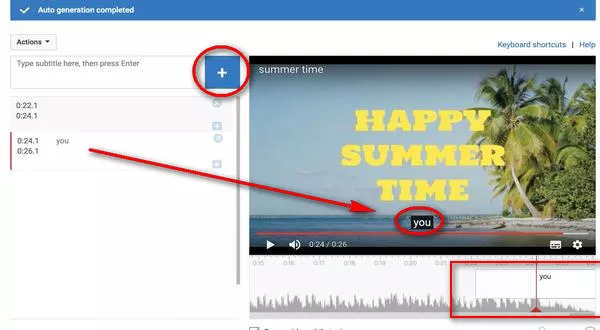
Image board: add subtitles
Step 5: Trim the length of subtitles
First, trim the subtitle to the time when the subtitle should be played by dragging the red bar on either opening side or ending points to change the playing length of subtitles.
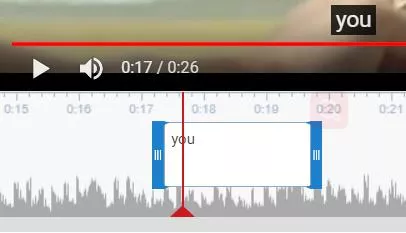
Image board: Trim the length of subtitles
Step 6: Save your changes and publish your subtitles by updating the video.
2.How to Add Local Subtitle Files to YouTube
Step 1: Create Your Subtitle file
Create your own subtitle file
Open the Notepad or TextEdit for MAC, Create a subtitle-file including subtitle number, time-stamp and then text.
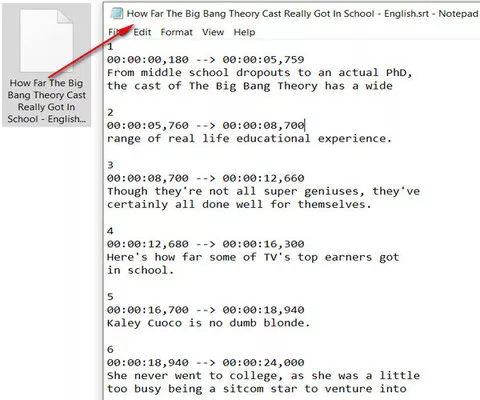
Image board: Example of subtitles file
Then, export and save as a subtitle file: subtitle.srt > save as All Files >Encoding: UTF-8”

Image board: Export and save as a subtitle file
Step 2: Login your YouTube account, click into YouTube Studio (beta) > video
Image board: Login > YouTube studio.
Step 3: Go to “Subtitle and CC”
For the 2019 new interface of YouTube studio, you need to click in and select the video you want to add subtitles/closed captions first, tab the “translation & Transcription.
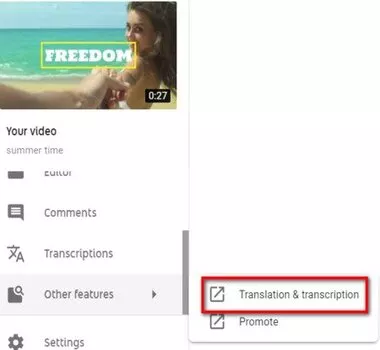
Image board: Go to “Subtitle and CC”
Step 4: Select language
You’re required to select what language is spoken most in the video, before adding the subtitle file.
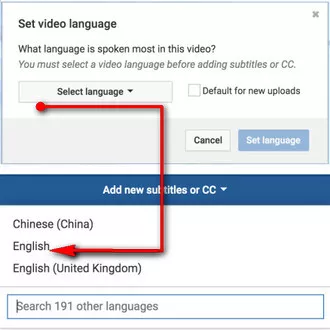
Image board: Select-language
Step 5: Enter into “upload a file’ and browse the subtitle file you created or downloaded.
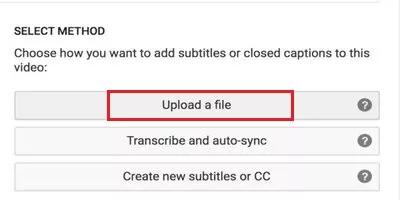
Image board: Upload a file
Step 6: Choose to upload the text transcription (pre-write one) or timed subtitle file (downloaded subtitles file). Next, tab “open” to upload your subtitle file.
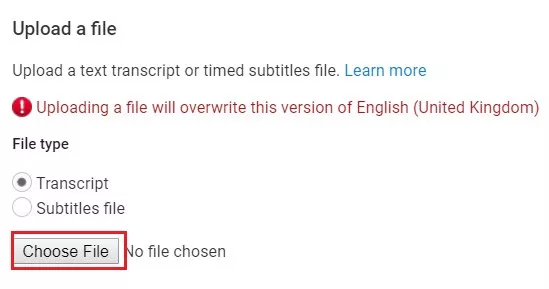
Image board: Open and upload
Step 7: Adjust the time point and the length of your subtitles
Drag the red bar on either opening side or ending points to change the playing length of subtitles.
Image board: Trim the length of subtitles
Step 8: Don’t forget to save all your changes and uploads.
3.Add subtitles/closed option on YouTube by uploading manually (YouTube’s Transcription & Auto Sync)
Step 1: Sign in to YouTube Studio Beta
Step 2: Go to “videos” and select the video you wanna edit
Image board: Login > YouTube studio > video.
Step 3: Select language you may use most in the video
Image board: Select-language
Step 4: Go to “Transcription & Auto Sync”
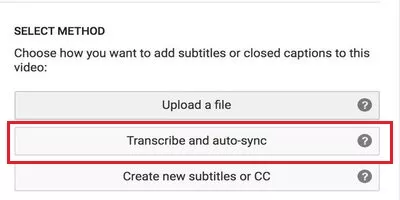
Image board: YouTube’s Transcription & Auto Sync
Step 5: Transcribe the subtitle text area.
Write every details into the text in the right box of the video, eg: Sample to add subtitles to a video with FlexClip
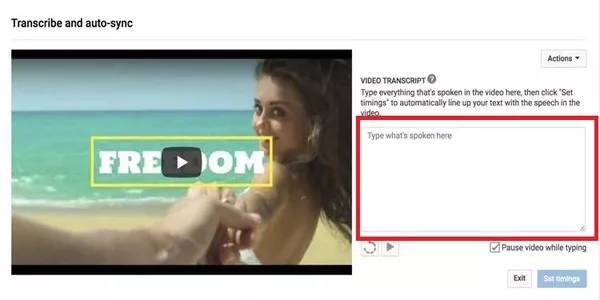
Image board: YouTube's transcription & Auto Sync
Step 6:Set Trimmings
YouTube have the auto-sync feature to add the subtitle in the time line of your video.
Image board: YouTube's transcription & Auto Sync
Bottom Line
Check out how to create or download your own subtitle file, and follow the 3 easiest way to add subtitles to YouTube.
If you want to add a subtitle into your video, stay with FlexClip which can allows you add animated subtitles. Also, check out how to add subtitles to video, too.




FlexClip AI Video Maker
Reach professional-quality videos faster with easy editing tools, templates, and smart AI.
Start Now for Free
Hot & Trending
-

Ultimate Tik Tok Guide – How to Tik Tok & How to Make a Tik Tok Video that Gets Likes
-

The Best Birthday Video Maker for You to Create Birthday Videos Online for Free
-

Large Collection of Creative and Funny Birthday Video Ideas for Ones You Care
-

Instagram Story Video Quality Bad After Upload? Fix It!
-

How To Remove/Reduce Background Noise? - 3 Best Free Audio Optimizers
-

Best Video Quality Enhancer: Improve Your Video Quality Easily
-

TikTok Filters Guide: How to Use Filter Effects on TikTok
-

How to Add Multiple Photos to One Instagram Story