Here are things you have to know before making videos:
To make a video with high quality, it is better to add voice over to the video after shooting, because the sound quality on any camera is usually underwhelming. Even though you are just making a video without narration, adding music can make the video more interesting.
Learning how to add sound to videos is an essential step to become a video making expert. Here in this blog, we will show you three ways to add voice-over or music to a video. Let’s get started.
Also Read: How to Replace Audio in Video >
Method 1. How to Add Audio to Videos on Windows 10
This method only works on Windows 10. Moreover, you can’t choose the starting point and where the music ends. We suggest that you try method 3 to get more options.
Method 2. Add Audio to Videos on Mac
iMovie can be said one of the most professional video editors. It is a default app installed on Mac and iOS devices. Windows users also have access to it once paid. Even though it can be sort of tricky to use iMovie to add audio to videos, for practiced hands, it is worth trying.
Method 3. Add Audio to Videos Online
If you want to put an audio file or voice over to videos in a more flexible and much easier way, FlexClip is what you need.
FlexClip is a professional video editor. In just a few clicks, you can easily add an audio file from the computer. Besides that, FlexClip has a record button allowing you to add voice over to videos. Moreover, it has a media library with rich music elements. They are all free to use!
Now, click the Create a Video button and follow us to add sound to video.


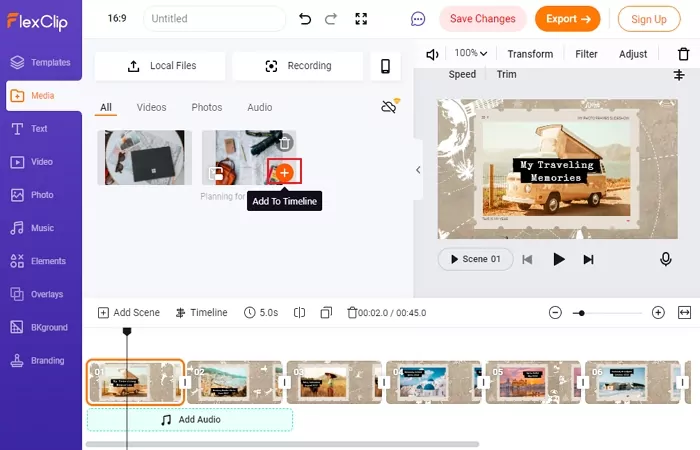
How to Add Audio to Videos - Step 1
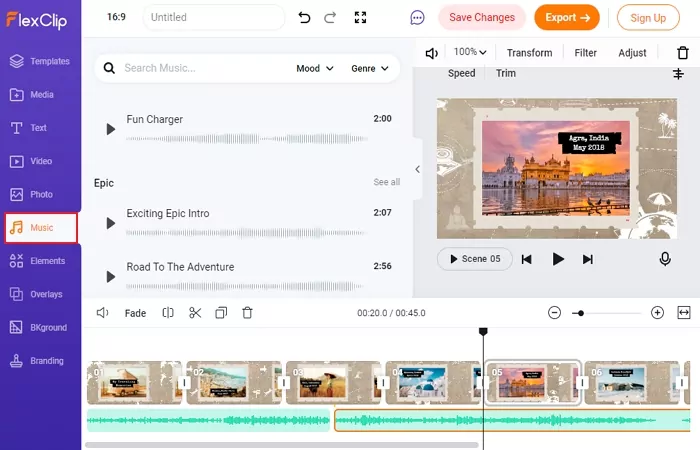
How to Add Audio to Videos - Voice Over
FlexClip also provides a stock library with millions of music and tools to help you do voice over. Use them if necessary.
The Bottom Line
That’s all for how to add audio to videos. The above three ways are all easy and simple. Hopefully, you have made a video with sound. If you find this blog helpful, please share it with others.




FlexClip AI Video Maker
Reach professional-quality videos faster with easy editing tools, templates, and smart AI.
Start Now for Free
Hot & Trending
-

Ultimate Tik Tok Guide – How to Tik Tok & How to Make a Tik Tok Video that Gets Likes
-

The Best Birthday Video Maker for You to Create Birthday Videos Online for Free
-

Large Collection of Creative and Funny Birthday Video Ideas for Ones You Care
-

Instagram Story Video Quality Bad After Upload? Fix It!
-

How To Remove/Reduce Background Noise? - 3 Best Free Audio Optimizers
-

Best Video Quality Enhancer: Improve Your Video Quality Easily
-

TikTok Filters Guide: How to Use Filter Effects on TikTok
-

How to Add Multiple Photos to One Instagram Story